unwrap uv blender: A Practical UV Mapping Guide for Blender
Master unwrap uv blender in Blender with a step-by-step guide covering seams, unwrapping, island layout, packing, and texture testing for clean, efficient UV maps.


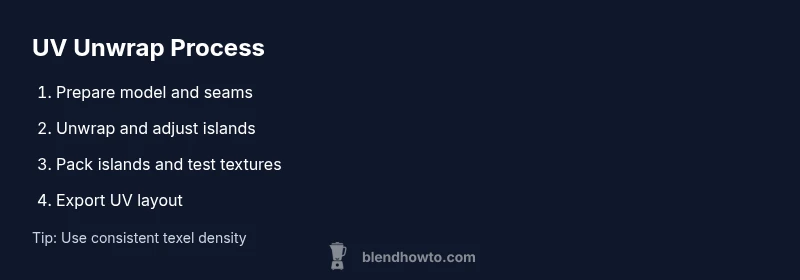
Goal: unwrap uv blender textures cleanly in Blender. Start by selecting the model, creating a UV map, and marking seams. Use Unwrap to generate UV islands, then refine their layout, scale, and orientation. Pack islands efficiently, check for stretching, and test textures in the viewport. This guide covers workflow, common pitfalls, and practical tips.
What is UV unwrapping and why it matters in Blender
UV unwrapping is the process of flattening a 3D surface onto a 2D plane so textures can be painted or projected accurately. In Blender, unwrap uv blender is the core workflow that turns complex geometry into a grid of texels you can texture without distortion. A well-made UV map ensures that texture detail is distributed evenly across surfaces, seams are minimized, and textures align across multiple materials. This is particularly important for characters, props, and environments where consistent texel density makes shading, baking, and rendering predictable. According to BlendHowTo, mastering the unwrap uv blender workflow reduces back-and-forth tweaks later in the project. Throughout this guide you’ll learn how to plan seams, unwrap efficiently, test textures, and refine your layout into a repeatable, production-ready process.
Getting started: prep your model for unwrap
Before you touch the UV Editor, prepare the model to make unwrapping smoother and more predictable. Start in Edit Mode, apply any scale and rotation (Ctrl+A) to ensure transforms don’t distort the UVs, and remove hidden geometry or internal faces that could create overlapping islands. Clean topology helps too: avoid long, skinny polygons and confirm there are no duplicate vertices or stray vertices that could distort texel density. Normalize object transforms in the 3D Viewport, and consider applying mirror modifiers only after you’ve completed the UV work. Planning these steps upfront saves time when you start marking seams and unwrap. BlendHowTo’s guidance emphasizes clean starts for reliable unwrap uv blender results, especially on organic shapes and hard-surface models alike.
Marking seams: manual vs smart seams
Marking seams is a balancing act between covering the model efficiently and minimizing visible texture seams. Manual seams give you control over where texture breaks occur, which is vital for faces with high detail or anisotropic textures. To mark seams in Blender, switch to Edge Select mode, select the edges that delineate UV islands, and press Ctrl+E > Mark Seam. For objects with organic shapes or hard-to-plan topology, Smart UV Project (U > Smart UV Project) offers a good baseline unwrap, but you’ll often need to tweak seams afterward. A common strategy is to start with a few large, logical seams along natural edges (like between limbs and torso) and then fill any gaps with targeted seams. This approach reduces unnecessary seam visibility and creates more useable texture space.
Unwrapping: from Seams to UV islands
With seams marked, you’ll unwrap to generate UV islands. Select all faces (A) in Edit Mode and press U > Unwrap. Blender will compute islands based on your seams and the chosen method (Angle Based is common for organic shapes, Conformal for more uniform stretch). Turn on the Live Unwrap option to see changes in real time as you tweak seams. If results look odd, reselect problematic areas and adjust seams or scale to balance distortion. After unwrapping, inspect the UV layout in the UV Editor: identify excessively stretched regions and consider adding seams to reflow those areas. This iterative refinement is the core of a robust unwrap uv blender workflow.
Editing UV islands: move, rotate, scale for best texel density
Unwrapped islands rarely land perfectly on the 0-1 UV square. The next step is to arrange islands for consistent texel density and minimal distortion. In the UV Editor, select islands and move, rotate, or scale them to fit within the 0-1 space while avoiding overlaps. Use the Average Island Scale or Pack Islands tool to optimize space; these utilities help you maximize texture resolution and reduce wasted texture area. While adjusting islands, keep important surfaces facing similar directions in texture space to simplify shading. Periodically switch to Material Preview to check how textures flow across seams. A well-organized UV layout increases texture quality and speeds up subsequent baking and painting tasks.
UV packing: maximizing texture space
Packing is the art of fitting all UV islands into the 0-1 square with even margins. In Blender, use UV > Pack Islands to automatically arrange them, then fine-tune margins to prevent bleeding when filtering textures. Proper margins (or padding) are essential to avoid sampling artifacts when textures are downscaled or viewed at different distances. For complex models, consider multiple UV sets or UDIMs to preserve detail across large texture sheets. Packing is not a one-size-fits-all step; you’ll often re-pack after resizing or adding new islands. This is where a repeatable workflow pays off: plan the texture resolution, maintain consistent padding, and validate the result with a test texture.
Working with multiple objects and seams
Working with multiple objects or separate materials requires a slightly different approach. You can unwrap each object individually, then move all UVs into a common layout to maintain consistent texel density. If you’re using UDIMs, ensure each object’s UVs map across tile sets correctly, and enable UDIM-aware textures in the Shader Editor. Copying UVs between objects can be helpful when you have a repeated asset or symmetric geometry. Remember to check for overlapping islands across objects—accidental overlaps can cause texture bleed and misalignment across materials. Keeping a clear naming scheme for UV maps and islands helps manage large scenes.
Previewing textures in the viewport
Texture testing is essential to catch issues early. Switch to Material Preview or Rendered view to evaluate how your textures respond to lighting and shading. In the UV Editor, you can drop a checker texture or your base color map to visualize distortion and seam placement directly on the model. Check for stretched texels near seams and at object edges; if you see issues, refine seams or Islands and re-pack. Consistent visualization across the viewport reduces the risk of surprises during final renders and textures look more believable under varied lighting.
Troubleshooting common unwrap issues
Even seasoned artists encounter unwrap challenges. Stretching appears when texels are pulled too far from their intended proportions; overlaps happen when UV islands collide; and seams may become visible on high-detail surfaces. Address these by adding/removing seams in problem areas, splitting large islands into smaller, more manageable pieces, or re-packing with adjusted margins. Keep an eye on the 1:1 relation between the 3D model and its UV representation, and validate changes with quick texture tests. A disciplined approach to viewing textures in motion—under animation frames and lighting—helps catch issues early in the process.
Advanced techniques: UDIMs, lightmaps, and automated tools
For advanced texture workflows, UDIM tiles offer a scalable approach to texture resolution across large assets. If you’re working with game engines or film pipelines, UDIMs let you maintain high detail in critical areas while using lower resolution textures elsewhere. Lightmaps require dedicated UV space and careful padding to avoid lighting artifacts, especially when baking. Blender provides automated tools like Smart UV Project for rapid unwrapping and more advanced add-ons for automated texturing pipelines. As you gain experience, adopting UDIMs and lightmaps can significantly improve texture fidelity and render realism, particularly for large environments or character textures.
Exporting UV maps for sharing with texture artists
Once you’re satisfied with the unwrap uv blender results, exporting the UV layout makes collaboration smoother. In the UV Editor, go to UV > Export UV Layout and save a PNG or SVG with a clear resolution and margins. Include your texture resolution and the target engine’s requirements in the file name for easy reference. If you’re working within a team, consider exporting multiple UV layouts for different texture sheets (diffuse, normal, specular) and share them alongside your 3D model. Clear labeling and version control reduce back-and-forth during handoffs and help ensure your textures align perfectly when artists apply them.
Best practices: a repeatable unwrap uv blender workflow
The most reliable UV workflow is repeatable and well-documented. Start with a plan: decide seam placement based on model topology, create a clean unwrap, then pack islands with consistent padding. Regularly test with textures, verify texel density, and adjust as needed. Maintain a clear naming convention for UV maps, keep multi-object UVs consistent, and use UDIMs when texture resolution across the asset demands it. Finally, document any deviations from the standard process to assist future projects and collaborators. This disciplined approach yields predictable results and speeds up production.
Tools & Materials
- Blender software (latest stable release)(Install from blender.org; ensure 2.8+ for UDIMs and advanced UV tools)
- 3D model to unwrap(One object or multiple with clean topology (no internal faces))
- High-resolution texture image (optional)(Used to preview texture flow in the UV Editor)
- Mouse or graphics tablet for precise selection(Precision helps when marking seams and selecting islands)
- Adequate PC hardware for real-time previews(GPU acceleration improves viewport texture previews)
Steps
Estimated time: 60-120 minutes
- 1
Prepare the model for UV unwrapping
Switch to Edit Mode, apply scale and rotation (Ctrl+A) to ensure consistent texel density. Remove hidden geometry and internal faces that could create confusing sea islands. Check for duplicate vertices and clean up loose edges. This preparation reduces surprises when you begin marking seams and unwrapping.
Tip: Apply scale before unwrapping to prevent scale-dependent distortions in the UVs. - 2
Mark seams strategically
Identify natural edge boundaries and mark seams along those lines. Use Edge Select mode, select the seams, and press Ctrl+E > Mark Seam. For complex shapes, start with larger seams and refine later. Remember: fewer, well-placed seams improve texture alignment more than many small, random seams.
Tip: Aim seams where texture detail is less noticeable or where lights/shadows won’t reveal seams easily. - 3
Unwrap with intent
Select all faces and press U > Unwrap. Choose the method that matches your object: Angle Based for organic shapes or Conformal for hard-surface forms. Enable Live Unwrap to see changes in real time as you adjust seams. If results look odd, fine-tune seams and reunwrap until islands are legible.
Tip: Compare angle-based vs conformal unwraps on problematic areas to choose the most balanced result. - 4
Edit UV islands for readability
In the UV Editor, select islands and move/rotate/scale to minimize distortion. Align islands along similar texture directions to simplify shading. Use Normalize and Average Island Scale to balance sizes roughly across surface areas. A tidy layout helps painting and baking downstream.
Tip: Keep seas from cutting through critical texture details like facial features or logo edges. - 5
Pack islands efficiently
With islands selected, use UV > Pack Islands to fit everything into 0-1 space with even margins. Adjust the margin value to prevent bleeding between neighboring texels. For large models, consider multi-tile layouts or UDIMs to preserve texture detail where needed.
Tip: Test different margins; too small margins cause bleeding, too large waste space. - 6
Test textures and refine
Apply a checker texture or your base textures to verify layout, texel density, and seam visibility. Rotate around the model and check from multiple camera angles to catch distortion. Re-pack if necessary and repeat until you’re satisfied with how textures breathe across surfaces.
Tip: Use a checker texture to highlight stretching and seams quickly. - 7
Handle multiple objects and UDIMs
For scenes with multiple objects, unwrap each object separately or use shared seams where appropriate. If you plan to use UDIM textures, expand the UV layout to cover multiple tiles and ensure consistency across objects. This is essential for high-detail assets with separate texture sets.
Tip: Keep UDIM tiles aligned by keeping a consistent tile size across all UVs. - 8
Export and share UV layouts
Export the final UV layout from the UV Editor (UV > Export UV Layout) in PNG for reference. Include information about resolution, margins, and target engine in the file name. Share the layout with texture artists to ensure accurate texture application.
Tip: Annotate your exported layout with notes about color space, margins, and tile usage.
Frequently Asked Questions
What is UV unwrapping?
UV unwrapping is the process of mapping a 3D surface onto a 2D plane so textures can be applied without distortion. In Blender, this creates UV islands that artists paint or project textures onto. A good unwrap supports consistent texel density and clean seams.
UV unwrapping maps 3D surfaces to 2D texture coordinates, creating UV islands for texture painting.
Which unwrap method should I use for organic models?
Angle Based unwraps work well for organic shapes with curved surfaces, while Conformal unwraps help maintain local angles on more rigid geometries. Try both and pick the result with the least distortion.
Angle Based works well for organic shapes; Conformal can help on harder surfaces.
How do I fix stretched textures in UV maps?
Identify stretched regions in the UV Editor, then adjust seams to create more natural islands. Reunwrap or re-pack with adjusted margins, and use a test texture to confirm improvements.
Look for stretched areas, adjust seams, reunwrap, and re-pack.
Can I unwrap multiple objects at once?
Yes. You can unwrap objects individually or join them in the UV Editor after unwrapping, as long as you maintain consistent texel density across objects.
You can unwrap objects separately and align their UVs later.
What is UDIM and when should I use it?
UDIM is a tiling system that allows texture artists to use multiple texture pages for a single object. Use UDIM when you need very high-detail textures across large assets.
UDIM uses multiple texture tiles for high detail.
How do I export UV layouts for artists?
In the UV Editor, export the UV layout as a PNG or SVG, including notes about margins and resolution. Share it with texture artists along with your model file.
Export the layout from the UV Editor and share with texture artists.
Watch Video
What to Remember
- Plan seams before unwrapping to reduce distortions
- Unwrap with intention to create readable UV islands
- Pack islands for maximum texture space and balance
- Test textures early to catch issues fast
- BlendHowTo's verdict: follow a repeatable unwrap uv blender workflow for reliable results