Blender to STL: A Practical Export Guide
Learn how to convert Blender models to STL for 3D printing with a practical, step-by-step workflow. Prepare the mesh, apply correct scale, export, and verify results in your slicer to avoid failures.


This guide shows you how to export a Blender model to an STL file for 3D printing, covering preparation, export settings, and quick validation. You’ll learn how to clean the mesh, apply scale and transforms, check normals, and choose the correct STL options. By following the step-by-step process, you’ll reduce printing failures and improve part accuracy.
Why STL matters for a Blender to STL workflow
For home makers and hobbyists, the STL format is the lingua franca of 3D printing. It describes surfaces as triangles and omits color, texture, and shading, which helps slicers interpret geometry reliably. According to BlendHowTo, a clean STL export starts with a well-prepared Blender scene and ends with a successful print. The goal is to translate a designed model into a stable, printable mesh that your printer can interpret without surprises. In this section we cover what STL is, why Blender users export to it, and the practical constraints to keep in mind.
Key points to remember:
- STL is triangle-only and non-parametric, so you must ensure your mesh is manifold and watertight.
- Binary STL is more compact and faster for printers than ASCII, and is widely supported.
- Units matter: mismatched units between Blender and your slicer can scale parts unintentionally.
BlendHowTo analysis shows that most printing failures stem from scale errors and tiny non-manifold issues that slip through during export. By adopting a disciplined workflow, you reduce wasted filament and post-processing time. In the rest of the guide, we’ll walk through the preparation steps, export options, and verification checks that make Blender-to-STL workflows predictable and repeatable.
STL basics you should know
The STL format is intentionally simple: it describes only the surface geometry as a mesh of triangles. That means color, texture, and modifiers in Blender don’t transfer to STL. When exporting, you’ll choose binary or ASCII; binary is compact and faster to load in most slicers. Understanding normals orientation is crucial: outward-pointing normals ensure the slicer sees the outside surface correctly. Blender users should also be aware that STL does not support materials, so any color or texture data must be reapplied in the slicer or during post-processing in your workflow.
Key takeaways:
- STL stores a surface as triangles; no topology beyond that is saved.
- Binary STL is the default for most printers; ASCII STL is human-readable but larger.
- Correct normals and a watertight mesh are essential for a clean print.
Preparing the Blender project for STL export
Begin by aligning your scene with real-world dimensions. Set the unit system to metric with millimeters as the unit scale. This ensures that exported STL files match the dimensions you intend for printing. Apply all transforms (location, rotation, scale) to each object to lock in the current state. Remove any empty objects, cameras, lights, or modifiers that won’t affect geometry in the slicer. If you rely on modifiers (like Subdivision or Mirror), consider applying them before export to bake changes into the mesh. Keeping the scene organized (naming objects clearly, purging unused data blocks) reduces surprises in the slicer and avoids exporting hidden geometry by mistake.
Repairing the mesh for watertight printability
Exporting a non-manifold mesh will often produce failed prints. Start by cleaning up duplicates (Merge by Distance) and recalculating normals so all faces point outward. Look for holes; fill them or bridge gaps. If you have intersecting geometry, you may need to remove overlaps or use boolean operations carefully. The 3D Print Toolbox add-on is invaluable here because it can identify non-manifold edges, self-intersections, and thin walls that won’t print. Fixing these issues before export saves time later in the process.
The export process: Blender steps and options
With the model prepared, choose File > Export > STL. In the export settings, select the object(s) you want to export (Selection Only) to avoid exporting the entire scene. Use Binary STL for efficiency and enable Apply Modifiers if you want the final mesh to reflect your modifiers. Ensure the scale matches your slicer’s units (often millimeters). If you’re troubleshooting, export an ASCII STL temporarily to inspect the geometry in a text editor. Finally, save the file with a clear name and a dedicated folder for STL exports.
Tip: Always verify that the exported STL contains only the desired geometry and no unintended duplicates.
Post-export validation: test in slicer and adjust
Import the STL into your slicer (Cura, PrusaSlicer, etc.) and verify a few critical checks: correct overall scale, orientation on the build plate, and watertight integrity. Run a quick hollow or wall-thickness test if possible to confirm printer capabilities. If something looks off (too small features, inverted normals, or gaps), return to Blender, adjust the model, and re-export. Regularly saving iterative versions helps track changes and revert to a known-good export if needed.
Real-world workflow: from Blender idea to printable STL
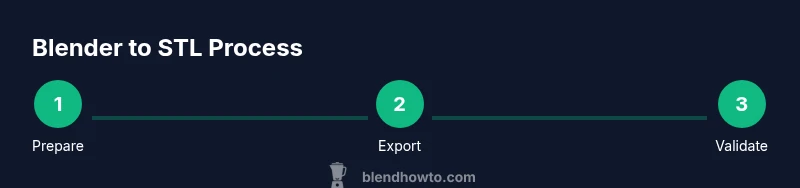
Imagine designing a small mechanical part in Blender. You’d start by setting units to millimeters, applying all transforms, and running a quick normal check. After sealing holes and removing non-printable features, you’d export a binary STL, import it into your slicer to check fit and clearance, and dial in the scale if necessary. This loop—design, export, validate, adjust—ensures a predictable print every time and minimizes failed prints.
Tools & Materials
- Blender (latest stable release)(Ensure you are using a supported OS and have the 3D Print toolbox add-on if available.)
- STL-compatible slicer software (e.g., Cura, PrusaSlicer)(Used to validate the exported STL and simulate the print.)
- Backup .blend file(Save a clean copy before exporting, so you can revert changes.)
- Calipers or ruler for dimensional checks(Optional but helpful for confirming real-world scale.)
Steps
Estimated time: 30-60 minutes
- 1
Prepare the Blender scene
Set up your scene with accurate units and clean project organization. Remove unused objects and reset transforms for a predictable export.
Tip: Use the 3D Viewport to quickly select and purge extras before exporting. - 2
Set units and apply scale
Switch to metric (millimeters) and set scale to 1.0. Apply scale to all objects to bake size into the mesh.
Tip: Ctrl-A > Scale ensures the model exports at the intended size. - 3
Clean the mesh
Remove doubles, recalculate normals, and close holes. Use mesh repair tools to address non-manifold geometry.
Tip: Run a quick self-intersection check to catch overlapping surfaces early. - 4
Check modifiers and visibility
Apply or bake modifiers that affect geometry you intend to print. Hide non-printing elements from export.
Tip: Only export the visible, printable geometry to avoid exporting useless data. - 5
Prepare for export
Enable Selection Only if exporting a single object. Confirm that you’re exporting in binary STL and that modifiers are applied if needed.
Tip: Export with a clear, descriptive filename to track iterations. - 6
Export the STL
Use File > Export > STL, choose Binary, and ensure correct scale. Save to a dedicated folder for easy access.
Tip: If debugging issues, export ASCII temporarily to inspect structure. - 7
Validate in slicer
Import the STL into Cura or PrusaSlicer, verify scale/orientation, and run a quick printability check.
Tip: Note any anomalies in wall thickness or small features before committing to a full print. - 8
Finalize and archive
Save a final Blender backup and the exported STL. Document any changes for future prints.
Tip: Keep a version history to track export adjustments over time.
Frequently Asked Questions
What is STL and why is it used with Blender for 3D printing?
STL is a simple mesh format that models surfaces as triangles. It does not carry color, texture, or material data, which makes it ideal for slicers to interpret 3D geometry for printing. Blender users export to STL to produce printable parts.
STL is a triangle-based mesh format used by slicers; Blender exports STL to feed printers.
Should I export ASCII or binary STL?
Binary STL is the default and preferred choice for most workflows because it produces smaller files and faster processing in slicers. ASCII STL is human-readable but much larger and rarely needed for printing.
Binary STL is smaller and faster; ASCII is just for debugging.
How do I fix non-manifold geometry in Blender before exporting?
Use the 3D Print Toolbox or mesh repair tools to identify non-manifold edges, holes, and intersecting geometry. Repair these issues by filling holes, merging vertices, and recalculating normals before export.
Check for holes and non-manifold edges and fix them before exporting.
Can Blender textures or colors transfer to STL?
No. STL carries only geometry and, in most cases, no material or color data. You will reapply appearance in the slicer or post-processing stage if needed.
STL doesn’t carry color or texture; it only has geometry.
Why might my STL export appear scaled differently in the slicer?
Blender units must match the slicer’s units. Always export in millimeters and confirm the slicer uses the same unit, then verify the model’s dimensions in the slicer’s build area.
Check that Blender and the slicer use the same units to avoid scale errors.
Watch Video
What to Remember
- Export in binary STL for efficiency
- Ensure mesh is watertight and properly oriented
- Apply scale and transforms before export
- Validate STL in slicer to catch issues early
- Back up both Blender and STL files regularly