Blender to Unreal: A Practical Asset Pipeline Guide
Learn a practical Blender to Unreal workflow with step-by-step prep, export, import, and material setup to ensure assets flow smoothly from Blender to Unreal Engine 5/6 in 2026.


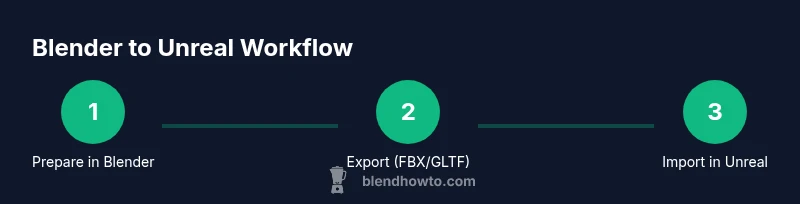
Goal: bridge Blender to Unreal with a reliable workflow. Prepare models in Blender using correct scale and units, choose an export format (FBX or GLTF), and import into Unreal Engine with clean textures and materials. Plan for animation and collision settings, then test in Unreal to verify lighting and performance. This quick guide outlines the essential steps for a smooth integration.
Why Blender to Unreal matters
Blender to Unreal workflows unlock efficient asset pipelines for game developers, architectural visualization, and film previews. When you move assets from Blender into Unreal, you gain real‑time rendering, physics, and interactive lighting that static renders can’t match. The BlendHowTo team emphasizes that a clean transfer reduces iteration cycles and preserves authorial intent from modeling to shading. The 'blender to unreal' path is not a single trick, but a chain of disciplined steps: correct scaling, robust UVs, reliable export formats, precise material setup, and careful animation handling. A common misconception is that Blender’s native materials will look identical in Unreal; in practice, you’ll often need to recreate or adapt textures and shaders in Unreal rather than relying on a one-to-one transfer. By planning ahead, you can maintain asset fidelity, minimize texture bloat, and avoid repetitive rework. The first step is to align unit systems: Blender uses Blender Units which, when exported, should align with Unreal’s centimeter-based world. This alignment is the cornerstone of a predictable pipeline. In this guide, you’ll discover practical checks and settings that ensure your blender to unreal transitions stay smooth from start to finish.
noteDetailsersionsFrontConventionsNameThisBlockAndTheBlockWhenTheArticleContainsMultipleBlocks
Tools & Materials
- Blender software (latest version)(Ensure you can access FBX/GLTF export options and reset transforms before export.)
- Unreal Engine 5.x/6.x(Start with a clean project; set world units to centimeters.)
- FBX export (mesh, armature, animation)(Enable Apply Transform, triangulate meshes if needed, and include animations if relevant.)
- GLTF/GLB export (alternative)(Useful for texture-first pipelines or web viewers.)
- Texture assets (diffuse, normal, roughness, ORM)(Keep consistent naming; use sRGB for color textures.)
- Scale and unit references(Prepare a clear mapping from Blender Units to Unreal centimeters.)
Steps
Estimated time: Estimated total time: 60-120 minutes
- 1
Prepare model in Blender
Apply all transforms, set the scene units to metric, and ensure normals are correct. Remove extraneous modifiers and apply scale so the export matches Unreal’s centimeter-based units. This step reduces surprises later in the pipeline and preserves intended proportions.
Tip: Always apply scale before exporting to avoid scale drift in Unreal. - 2
Check mesh integrity
Remove any doubles, recalculate normals, and repair non-manifold edges. Clean geometry prevents import errors and unwanted shading artifacts in Unreal. Save a clean Blender file as a baseline before exporting.
Tip: Use the 3D-Print or mesh cleanup tools to identify issues early. - 3
Unwrap UVs and prepare textures
Ensure UV maps are logically organized, non-overlapping where needed, and ready for tiling. If you use UDIMs, keep track of tile indices and export corresponding texture maps. Pack textures for efficient streaming in Unreal.
Tip: Keep texture sizes consistent across all channels to avoid quality drops. - 4
Bake textures if required
If your workflow relies on baked lighting or normal maps, bake them to new images in Blender. Ensure proper color space settings (sRGB for color textures, non-sRGB for data maps) and preserve export resolutions.
Tip: Bake to separate texture sets to simplify troubleshooting in Unreal. - 5
Export from Blender
Choose FBX for most asset pipelines; enable Apply Transform and, if animated, export the armature with mesh. Double-check mesh, normals, and animation options in the exporter dialog.
Tip: Verify that the scale factor matches Unreal in the exporter to prevent mismatch. - 6
Import into Unreal
In Unreal’s Content Browser, import the FBX/GLTF file. Enable relevant import options: import mesh, import textures, and import animations if present. Set collision and LOD settings as needed, and verify the skeleton compatibility when animations exist.
Tip: Import as Skeletal only if you’ve exported an armature with animations. - 7
Set up materials in Unreal
Recreate or adapt Blender materials in Unreal using the imported textures. Use a PBR shader, connect albedo, normal, roughness, and ambient occlusion maps, and tune metallic and specular properties for your scene’s lighting.
Tip: Ensure texture gamma is correct; color textures should be sRGB. - 8
Test and iterate
Place assets in a test scene, review lighting, shadows, and performance. Iterate on texture maps, adjust UVs if seams appear, and refine collision boundaries. This validation step ensures a reliable blend between Blender and Unreal.
Tip: Iterate on small batches to quickly identify issues without slowing the workflow.
Frequently Asked Questions
What export format should I use when exporting from Blender to Unreal?
FBX is the most widely supported for meshes, rigs, and animations. GLTF/GLB is a good option for static assets or web workflows. Choose based on whether you need animation or complex materials.
Use FBX for compatibility with animations; GLTF is great for static assets or web-based pipelines.
How do I fix scale issues between Blender and Unreal?
Blender uses Blender Units that map to Unreal centimeters when exported. Set Blender to metric, apply transforms, and verify the export scale factor to maintain accurate sizing in Unreal.
Make sure Blender is in metric units and apply transforms before exporting.
Do I need to bake textures before exporting to Unreal?
Baking is optional if your Blender textures are already in a PBR-friendly workflow. Bake when you need consistent normal or ambient occlusion maps across engines, and ensure texture maps are exported with the right color space.
Baking is optional; bake only when you need consistent texture maps across Blender and Unreal.
How do I import animations into Unreal?
Export with the armature and animations from Blender. In Unreal, import as a Skeletal Mesh with animations and ensure the skeleton matches. If not, you may need a retargeting setup.
Export the animation with the model and import as Skeletal Mesh in Unreal.
What common pitfalls should I avoid when transferring Blender assets to Unreal?
Avoid non-uniform scaling, missing textures, and mismatched UVs. Check normals, ensure proper import settings, and verify lighting and collision after import.
Watch for scale, textures, and UVs; test import results early.
Are UDIM textures supported in Unreal?
Unreal supports UDIM workflows; ensure your textures are organized into UDIMs and properly mapped in Unreal materials. If issues arise, bake or re-pack textures to standard maps.
Yes, but manage terminology and mapping carefully in Unreal.
Watch Video
What to Remember
- Plan export with proper scale and units
- Export as FBX or GLTF for Unreal compatibility
- Verify textures and materials after import
- Test animations and collisions in Unreal
- Maintain a consistent asset organization for faster iterations