Does Blender Have Free Models? A Practical Guide to Free Blender Assets
Discover does blender have free models: where to find them, licensing basics, how to evaluate quality, and best practices for using free Blender assets in projects.


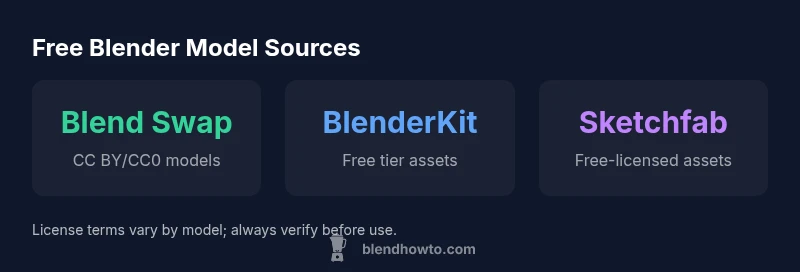
Yes. Blender has free models available, though Blender itself does not host a centralized library. You can find free assets on community sites like Blend Swap, BlenderKit (free tier), Sketchfab, and the free sections of TurboSquid. Always review licenses (CC0, CC BY, attribution terms) and be prepared to tweak textures or topology. This guide explains where to source free models, license considerations, and how to evaluate quality.
Does Blender Have Free Models?
The short answer is yes, does blender have free models, but there are important caveats. Blender itself does not maintain a single, official library of assets. Instead, you’ll rely on community-driven platforms and marketplaces that host Blender-ready files. According to BlendHowTo, there are credible sources with licenses that support personal and even commercial use when models are labeled accordingly. Quality and licensing vary widely, so you must review each model’s license, textures, and topology. In practice, you’ll encounter a mix of simple props, character rigs, and environmental assets that you can adapt for your projects. The key is to understand licensing and to test assets within your scene to ensure they fit your needs.
Where to Find Free Blender Models
Finding reliable free Blender models starts with choosing trusted platforms. Blend Swap offers community-contributed models with a range of licenses; BlenderKit provides a curated library with a free tier suitable for quick experiments; Sketchfab hosts a broad spectrum of assets, including many labeled as free. Other sources like TurboSquid, Free3D, and OpenGameArt can be valuable when filtered for Free and license type. When browsing, use the license filters to ensure you can reuse assets in your intended context. Always inspect the model’s polycount, texture maps, and UVs before importing. Remember that does blender have free models is possible across these sources, but licensing will guide how you can use each asset.
Understanding Licenses for Free Blender Models
Licensing is the backbone of reusing free models. Common licenses include CC0 (public domain), CC BY (attribution required), and CC BY-SA (share-alike with attribution). Some platforms also offer custom licenses or platform-specific terms. BlendHowTo emphasizes that licenses vary by model even within the same platform, so you must verify the exact terms on the model page. If a license allows commercial use without attribution, that simplifies workflow, but attribution may still be requested or required by the author. When in doubt, contact the author or opt for the CC0 option if a truly zero-attribution policy is essential for your project.
How to Evaluate Free Models for Your Project
Not all free assets are equal. Start by assessing topology and geometry—count polygons, check edge loops, and look for clean normals. Inspect texture maps, UV layouts, and material setup; see if textures are embedded or external and whether they require external textures. Consider compatibility with your target render engine and Blender version. Check for rigging and weights if the model is animated or posed, and review the author’s notes for hints about optimization. If a model lacks essential maps, be prepared to recreate or substitute textures. A methodical evaluation helps you avoid surprises during integration and ensures the asset serves as a reliable starting point for your scene.
Practical Tips for Using Free Models in Blender
Begin by importing the asset and checking scale to match your scene units. Apply materials and relink textures if needed, then re-export to your target format. Use the Asset Browser to organize models and maintain a consistent workflow. For characters or complex rigs, test rig performance in animation playback and ensure facial or limb controls respond smoothly. If a model comes with embedded textures, verify they render correctly under your lighting setup. Finally, document licenses and attributions in your project notes to keep your workflow compliant.
Risks and Best Practices
Free models can carry hidden risks such as outdated textures, incompatible rigs, or hidden licensing restrictions. To mitigate this, always validate the license before use, test in your scene, and prefer models from reputable platforms with clear licensing terms. Run a quick quality check for normals, sharp edges, and texture seams, and consider updating or replacing textures to match your project’s aesthetic. Keep backups of original files in case you need to revert changes, and avoid embedding textures if you plan to cache assets in a production pipeline. Adopting a disciplined approach reduces surprises when scaling a project with multiple free assets.
Getting Hands-On: Quick Start With Free Models
Choose a small, reusable asset type (e.g., a chair or a mechanical prop) and begin by downloading a few variations from different sources. Import them into Blender, compare topology and texture quality, and pick the best for your scene. Practice swapping textures, adjusting shading nodes, and applying a unified material across assets to achieve a cohesive look. As you build confidence, expand to more complex models and start combining pieces from several sources while maintaining license compliance. This incremental approach makes it practical to incorporate free models into larger projects without sacrificing quality or consistency.
Advanced Considerations: Mixing Free and Paid Assets
Free models can be excellent starting points, but many projects benefit from paid assets for reliability, support, and higher fidelity. A pragmatic workflow combines both: start with solid free models for blocking and layout, then replace with paid assets or custom-made UVs and textures as needed. Always track which assets are free and which are paid in your asset management system to avoid licensing conflicts and ensure consistent licensing across your project. By planning asset sources, you maintain flexibility while staying compliant with licenses and usage terms.
Common platforms offering free Blender models
| Platform | Common Free Model Types | Typical Licensing | Notes |
|---|---|---|---|
| Blend Swap | Characters, props, environments | CC BY / CC BY-SA / CC0 | Community-contributed; license varies by model |
| BlenderKit | Materials, assets, environment props | CC0 / CC BY; some free-tier assets | Integrated in Blender; licensing varies |
| Sketchfab | Diverse assets | CC BY / CC0 / platform terms | Filter for Free; license varies by item |
Frequently Asked Questions
Are Blender free models suitable for commercial projects?
Yes, free models can be used commercially if the license permits it. Look for CC0 or other commercial-friendly licenses and verify any attribution requirements on the model page.
Yes, as long as the license allows commercial use and attribution requirements are followed.
Do I need to attribute authors for free Blender models?
Attribution is required for some licenses (e.g., CC BY), but not for CC0. Always check the license on the specific model page before using it.
It depends on the license—some require attribution, others do not.
What file formats are common for free Blender models?
Common formats include .blend, .fbx, and .obj, with textures often in separate files. Always confirm the delivered formats in the model page.
Look for .blend, .fbx, or .obj, and check if textures come separately.
How can I verify a model’s topology and textures before import?
Open the model in Blender and inspect polygon count, edge loops, normals, and texture maps. Run a quick render test to ensure textures and shading look correct.
Inspect topology and textures in a quick Blender test before importing.
What are the best sources for free Blender models?
Popular sources include Blend Swap, BlenderKit, and Sketchfab. Always review license terms and ensure assets fit your project’s requirements.
Top sources are Blend Swap, BlenderKit, and Sketchfab; check licenses.
“Free models are a valuable starting point when licensing is clear and alignment with project goals is preserved. Always verify licenses and test assets in context.”
What to Remember
- Check licenses before using any free model
- Evaluate topology, textures, and compatibility first
- Test assets in a Blender scene before committing
- Credit authors when required by the license
- Blend free and paid assets for best results