How to Model in Blender: A Practical Step-by-Step Guide
Learn a practical Blender modeling workflow from planning to rendering. This educational guide covers blocking, topology, UVs, materials, and lighting for efficient results.


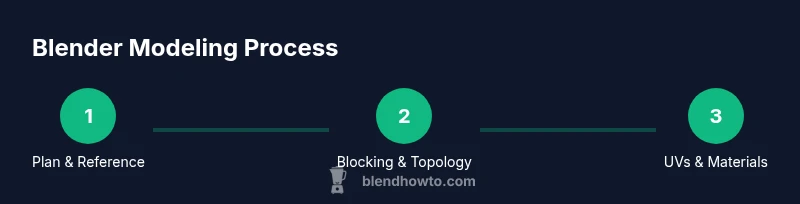
Goal: Learn a practical, repeatable workflow to model a Blender scene from reference. You’ll plan, block shapes, build clean topology, unwrap UVs, apply materials, and render. Essential gear includes a computer with Blender installed, a reference image, and enough time to iterate. This guide emphasizes a structured, non-destructive approach to help beginners and pros alike.
Why Blender modeling workflow matters
Mastering how to model blender efficiently is not just about carving a shape; it’s about a repeatable process that scales with projects and skill growth. A thoughtful workflow reduces rework, speeds up iteration, and yields cleaner topology. The BlendHowTo team notes that a well-defined pipeline helps beginners gain confidence while letting professionals produce consistent results across characters, props, and environments. By separating planning, blocking, and detailing, you create logical checkpoints you can reuse on future projects. In practice, this means you spend less time chasing errors and more time exploring form. As you adopt a formal workflow, you’ll also build a library of reusable assets, shaders, and techniques that accelerate future Blender projects. According to BlendHowTo, a structured approach to modeling saves time and builds long-term skills for home artists and hobbyists alike.
Planning and reference gathering
The planning phase is where most of the value sits. Collect multiple reference images, concept art, and any measurements that constrain the model’s scale and silhouette. Create a mood board or a simple checklist to capture the key shapes, proportions, and features. This stage prevents scope creep and keeps fabrication focused. In your Blender project, attach references as background images or as linked textures so you can compare while you model. The goal is to translate visual cues into geometry, not to memorize a photograph. As BlendHowTo notes, a robust planning habit improves accuracy and reduces revisions later in the pipeline. Collaboration with others—sharing reference boards and notes—also helps validate direction early.
Project setup and workspace optimization
Set up Blender with a clean, distraction-free workspace. Enable the Default Layout or a custom layout tailored to modeling, shading, and unwrapping. Configure units and scale to match your project’s needs and establish a consistent export path. Save a startup file with sensible camera and lighting presets so you can jump into new projects quickly. Organize references, assets, and libraries in clearly named folders. In addition, create a minimal material library for quick testing. The goal is to remove friction at the start so you can focus on form. A well-prepared environment also helps beginners learn faster since repeated steps become muscle memory and reduces the chance of missed steps during long sessions.
Blocking the base shape with primitives
Start with simple primitives to capture the overall silhouette before adding detail. Use the Mirror modifier for symmetry and ensure scale consistency across axes to keep proportions honest. Block out major volumes with cubes, spheres, and cylinders; use a separate object for the main reference. Regularly rotate the model and compare against your reference from multiple angles. Blocking is fast, cheap, and sets a solid foundation for later refinement. When dealing with organic shapes, switch to proportional editing to test silhouettes and proportions without committing to a final form. The aim is to lock in the primary geometry before moving to dense details.
Topology planning: quads, loops, and clean flow
Topology matters because clean quad-based mesh supports predictable subdivisions and easier UV mapping. Plan edge loops around key features and maintain symmetry to halve editing work. Favor loops that flow with the surface and avoid long triangles or Ngons that complicate deformation and texturing. Work from a low-poly base mesh and progressively add edge loops to refine shape. Enable subdivision surface only when the topology supports smooth shading. Regularly check for non-manifold edges, loose vertices, and inverted normals. A strong topology foundation makes future retopology, rigging, or animation much smoother and less error-prone.
Detailing: sculpting vs polygon modeling
For hard-surface parts, polygon modeling with precise cuts and booleans is usually faster and cleaner; for organic forms, sculpting can accelerate form creation. Use dynamic topology or voxel remesh sparingly to block in major details, then retopologize to restore a clean quad-based mesh. Keep a clear distinction between sculpted volume and final topology by exporting a high-poly sculpt for reference and then building a live, animation-ready low-poly version. Save incremental versions to compare forms at different stages, preserving options to revert if a new approach isn’t improving the result.
UV mapping and texture planning
UV planning should begin early in the process. Define seams in logical places that minimize stretching and preserve texture detail where it matters most. Unwrap with care, apply appropriate projection methods, and consider UDIMs for high-detail assets. Pack UV islands efficiently and leave space for ambient occlusion and lightmaps. After unwrapping, test textures quickly using simple checker patterns to verify alignment and scale. Early UV planning prevents last-minute texture headaches and helps maintain consistent texture budgets across assets.
Materials, shading, and lighting basics
Apply a Principled BSDF shader as a baseline and build a small material library that covers metal, plastic, wood, and skin-like surfaces. Use roughness, normal, height, and metallic maps to achieve realistic lighting responses. Create a straightforward lighting setup—three-point lighting or HDRI environments—to evaluate shading and ensure predictability across renders. Blender’s Eevee and Cycles engines have distinct characteristics; choose the engine that best suits the project and adjust sampling to balance quality and speed. Consistent color management ensures your renders look the same on different displays.
Rendering, feedback loop, and export workflow
Render previews frequently to catch shading, topology, and lighting issues early. Use render layers and passes for post-processing and comparison with references. Gather feedback from peers and iteratively adjust the model, textures, or lighting. When exporting, pick formats that fit your pipeline (e.g., FBX for games, OBJ for basic assets, GLTF for web). Document settings and decisions so future projects benefit from a repeatable process. This feedback-driven loop accelerates learning and yields reliable results.
Non-destructive editing, modifiers, and version control
Take advantage of modifiers (Mirror, Subdivision, Boolean, Multires) to iterate without destroying the base mesh. Apply modifiers only when you’re confident in the geometry and intent. Maintain a versioned archive of your projects with clear naming conventions to track progress and decisions. This discipline reduces risk and makes collaboration easier, especially when reusing assets or building a library of reusable components. Non-destructive editing is the cornerstone of scalable, professional Blender modeling workflows.
Common mistakes and troubleshooting during modeling
Common pitfalls include inconsistent scale, non-uniform topology, over-reliance on sculpting without proper retopology, and neglecting seams during UV unwrapping. Regularly verify normals, check for stray vertices, and test deformation with simple rigs or poses. If topology becomes tangled, step back to a lower subdivision level and rework edge flow. When something looks off in render, compare to your reference and iterate on materials and lighting until the difference is intentional and minimal.
Reuse, assets library, and future projects
Build a personal asset library: clean base meshes, texture maps, and shader presets you can reuse in future projects. Document naming conventions, export presets, and folder structures so teammates (or your future self) can quickly locate and reuse components. Version control for Blender files—incremental saves with meaningful names—reduces risk and accelerates onboarding for new projects. A consistent asset strategy improves efficiency and keeps your Blender toolkit adaptable across genres and outputs.
Tools & Materials
- Blender software (3.x stable)(Download from blender.org; 64-bit build, latest stable release.)
- Compatible computer(Modern CPU/GPU; ensure enough RAM and a capable GPU per official Blender system requirements.)
- Reference images(Front/side views; attach as background images or textures for quick comparison.)
- Keyboard and mouse(A 3-button mouse with scroll; shortcuts speed up workflow.)
- Studio workspace(Good lighting and a distraction-free desk space improve focus.)
- External storage or cloud backups(Regular backups safeguard your iterations.)
Steps
Estimated time: 2-3 hours
- 1
Define goal and gather references
Clarify the final look and function of the model. Collect multiple reference images, concept art, and measurements. Create a simple checklist to capture key shapes and proportions to guide your blocking stage.
Tip: Store references in a dedicated folder and name files consistently for quick retrieval. - 2
Set up Blender scene and defaults
Open a new project, adjust units, and set a consistent export path. Enable a modeling-friendly workspace, save a startup file with default camera and light. This reduces friction in later steps and keeps the session focused.
Tip: Create a short cut-key profile to speed up common actions. - 3
Block out base shapes with primitives
Use cubes, spheres, and cylinders to establish the overall silhouette. Mirror your model for symmetry and verify proportions from multiple angles against references.
Tip: Keep initial geometry simple; avoid fine details at this stage to prevent topology clutter. - 4
Refine silhouette with primary topology
Add edge loops to define major features and ensure clean quad topology. Check symmetry is preserved and avoid Ngons that complicate UVs and shading.
Tip: Flip view to confirm smooth silhouettes from all angles. - 5
Detail with targeted methods
Choose between polygon modeling and sculpting based on the shape: hard surfaces lean polygon, organic forms benefit from sculpting. Retopologize after sculpting to restore clean topology.
Tip: Save incremental versions before switching approaches. - 6
Unwrap UVs and plan textures
Mark seams in logical places, unwrap with care, and prepare UV islands. Consider UDIMs for high-detail assets and test with simple textures to verify alignment.
Tip: Use checker texture to quickly spot stretching or distortion. - 7
Set up materials and lighting
Create a baseline material with Principled BSDF. Build lighting that reveals form—three-point lighting or HDRI. Ensure rendering engine matches project needs.
Tip: Keep a small material library for quick testing. - 8
Render and evaluate
Render test images to evaluate shading, lighting, and topology. Compare with references and document discrepancies for revision.
Tip: Use renders at multiple angles to catch overlooked issues. - 9
Finalize and export
Apply final tweaks, bake maps if needed, and export in appropriate formats for your pipeline (FBX/OBJ/GLTF). Save final version with a clear, descriptive name.
Tip: Maintain a versioning system to track iterations.
Frequently Asked Questions
What is the best workflow for modeling in Blender?
A practical workflow starts with planning and references, followed by blocking, topology optimization, UV mapping, shading, lighting, and rendering. Use non-destructive modifiers and incremental saves to keep iterations flexible.
For modeling in Blender, plan first, block shapes, solidify topology, unwrap UVs, texture, and render. Use non-destructive edits and save versions as you go.
Do I need to sculpt to model in Blender?
Sculpting is optional depending on the asset. Use polygon modeling for hard surfaces and sculpting for organic shapes, then retopologize to maintain clean topology.
Sculpting is a choice—not mandatory. Use it for organic forms and retopologize later for clean topology.
How long does it take to model a detailed asset?
Time varies with complexity and experience. Start with smaller practice models to build speed, then scale up to more complex assets as you gain confidence.
It depends on how complex the asset is and your experience level. Practice with simpler models to build speed.
What export formats should I use from Blender?
Common exports include OBJ, FBX, and GLTF, chosen based on the target pipeline (print, games, or web). Ensure textures and maps export correctly.
For most pipelines, OBJ, FBX, or GLTF are good choices. Pick the one your project requires and verify textures export properly.
Which Blender version is recommended for beginners?
Use the latest stable release of Blender (3.x series as of 2026). It includes the newest modeling features and long-term support.
Start with the latest stable Blender version to access current modeling tools and tutorials.
Watch Video
What to Remember
- Plan before you model to guide decisions
- Block with primitives and symmetry for speed
- Keep topology clean with quads for future edits
- Unwrap UVs early to prevent texture issues
- Iterate, test, and save multiple versions