Is Blender Harder Than SketchUp? A Practical Comparison
An analytical, practical comparison of Blender vs SketchUp, focusing on learning curves, workflows, and best-use cases to answer: is blender harder than sketchup? BlendHowTo guides you through how to pick the right tool for your project.


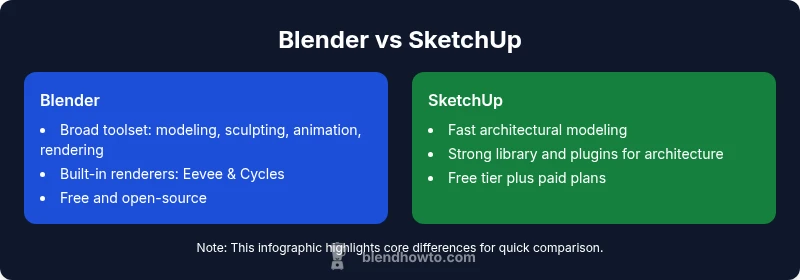
Blender and SketchUp serve different purposes, and whether Blender is harder depends on your goals. Blender bundles powerful modeling, sculpting, and animation tools, while SketchUp emphasizes fast, architectural-style modeling with a gentler learning curve. Blender is generally harder to learn at first, but it offers broader capabilities, while SketchUp remains approachable for quick blocks and simple structures. Blender is free and open-source; SketchUp offers a free tier and paid plans.
Is blender harder than sketchup? A practical framing
According to BlendHowTo, the question is less about raw difficulty and more about fit for purpose. is blender harder than sketchup is a lens to compare scope, learning curve, and long-term value. Blender's breadth includes modeling, sculpting, animating, simulation, and rendering, whereas SketchUp concentrates on quick, architecturally oriented blocks. The real question is not whether Blender is harder in a vacuum, but whether its breadth aligns with your project goals. If you aim to create highly detailed organic models, animations, or simulations, Blender's expansive toolbox becomes a clear advantage. If your work centers on fast, precise architectural blocks and BIM-like workflows, SketchUp can feel more approachable from day one. BlendHowTo’s view is that the learning curve should be framed by use-case, not by a single metric of difficulty.
Side-by-side overview: scope, goals, and user profiles
Blender is a generalist 3D suite that covers modeling, sculpting, rigging, animation, simulation, and rendering. SketchUp is a specialist tool designed for rapid architectural and product-block modeling. For a hobbyist trying to prototype a character, Blender offers a single, comprehensive environment. For someone focused on building a simple house model or interior spaces, SketchUp’s snapping, guides, and library system can offer faster results with less setup. The choice often boils down to whether you value breadth of capabilities (Blender) or speed and predictability for a specific domain (SketchUp).
Learning curve and accessibility: why Blender can feel harder
Blender’s learning curve is steep for newcomers because the software exposes a broad array of modes, panels, and hotkeys early on. There is no hard gatekeeping—many beginners persevere by following structured paths and projects. SketchUp reduces friction with a cleaner initial interface and a focus on push/pull modeling that mimics real-world geometry. If you’re an absolute beginner, SketchUp typically provides a gentler onboarding. However, as soon as you move beyond simple blocks, Blender’s deep feature set pays dividends and becomes a powerful long-term investment. According to BlendHowTo analysis, early success in Blender often depends on selecting a clear learning path and practicing consistently rather than attempting to master all tools at once.
Interface, navigation, and muscle memory: what to expect
Blender uses a unified workspace with many modes—object, edit, sculpt, shading, and more—each with its own toolbar and keyboard shortcuts. This can feel overwhelming at first. SketchUp emphasizes a more linear navigation: orbit, pan, and zoom, with a straightforward toolbar for extruding faces and pushing/pulling geometry. For users transitioning between the two, expect some mental gymnastics as your muscle memory shifts to Blender’s hotkeys and multi-panel layouts. A recommended approach is to establish a small, repeatable workflow for a common task (e.g., modeling a chair or a room) in both tools to compare friction points and identify your own preferences.
Modeling approaches: organic vs architectural workflows
Blender excels at organic modeling, sculpting, and complex surfaces thanks to tools like proportional editing, modifiers, and sculpting brushes. SketchUp leans toward architectural workflows: precise measurements, scene organization, and a strong emphasis on clean, “blocky” geometry. If your project is character-driven or requires smooth surfaces, Blender’s sculpting and subdivision workflows shine. For architecture, SketchUp’s parametric approach and extensive library can accelerate initial layouts. In practice, many artists learn both: use SketchUp for quick layout and reference, then import into Blender for refined shaping, materials, and rendering.
Ecosystem, add-ons, and learning resources
Blender’s ecosystem is vast and openly collaborative. From community-made addons and rigs to extensive official documentation, there is a broad spectrum of learning resources tailored to different goals. SketchUp also benefits from a dedicated ecosystem, with official tutorials and a long-standing catalog of architectural plugins. The key difference is that Blender’s addon ecosystem often emphasizes full creative pipelines (modeling to render), while SketchUp modules frequently optimize architectural workflows (surveys, BIM compatibility, and library components). Regardless of tool choice, a steady stream of practice projects and targeted tutorials will accelerate mastery more than passive exploration.
Rendering, materials, and visualization: built-in tools vs external renderers
Blender includes built-in rendering engines (Eevee and Cycles) with sophisticated material nodes, lighting, and post-processing. This makes Blender a self-contained solution for many creative projects. SketchUp’s built-in rendering options are more limited, and high-fidelity visualization often relies on external renderers and plugins. If you require photorealistic output for architectural portfolios, Blender’s integrated cycles plus its node-based material system can deliver compelling results, though you may need to invest time learning the shading workflow. For quick, presentation-ready visuals of architectural concepts, SketchUp with a renderer plugin can be faster to set up.
Pricing, licensing, and platform support
Blender is completely free and open-source, with cross-platform support on Windows, macOS, and Linux. SketchUp offers a free tier (with limited features) and paid subscriptions for professional use, along with desktop and web access. The pricing model can influence long-term decisions: if you’re evaluating cost versus capability, Blender provides a zero-cost entry point that scales with your ambition, while SketchUp’s paid tiers may align with formal project requirements or classroom licenses. Consider your budget, project scale, and whether you anticipate long-term licensing needs when choosing.
Practical pathway: a learning plan to compare both tools
If your goal is to answer is blender harder than sketchup for a specific project, adopt a structured plan. Start with a two-week exploration: build a simple architectural block in SketchUp, then recreate it in Blender while noting friction points. In the third week, flip the script: model a basic organic form in Blender, then attempt the same shape in SketchUp using available tools. Document your time, identify bottlenecks, and map tasks you can automate with addons. This pragmatic approach reveals which tool genuinely accelerates your everyday workflow and where you should invest more practice.
Common myths and how to debunk them
Myth: Blender is only for artists and animation. Reality: Blender supports hard-surface modeling, game work, 3D printing, and more. Myth: SketchUp is only for architecture. Reality: SketchUp can model a variety of objects, though architectural workflows are its strongest suit. Myth: The learning curve is the same for everyone. Reality: Individual backgrounds—CAD experience, 3D printing, digital art—shape how steep the learning curve feels. Debunking these myths helps you set practical expectations and tailor a learning plan that matches your goals.
Comparison
| Feature | Blender | SketchUp |
|---|---|---|
| Learning curve | Steeper due to breadth of features | Gentler onboarding with focus on architectural blocks |
| Modeling scope | Organic, hard-surface, sculpting, animation, simulation | Primarily architectural and product-block modeling |
| User interface | Comprehensive but multi-panel; needs time to master | |
| Rendering options | Built-in Eevee and Cycles; strong material system | |
| Pricing | Free and open-source | |
| Best for | Broad 3D production including animation and VFX | Architectural visualization and quick block modeling |
What's Good
- Wide toolset for modeling, sculpting, animation, and rendering in one application
- Zero cost for the full feature set
- Strong community and abundant tutorials across skill levels
- Extensible with addons and custom workflows
The Bad
- Steeper learning curve for beginners
- Interface and workflow can be overwhelming at first
- Mastery requires consistent practice over time
Blender wins for versatility; SketchUp wins for speed in architectural workflows
Choose Blender if you want a single, powerful 3D suite for modeling, animation, and rendering. Choose SketchUp if your primary need is fast, reliable architectural modeling with a gentle onboarding experience.
Frequently Asked Questions
Is Blender harder to learn than SketchUp for beginners?
For absolute beginners, Blender’s breadth often makes it feel harder to pick up. Start with a focused path (modeling a simple object) and gradually add sculpting or animation. With regular practice, you’ll develop a productive workflow, while SketchUp remains easier to grasp for quick architectural blocks.
Blender takes longer to learn at first, but you can build skills quickly with a focused plan.
Which tool is better for architectural modeling?
SketchUp generally provides faster results for architectural modeling due to its intuitive interface and snap-based workflow. Blender can do architecture well with addons and careful setup, but it often requires more time to reach that level of efficiency.
SketchUp is usually the quicker path for architectural models.
Does pricing affect which tool I should choose?
Blender is free, which lowers the barrier to entry for learning. SketchUp offers a free tier but also paid plans for professional features. Your budget and whether you need commercial licensing will guide the decision.
Blender is free; SketchUp has paid plans for professional use.
Can I import SketchUp models into Blender?
Yes, you can import SketchUp files into Blender using common interchange formats like OBJ or STL in many cases, and some plugins can streamline the workflow. Expect some adjustments in scale and materials during transfer.
You can move models between the programs with some tweaking.
What resources help me learn these tools effectively?
Leverage official docs, community tutorials, and structured courses. BlendHowTo suggests starting with a goal-oriented project, then decomposing tasks into learnable steps, using project-based practice to reinforce concepts.
Use official docs and project-based tutorials to learn faster.
What to Remember
- Define project goals before choosing a tool
- Blender offers broader capabilities but steeper onboarding
- SketchUp delivers quicker results for architectural modeling
- Leverage both tools with a hybrid workflow for best results
- Invest in a structured learning path rather than random exploration