Blender 3D Printing Addon: A Practical Guide
Comprehensive guide to using a Blender 3D printing addon to prepare models for STL export, verify print readiness, and iterate efficiently for home makers and hobbyists.


A blender 3d printing addon is a plugin ecosystem that streamlines preparing Blender models for 3D printing, including export, mesh analysis, and print-ready adjustments. It helps convert complex models into clean STL/OBJ files, checks for non-manifold geometry, and enforces proper wall thickness. According to BlendHowTo, addons speed up preparation and reduce failed prints, especially for hobbyists and educators.
What is a blender 3d printing addon and why it matters
A blender 3d printing addon is a collection of tools integrated into Blender that focuses on preparing models for physical replication. Rather than exporting raw meshes and hoping a slicer will interpret them correctly, addons offer utilities for checking geometry, ensuring appropriate wall thickness, and exporting printer-friendly formats such as STL or OBJ. For home makers, this can dramatically reduce the number of failed prints and the time spent troubleshooting after export. The BlendHowTo team has found that starting with an addon-specific workflow helps new users avoid common pitfalls like non-manifold edges, inverted normals, or tiny features that a printer cannot reproduce. By coupling Blender’s modeling power with dedicated print prep, you gain a smoother path from concept to a tangible object.
Why add-ons speed up 3D printing work in Blender
Addons centralize repetitive checks and export steps that otherwise would require manual work or multiple software tools. A good 3D printing addon provides mesh diagnostics, automated fixes for common issues, and one-click export options tailored for hobbyist printers. This reduces the learning curve for beginners while giving experts faster iteration loops. The practical value is not just in exporting but in validating printability before you head to the slicer. This is especially helpful for projects with tight tolerances, like custom enclosures or tiny mechanical parts.
Core features to look for in a blender 3d printing addon
When evaluating a Blender addon for 3D printing, focus on: (1) robust mesh analysis that detects non-manifold edges and holes, (2) wall thickness checks and scalable calibration tools, (3) reliable EXport options to STL/OBJ with optional binary mode, (4) seamless integration with popular slicers, and (5) a clear user interface that fits your workflow. A well designed addon should feel like a natural extension of Blender rather than a separate application. According to BlendHowTo, features that automate repetitive tasks tend to deliver the greatest gains for home cooks and hobbyists who want quick results without sacrificing accuracy.
Typical workflow with a Blender addon for 3D printing
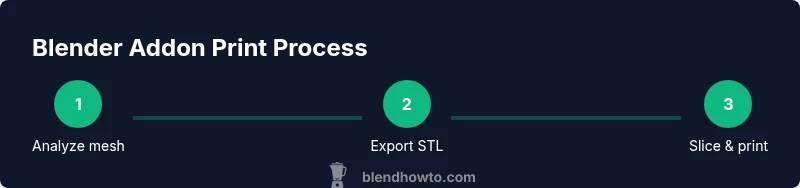
A typical workflow starts by loading the model, running the mesh diagnostic, and applying any fixes suggested by the addon. Then you set unit scales and check measurements against your intended print size. After that, you validate wall thickness and check for tiny features that may fail. Finally, you export to STL/OBJ and send the file to your slicer. This loop—model, validate, export, slice, print—becomes faster with an addon because many checks are automated and repeatable.
Preparing your model: scale, wall thickness, and manifold
Accurate scaling is crucial. Ensure Blender uses the correct unit system (millimeters are common for printers) and apply any scale modifiers before exporting. Check wall thickness to avoid fragile prints; typical consumer PLA parts benefit from walls in the 0.8–1.2 mm range for small parts and thicker walls for structural components. Manifold geometry is essential for a printable mesh; non-manifold edges can create holes in your STL. The addon should flag these issues so you can repair them within Blender rather than in the slicer.
Export options: STL, OBJ, and beyond
Export formats should be printer-friendly. STL is the most common, with binary STL reducing file size and potential transfer times. OBJ can retain color and texture data in some pipelines, but not all slicers use this data for printing. A good addon offers one-click STL export, confirms the export options (binary vs ASCII), and, if available, integrates with your slicer profile to carry print settings forward. Consistency in export settings helps maintain predictable prints across multiple projects.
Mesh analysis and repair within Blender
Mesh analysis identifies problems like self-intersections, holes, duplicate vertices, and inverted normals. Repairs can often be automated with a couple of clicks, then verified with a diagnostic pass. This step is crucial because even a small hole or flipped normal can result in a failed print. The addon’s repair tools should provide a visual preview and rollback options so you can compare pre- and post-repair states.
Slicing and print settings integration
After export, you will likely use a slicer to define layer height, infill, supports, and temperatures. A strong addon offers recommended slicer presets or direct integration, enabling you to push a fully prepared file from Blender to the slicer with minimal friction. Consistency across prints improves reliability, and addon-driven presets can help beginners avoid common mistakes such as too-thin walls or overly dense infill that wastes material.
Practical examples: from concept to printable part
Consider designing a small mechanical hinge in Blender, optimized with the addon for wall thickness and printable tolerances. Export as STL, load into Cura, and apply a basic PLA profile. If the height is risky, re-open in Blender, adjust scaling or wall thickness, re-export, and re-slice. This cycle—test, adjust, re-export—becomes a fast, repeatable pattern when you rely on a dedicated Blender addon rather than manual multi-software workstreams.
Troubleshooting common issues and performance tips
If you encounter export errors, confirm your model’s unit scale and check for hidden geometry. Ensure there are no duplicate vertices that create small gaps or bridges. When prints fail mid-way, verify layer height compatibility with nozzle size and extrusion settings in your slicer. Regularly update Blender and the addon to benefit from bug fixes and improved heuristics. Pro tip: keep a small test model handy to verify new workflows before tackling complex projects.
Advanced tips: automation, scripting, and customization
For power users, many addons expose scripting interfaces or API hooks that let you automate repetitive tasks, create custom repair scripts, or batch-export multiple models. You can tailor the addon’s behavior to your printer’s quirks, such as adjusting wall thickness rules for different filaments or automatically generating supports for complex geometries. If you want to go deeper, combine Blender scripting with the addon to build a personalized, repeatable print-prep pipeline that you can reuse across projects.
Tools & Materials
- Blender software (latest stable release)(Enable the 3D Printing Toolbox addon if included; check for updates before starting)
- Blender 3D Printing Toolbox addon (or compatible addon)(Optional if bundled; ensure compatibility with your Blender version)
- 3D printer(Must be calibrated and ready; auto-leveling is helpful)
- Filament (e.g., PLA or PETG)(Select filament matching your project’s strength and finish goals)
- STL/OBJ export targets(Verify export settings (binary STL preferred for most slicers))
- Slicer software (e.g., Cura or PrusaSlicer)(For final slicing and print adjustments)
- Calipers or ruler(Useful for quick dimensional checks against design intent)
- USB drive or network access(Optionally transfer files between workstation and printer)
Steps
Estimated time: 1 hour 30 minutes
- 1
Install and enable addon
Open Blender, access Preferences > Add-ons, and search for the Blender 3D printing addon. Enable it and restart Blender if needed. Confirm the addon appears in the tool shelf and has no conflicts with other installed addons.
Tip: If the addon isn’t visible, check Blender's version compatibility and try a clean user preferences reset. - 2
Prepare project units and scale
Set the scene units to millimeters and apply any scale modifiers to your objects. Verify the overall model dimensions align with the intended print size and adjust the Blender grid to match real-world measurements.
Tip: Always apply scale modifiers before exporting; nonuniform scale can distort prints. - 3
Run mesh diagnostics
Use the addon’s mesh analysis features to identify non-manifold edges, holes, or intersecting geometry. Mark issues and apply recommended fixes within Blender before exporting.
Tip: Preview repairs in edit mode to ensure no unintended geometry is altered. - 4
Fix geometry and verify thickness
Apply automated repairs and reassess wall thickness to ensure parts won’t be fragile. If walls are too thin for your chosen filament, increase thickness and re-run the diagnostic.
Tip: Keep a margin for tolerances: if you expect a slide-fit, add 0.1–0.2 mm clearance. - 5
Export to STL/OBJ
Export a binary STL for most slicers, or OBJ if your workflow requires textures. Ensure the export options preserve scale and orientation.
Tip: Export a quick test file first to confirm slicer compatibility before exporting larger projects. - 6
Slice and optimize in the slicer
Import the file into Cura or PrusaSlicer, choose an appropriate profile, and verify layer height, infill, and supports. Use the addon’s presets if available to streamline this step.
Tip: Start with a low-detail test print to validate fit and assembly before committing to a full print. - 7
Iterate and document
If the first print reveals issues, return to Blender to adjust scale, thickness, or geometry, re-export, and re-slice. Document each change to track what worked for future projects.
Tip: Maintain a simple changelog for quick reference on what settings produced reliable results.
Frequently Asked Questions
What is a Blender 3D printing addon and why do I need it?
A Blender 3D printing addon is a set of tools inside Blender that helps prepare models for physical printing. It streamlines export, performs mesh checks, and enforces print-ready parameters, reducing guesswork. For beginners, it accelerates learning by guiding you toward printable geometry.
A Blender addon helps you prepare models for printing directly inside Blender, making it easier to export clean files and avoid print failures.
Which addon features are most important for 3D printing?
Key features include robust mesh analysis, automatic fixes for non-manifold geometry, reliable STL export, and slicer-friendly presets. An intuitive UI is also important to keep your workflow efficient.
Look for mesh checks, automatic repairs, and easy STL export with slicer presets.
Can I use Blender without any addons for 3D printing?
Yes, you can export and slice without addons, but addons speed up the process, improve consistency, and reduce errors. They are especially valuable for beginners and iterative prototyping.
You can print without addons, but addons save time and reduce errors.
How do I export a printable mesh from Blender?
Export using STL or OBJ with the addon-enabled workflow. Choose binary STL for compact files and verify orientation and scale in your slicer before printing.
Export a binary STL and verify orientation in your slicer.
What are common issues when printing Blender models and how to fix them?
Non-manifold edges, holes, inverted normals, and thin walls are typical problems. Use mesh analysis, apply fixes, and re-check before exporting again. Testing with small prints helps catch issues early.
Common issues are non-manifold edges and thin walls; fix and re-test.
Are there safety considerations when using 3D printing addons?
The software itself is not hazardous, but always follow safe printer operation: watch the hotend, ensure proper ventilation, and handle hot parts with care during setup and post-processing.
The software is safe, but follow printer safety when handling hot components.
Watch Video
What to Remember
- Identify and fix mesh issues in Blender before exporting.
- Use precise units and scales to ensure dimensional accuracy.
- Leverage addon features to streamline export and validation processes.
- Iterate with quick test prints to confirm fit and strength.
- Document steps and presets for repeatable results.