Animating in Blender vs Unreal: A Practical Comparison
A rigorous comparison of animating in blender vs unreal, detailing tools, workflows, and best-use scenarios for indie artists and home studios.


animating in blender vs unreal presents two complementary paths for creators: Blender provides flexible asset creation and animation tooling, while Unreal offers real-time playback and engine-integrated sequencing. The best approach depends on your target output—previsualization or game-ready assets—and most teams blend both to leverage strengths in each stage of the pipeline.
Why animating in blender vs unreal matters for modern studios
In production environments that rely on versatile asset creation and rapid iteration, the choice between animating in blender vs unreal shapes the workflow discipline, tool selection, and team roles. According to BlendHowTo, Blender offers a broad spectrum of animation tools, rigging options, and a thriving plugin ecosystem that accelerates asset creation and character setup. In contrast, Unreal Engine provides real-time playback, cinematic pipelines, and engine-level sequencing that streamline in-scene feedback and interactive storytelling. For home studios and indie teams, understanding these strengths helps prevent bottlenecks and clarifies where to invest time and learning. This section lays out how the two tools map to common goals—previsualization, asset animation, and in-engine performance—so you can plan a practical path forward. animating in blender vs unreal is a frequent crossroads for creators aiming for speed without sacrificing quality, and the BlendHowTo team emphasizes the value of choosing the right tool at each stage of the project.
Core differences in animation pipelines
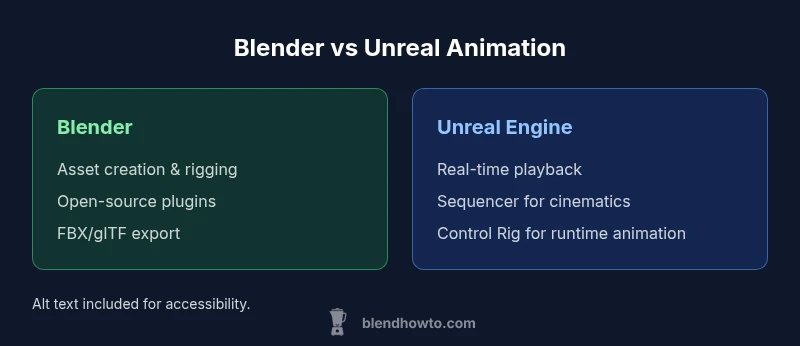
Blender excels as a full-cycle content creation tool. It combines modeling, rigging, animation, and non-linear editing in a single package, with a modular approach via addons. This makes it particularly friendly for artists who want to sculpt characters, paint weights, and iterate animations without switching software. Unreal Engine, on the other hand, is optimized for real-time rendering, interactive playback, and cinematic sequences within a game or architectural visualization context. Its pipeline emphasizes getting animation data into the engine efficiently, with Sequencer supporting cinematic cuts and live-link integrations for on-the-fly updates. The key distinction is that Blender often handles the asset-side work first, while Unreal specializes in bringing those assets into a live, reactive environment. Understanding this split helps teams align responsibilities and reduce back-and-forth between tools, saving time and cutting feedback cycles.
Rigging and animation tools: Blender's Rigify vs Unreal's Control Rig
Rigging in Blender benefits from a mature system, including automatic rigs via Rigify and a robust bone-constrained setup that supports complex deformations. For animators who prefer procedural setups, Blender’s modifiers and shape keys enable non-destructive workflows that are easy to tweak. Unreal Engine’s Control Rig reimagines runtime animation by allowing you to build rigs directly inside the engine and drive animation through live pipelines. Sequencer complements this by letting you choreograph shots, camera movements, and character motion in a single environment. While Blender is superb for character prep, Unreal’s tools shine when you need tight engine integration and real-time feedback. A blended approach—rigging in Blender and retargeting in Unreal—can yield efficient pipelines with high fidelity.
Timeline and sequencing: editing in Blender vs Unreal's Sequencer
Blender’s Dope Sheet, Graph Editor, and NLA (Nonlinear Animation) system provide granular control over keyframes and interpolation. The advantage is precise tweaks for character timing and expressive motion, suitable for pre-vis and animation polishing. Unreal’s Sequencer offers a parallel but engine-centric workflow for shot sequencing, camera cuts, and cinematics, with real-time playback that helps directors assess pacing and action. The two environments address different needs: Blender for meticulous timing and asset setup, Unreal for in-scene storytelling and final shot assembly. When used together, you can draft animations in Blender, move to Unreal for real-time evaluation, and backfill tweaks as needed.
Lighting, shading, and viewport performance for animation
In the viewport, Blender’s Eevee and Workbench modes provide immediate visual feedback during character animation and shading setup, enabling artists to iterate on lighting, textures, and materials quickly. Unreal Engine real-time rendering delivers photorealistic feedback through its physically-based rendering pipeline, post-processing, and lighting scenarios that closely mirror final output. This makes Unreal particularly valuable for previs and cinematic-quality previews in large scenes. The main takeaway is to tune shading and lighting in the appropriate stage of the pipeline to balance speed and fidelity while keeping asset budgets in check.
Real-time playback, loops, and export considerations
Real-time playback is a core strength of Unreal, facilitating quick iteration loops for animation timing, camera moves, and audience impact. Blender remains strong for pre-production pacing, asset creation, and rigging adjustments, with export options like FBX and glTF enabling smooth handoffs to engines. When planning exports, maintain consistent coordinate systems, unit scales, and animation retargeting rules. This reduces friction and ensures that motion matches expectations once assets land in Unreal. A practical rule: finalize core animation in Blender, then import into Unreal for engine-level tweaks and camera work.
Import/export workflows: FBX, glTF, and native formats
A reliable workflow often centers on stable interchange formats. Blender exports FBX and glTF reliably, preserving rigging, morph targets, and animation curves. Unreal Engine can import these formats with options for skeletal meshes, morph targets, and animation data, making it feasible to move work between the two tools. Native formats may offer the best fidelity for specific features, but rely on standard formats for cross-tool collaboration. Plan a two-way pipeline early—define naming conventions, coordinate systems, and scale—and you’ll minimize rework when assets return from Unreal for refinement or re-export to Blender for iteration.
Collaboration and version control for animation projects
Modern animation workstreams benefit from version control for assets, scenes, and configurations. Blender files can be stored in repositories, with addon configurations and scripts tracked as well. Unreal projects typically leverage per-project directories and source-control integration to manage assets, sequences, and engine settings. Clear documentation, standardized export/import settings, and consistent naming conventions reduce dependency chains and speed up handoffs between Blender artists and Unreal technicians. Establish a shared workflow that supports both static assets and dynamic sequences to streamline collaboration.
Getting started with animating in blender vs unreal: practical steps
For newcomers, begin by defining a minimal viable workflow that keeps Blender as the primary asset creator and Unreal as the real-time evaluator. Step 1: model and rig in Blender using Rigify or a custom rig; step 2: animate and polish within Blender, assigning clear retargeting rules; step 3: export to FBX or glTF with consistent scale and axis settings; step 4: import into Unreal, set up Control Rig or Sequencer, and test playback; step 5: iterate on lighting and camera framing in Unreal, then return to Blender if asset tweaks surface. This loop minimizes back-and-forth and accelerates your timeline.
Comparison
| Feature | Blender | Unreal Engine |
|---|---|---|
| Core philosophy | Open-source, artist-friendly | Real-time engine with cinematic focus |
| Animation tooling | Rigging, shape keys, modifiers, extensive addons | Control Rig, Sequencer, live-link integrations |
| Real-time preview | Viewport previews via Eevee/Workbench | Full-engine real-time preview with post-processing |
| Export/import formats | FBX, glTF, OBJ (general) | FBX, Unreal formats, data-driven rigs |
| Learning curve | Broad, modular, great for beginners with tutorials | Engine-centric, steeper due to real-time features |
| Licensing & cost | Free, community-driven ecosystem | Free to start, licensing terms apply for commercial use |
| Community & ecosystem | Huge plugin ecosystem, frequent updates | Robust official docs, marketplace, sample projects |
| Best for | Asset creation, rigging, pre-vis | Real-time visualization, cinematic sequences, game-ready output |
| Pipeline integration | Asset creation to export to engines | In-engine animation, live-capture integration |
What's Good
- Free and open-source with a large plugin ecosystem
- Flexible, non-destructive animation tools and modifiers
- Strong community support and cross-format exports
The Bad
- Unreal Engine has a steeper learning curve for animation workflows
- Blender's real-time viewport fidelity can vary across scenes
- Moving assets between Blender and Unreal may require careful retargeting
Blender and Unreal complement each other; use Blender for asset creation and Unreal for real-time production.
Blender excels at asset creation, rigging, and animation tooling, while Unreal provides real-time preview and engine integration. The BlendHowTo team recommends a hybrid workflow to maximize flexibility and speed.
Frequently Asked Questions
Can I animate in Blender for Unreal projects?
Yes. You can animate in Blender and export assets to Unreal using FBX or glTF pipelines. For best results, use retargeting workflows with Control Rig or export animation data for Unreal rigs.
Yes, Blender can be used for animation that moves into Unreal; just plan your export and retargeting steps carefully.
Is Unreal Engine suitable for pre-visualization animation?
Absolutely. Unreal's real-time playback and Sequencer are well-suited for previs and cinematic planning, enabling rapid iteration of camera, timing, and action.
Yes, Unreal is great for previs due to its fast feedback loop.
What are the biggest differences in animation toolsets between Blender and Unreal?
Blender provides a full asset creation and animation suite (rigging, sculpting, modifiers). Unreal focuses on real-time playback, Sequencer, and engine-driven animation.
Blender handles asset creation; Unreal handles real-time animation in-engine.
How steep is the learning curve to start animating in Blender or Unreal?
Blender has a broad, feature-rich interface that can be learned incrementally. Unreal adds engine complexity, so expect a steeper initial learning curve for animation pipelines.
Blender is approachable for beginners; Unreal takes longer to master for animation workflows.
Which is better for indie artists on a tight budget?
Blender is free and open-source, making it ideal for indie artists. Unreal offers a free start, with licensing terms applying for larger projects.
Blender is budget-friendly; Unreal can work on a free tier for many projects.
Can I collaborate between Blender and Unreal efficiently?
Yes, with standardized formats (FBX, glTF) and clear naming conventions, assets can move smoothly between Blender and Unreal. Use version control and thorough documentation.
Yes—standardize exports and naming to keep teams in sync.
What to Remember
- Assess project goals before tool choice
- Use Blender for asset creation and rigging; Unreal for real-time playback
- Plan export formats early to reduce friction
- Adopt a hybrid workflow to leverage strengths of both tools
- Maintain consistent naming and versioning across tools