Download Blender 3D Animation Software: A Practical Guide
Learn how to download Blender 3D animation software, install it on Windows, macOS, or Linux, and start creating. This step-by-step guide from BlendHowTo covers system requirements, setup, and beginner-friendly tips to get you started quickly.


You're going to download Blender 3D animation software from the official Blender site, choose the correct build for Windows, macOS, or Linux, and install it so you can start creating. The process is straightforward across Windows, macOS, and Linux, with clear prompts to guide you through setup. By following this guide, you'll be ready to start your first Blender project in minutes.
What Blender is and why download it for 3D animation
Blender is a free, open-source 3D creation suite that supports modeling, animation, rendering, simulation, and compositing. If you’re new to 3D or expanding your toolkit, downloading Blender 3D animation software gives you a robust, no-cost platform. The official Blender site hosts builds for Windows, macOS, and Linux, which means you can start learning without hardware constraints or licensing fees. The community around Blender provides tutorials, add-ons, and shared resources, making it easy for beginners to practice and for seasoned artists to prototype complex scenes. When you download Blender, you’re joining a globally used tool that powers everything from hobby projects to short films. The software is continuously developed by volunteers and professionals who contribute code, documentation, and example files. This collaborative model keeps Blender fresh, accessible, and adaptable to different workflows.
For someone starting out, the most important takeaway is that download blender 3d animation software gives you a flexible canvas. You can model simple objects, create animations with keyframes, light scenes, and render final images or animations without paying for a license. Because Blender supports multiple stages of production—modeling, sculpting, texturing, animation, effects, and compositing—you can progress from learning the basics to producing polished work with a single tool. This eliminates the need to juggle several paid apps. In practice, many home studios and student projects begin with Blender as their first environment, then gradually add tutorials and add-ons to tailor Blender to their style.
Blender is a powerful, accessible tool for 3D creation
Understanding the download and setup process is the first step toward mastering Blender. The software is designed to accommodate beginners while providing depth for advanced users, including sculpting, rigging, and compositing workflows. By starting with a clear download and installation plan, you reduce friction and gain more consistent practice time. As you become more comfortable, you can explore materials, lighting, and render engines to create professional-looking results. This section lays the foundation for a smooth transition from download to your first project.
Quick-start mindset: where to begin after download
After you download Blender, set aside time for a quick orientation. Open a simple scene, try moving objects with basic transforms, and experiment with the timeline for a short animation. The key is consistency: small, repeatable practice sessions build foundational skills. Blender’s built-in help and starter projects can guide you through the essentials: navigation, object manipulation, basic shading, and simple lighting.
Progression path: from beginner to practical projects
As you gain familiarity, choose small, concrete projects that teach core techniques. For example, model a simple prop, rig a character with a basic skeleton, or render a short motion sequence. Each project reinforces a technique (modeling, texturing, animation, rendering), creating a repeatable learning loop. The community shares assets and step-by-step tutorials that align with these milestones, helping you stay motivated while expanding your toolkit.
Safety and best practices during download
Always download from the official Blender site to avoid tampered installers or bundled software. Keep your operating system and drivers up to date, and periodically back up your Blender preferences and important projects. If you encounter issues, consult Blender’s official documentation and trusted community resources from BlendHowTo for safe troubleshooting steps.
Closing note on the download process
Downloading Blender 3D animation software is the gateway to a versatile and rapidly improving skill set. By starting with the official site, selecting the right platform build, and following a methodical installation, you create a reliable foundation for learning and producing 3D content. The journey from download to first render can be quick with focused practice and the right starter projects.
Tools & Materials
- Internet connection(Stable connection preferred for downloading the installer and updates)
- Compatible operating system (Windows, macOS, Linux)(Ensure your system is 64-bit and supports modern graphics drivers)
- Web browser(Chrome/Edge/Safari/Firefox recommended to access blender.org)
- Sufficient disk space(At least a few gigabytes free for Blender and sample assets)
- Optional: USB drive or offline installer(Useful for offline installs or demonstrations)
Steps
Estimated time: 15-25 minutes
- 1
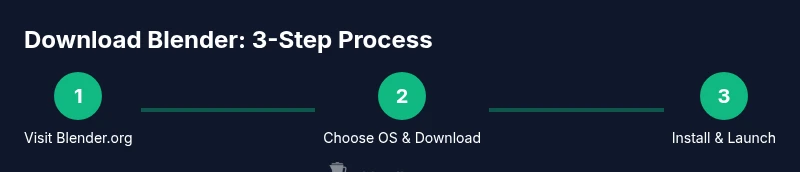
Visit the official Blender download page
Open a web browser and navigate to blender.org. Click the prominent Download button to land on the platform-detection page. This ensures you grab the correct build for Windows, macOS, or Linux. Using the official site minimizes the risk of tampered installers and bundled software.
Tip: If you’re unsure about your OS, use the site’s automatic detection, then confirm the platform shown before downloading. - 2
Choose the right platform and download
Review the options and click the installer or AppImage for your operating system. Save the file to a known location. The download should start promptly; if it stalls, refresh the page or try a different browser.
Tip: Prefer the latest stable release for the best balance of features and reliability. - 3
Run the installer and complete setup
Windows users run the .exe or .msi and follow prompts. macOS users open the .dmg and drag Blender into Applications. Linux users can use the AppImage or package manager if available. Allow any security prompts and grant necessary permissions.
Tip: Keep the default install location unless you have a specific folder structure; it prevents paths from breaking in updates. - 4
Launch Blender for the first run
Open Blender from your Start Menu, Applications folder, or AppImage location. On first launch, you’ll see a splash screen and a default scene. This is a good moment to enable the welcome tips and quickstart guide.
Tip: Try a quick navigation walkthrough: rotate the view with the middle mouse button, zoom with scroll, and pan with Shift + middle mouse. - 5
Review preferences and enable updates
In Edit > Preferences, adjust autosave, file paths, and add-ons. Enable automatic updates if available so you receive new features and bug fixes without manual checks.
Tip: Set autosave frequency to a comfortable interval to protect work without excessive disk usage. - 6
Open a starter file and test basic tasks
Open a basic scene, experiment with moving objects, creating a material, and rendering a quick preview. This confirms the installation is complete and your system handles basic tasks.
Tip: Use a short, simple project to avoid overwhelm while you learn navigation and tools.
Frequently Asked Questions
Is Blender free to download and use?
Yes. Blender is free and open-source, with no license fees or subscriptions required for download and use. You can access the full feature set without cost.
Yes. Blender is free and open-source; you can download and use it without paying.
Where can I download Blender safely?
Always download from the official Blender site to avoid bundled software or malware. The site provides the latest stable builds for Windows, macOS, and Linux.
From Blender's official site; avoid third-party mirrors.
Do I need internet access to install Blender?
Yes, you need an internet connection to download Blender. After downloading, you can run the installer offline on most systems, but initial download requires connectivity.
Yes, you need internet to download; installation can run offline afterward.
Can Blender run on older computers?
Blender supports a wide range of hardware, but performance improves with newer GPUs and more memory. If your device is older, expect slower renders and smoother performance with simplified scenes.
Blender runs on many machines, but newer hardware helps.
How do I update Blender after installation?
Blender can check for updates within the application or be downloaded fresh from the official site when a new release is available.
You can update from inside Blender or download the new version from Blender's site.
Watch Video
What to Remember
- Download from the official site to ensure safety.
- Choose the correct platform build before downloading.
- Install and launch Blender to begin practice.
- Enable updates to access new features and fixes.
- Start with a small project to build confidence quickly.