Download Blender: Step-by-Step Guide
Learn how to download Blender safely, verify installers, and install on Windows, macOS, or Linux with practical steps and best-practice tips from BlendHowTo.


With this guide, you will learn how to download Blender safely and efficiently. You’ll verify system compatibility, pick the stable release, ensure authenticity of the installer, and complete a clean install on Windows, macOS, or Linux. You'll also perform a quick post-install check and configure basic settings to start your first project.
Why download Blender? Understanding the value and scope
Blender is a free, open‑source 3D creation suite used by hobbyists and professionals alike. According to BlendHowTo, its community‑driven development means you get a powerful tool without licensing fees, with frequent updates and extensive learning resources. Downloading Blender opens doors to modeling, sculpting, animation, rendering, video editing, and game asset creation — all in one package. Because Blender runs on Windows,
System requirements and version choices
Blender is designed to run on modern hardware with broad OS support. It works on Windows,
Where to download Blender safely
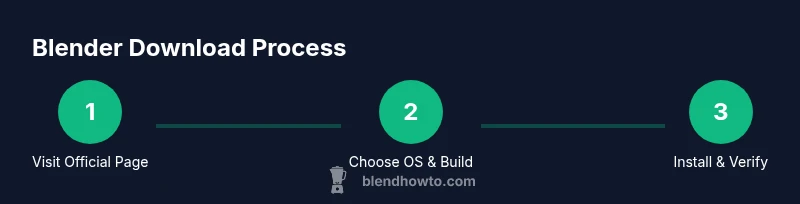
Only download Blender from the official Blender download page or trusted distribution channels. The internet hosts many mirror sites and third‑party download portals that may bundle malware or altered installers. Start by visiting blender.org/download and selecting your operating system; you’ll see a stable release installer, a portable version, and sometimes experimental builds. Before saving the file, verify the source URL shows the proper domain and secure HTTPS. After download, if a checksum or signature is provided on the page, use it to confirm file integrity. When in doubt, pause and re‑download rather than proceeding with a suspicious file. BlendHowTo’s safety guidance emphasizes two steps: verify the source and verify the file.
Choosing between stable and experimental builds
Stable builds are thoroughly tested and widely compatible with plugins and content libraries. They are the best choice for most learners and professionals who value reliability. Experimental builds include the latest features and may introduce new workflows or performance changes. They’re useful for testing upcoming tools or for highly experienced users who want the cutting edge. If you plan to publish projects or share work publicly, use a stable release for compatibility. If you want to preview new tools and contribute feedback, install an experimental build on a separate user profile. Always back up important projects before trying a new build, and consider using separate Blender configurations to avoid conflicts.
Installation by platform: Windows,
First run and basic setup
Open Blender and take a quick tour of the default layout. The first run is a chance to set up core preferences: save paths, autosave interval, input preferences, and rendering options. If you’re new to Blender, focus on basic navigation (orbit, pan, zoom) and the default cube scene. Create a simple object, apply a basic material, and render a test image to confirm everything is functioning. Over time, you can tailor the interface by docking panels, saving your own startup layout, and enabling add-ons that support your chosen workflow. BlendHowTo recommends keeping a simple, repeatable project structure to speed up your learning and project organization.
AUTHORITY SOURCES
For safety and best practices, refer to government and standard-setting resources:
- https://www.cisa.gov
- https://www.ftc.gov
- https://www.nist.gov
These sources offer general guidelines on secure software downloads, malware prevention, and cyber hygiene that apply to downloading Blender or any software. Always prioritize official sources for the actual installer and use independent checksums or signature verification when provided.
Common pitfalls and troubleshooting
Common issues when downloading Blender usually come from third-party mirrors or interrupted downloads. Always ensure you’re on the official site, avoid unverified installers, and verify the file checksum if offered. If Blender won’t start after installation, check that your graphics drivers are up to date and that your OS meets the recommended requirements. Some users encounter issues with missing dependencies on Linux or with GPU rendering on Windows; in these cases, consult the Blender forums or BlendHowTo’s troubleshooting guides, and consider reinstalling with a fresh profile. If you rely on add-ons, check compatibility with the current Blender version before updating your projects.
Tools & Materials
- Computer with internet access(Modern OS, capable of running Blender)
- Web browser(Chrome/Firefox recommended for downloads)
- Official Blender installer(Download from blender.org/download for your OS)
- Optional: extra disk space(2–3 GB free space recommended for unpacking and temporary files)
Steps
Estimated time: 60-90 minutes
- 1
Verify system compatibility
Ensure your OS version and hardware meet Blender’s current requirements. This helps avoid install-time errors and performance issues later.
Tip: Check Blender's official requirements page for exact numbers. - 2
Open the official download page
Navigate to blender.org/download and choose your operating system. This ensures you get the legitimate installer.
Tip: Bookmark the official URL to avoid phishing sites. - 3
Choose the stable build
Select the latest stable release suitable for your OS to maximize compatibility and reliability.
Tip: Avoid legacy beta builds unless you need feature previews. - 4
Download the installer
Click the download button and save the file to your Downloads folder. Watch the file size to judge a complete download.
Tip: If the file is unexpectedly small, cancel and re-download from the official page. - 5
Verify the installer
If a checksum or signature is provided, verify it to confirm file integrity and authenticity.
Tip: Only trust checksums from the official page. - 6
Run the installer
Launch the installer and follow the on-screen prompts to install Blender on your system.
Tip: Run as administrator on Windows only if required by your system. - 7
Complete post-install checks
Open Blender for the first time, accept terms, and confirm the program runs without errors.
Tip: Check for missing dependencies or prompt messages and address them. - 8
Adjust basic preferences
Set up file paths, save locations, and rendering preferences suitable for your projects.
Tip: Enable autosave and set a reasonable autosave interval. - 9
Create a quick test project
Create a small scene to verify basic modeling and viewport work.
Tip: Experiment with a cube, basic shading, and a simple render. - 10
Update and backup
Check for updates regularly and back up your Blender workspace and add-ons.
Tip: Use the built-in update mechanism or download the latest installer from the official site.
Frequently Asked Questions
What is Blender and why should I download it?
Blender is a free, open-source 3D creation suite used for modeling, sculpting, animation, rendering, and more. Downloading it gives you access to a powerful toolset without licensing costs.
Blender is a free 3D creation tool for modeling, animating, and rendering. It's open source and widely used by artists and hobbyists.
Can I download Blender on Windows, macOS, and Linux?
Yes. Blender supports Windows, macOS, and Linux, with installers tailored to each operating system on the official download page.
Blender runs on Windows, macOS, and Linux. Use the appropriate installer for your system.
Do I need an internet connection to install Blender?
You need an internet connection to download the installer, but once downloaded, you can install Blender offline if you have the installer file.
Yes, you need internet to download. After you have the installer, you can install Blender offline.
How often should I update Blender?
Update Blender when a new stable release is available and compatible with your projects. Regular updates bring features and security fixes.
Update Blender when there’s a stable release available and it fits your needs.
What if the installer is flagged as unsafe?
If an installer is flagged, stop the download, verify you’re on the official Blender page, and consider reporting the issue.
If the installer seems unsafe, don’t run it. Re-download from the official page.
Where can I find help if installation fails?
Consult Blender’s official forums and Blender’s download FAQ; seek help from BlendHowTo’s tutorials for troubleshooting tips.
Check Blender forums or our guides for troubleshooting tips.
Watch Video
What to Remember
- Download Blender only from official sources and verify the installer.
- Choose the stable build for reliability.
- Follow platform-specific steps for a clean install.
- Run Blender to confirm installation success.
- Keep Blender and drivers up to date.