Where to Install Blender: A Practical 2026 Guide
Learn where to install Blender on Windows, macOS, and Linux with step-by-step instructions, best-practice paths, and tips to optimize performance and organization.


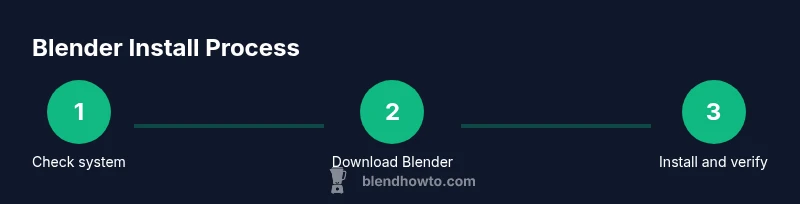
To install Blender, pick your platform (Windows, macOS, or Linux), download the official installer from blender.org, and run it. Accept defaults or choose a custom install path, then finish the setup and launch Blender to confirm a successful installation. This quick guide, according to BlendHowTo, helps you select a reliable installation location and avoid clutter or conflicts later.
Understanding where to install Blender
Choosing the right installation location is more than convenience; it affects performance, updates, and project organization. The exact folder or drive you choose can influence how easily you manage Blender files, add-ons, and future upgrades. The central question—where to install blender—depends on your operating system and hardware setup. For most home users, installing Blender on an internal drive with generous space (SSD preferred) keeps programs responsive and makes backups simpler. In this guide we’ll cover Windows, macOS, and Linux strategies to help you decide the optimal folder or drive for Blender installations and related user data. According to BlendHowTo, a well-chosen location helps keep the system organized and reduces update friction over time.
System requirements and preparation
Before you begin, verify your setup against Blender’s official requirements and prepare your workspace. Ensure your computer has a capable processor, sufficient memory, and adequate graphics drivers for Blender’s workloads, especially if you plan to do modeling and rendering. The goal is to avoid bottlenecks that slow down viewport interactions or render times. The BlendHowTo analysis shows that faster disks and properly organized user folders contribute to smoother workflows, particularly when working with large projects or multiple scenes. Have a clean target drive with enough free space and a predictable path for installations and project files.
Platform-specific guidance: Windows
Windows users typically install Blender through the official installer, which defaults to a standard Program Files location but can be redirected. Choose a destination folder on a fast drive if available. Avoid placing Blender on a system drive that already hosts many system files, which can complicate backups and updates. Make sure you have administrator rights during installation, as this ensures all components, including Python scripts and add-ons, install correctly. After installation, you can pin Blender to your Start Menu or taskbar for quick access and set a dedicated folder for your Blender projects to keep assets organized.
Platform-specific guidance: macOS
On macOS, Blender commonly installs to the Applications folder. This location keeps the app separate from other tools and makes updates straightforward via Blender’s updater or freshly downloaded builds. If you use external drives or want to keep your main drive uncluttered, you can install Blender to a dedicated Blender folder on an external disk, but ensure the drive is always mounted when you work. Remember to allow Blender in macOS security settings if you encounter the Gatekeeper prompt. A clean install path reduces confusion when you manage multiple versions.
Platform-specific guidance: Linux
Linux installations vary by distribution, but Blender is commonly installed from official repositories or a downloadable tarball. For organized setups, consider a dedicated directory under /opt or your home folder, rather than cluttering /usr or /usr/local. If you build from source or use a portable ZIP, you can run Blender directly from a chosen folder. Ensure you have executable permissions and that your PATH includes Blender’s binary if you want to run it from any terminal session. This approach keeps Blender separate from system tools and simplifies upgrades.
Portable vs standard install options
If you prefer not to modify system paths, you can use a portable ZIP build on Windows or extract a tarball on Linux. Portable installs let you run Blender from a chosen folder without performing a traditional system-wide install. This can be useful for devices with limited write permissions or when you want to keep Blender isolated from your OS. The standard install creates system-wide shortcuts and integrates with OS-level file associations, which some users prefer for consistency across apps.
Post-install data paths and preferences
After Blender is installed, you’ll want to configure where Blender stores user data, preferences, and add-ons. By keeping your user configuration and project assets in clearly named folders on a fast drive, you simplify backups and migrations. Blender’s File Paths and Preferences panels let you specify the location for scripts, addons, and startup files. A logical structure—for example, a root Blender folder containing projects, assets, and a separate addons directory—will save time during future upgrades or reinstalls.
Performance considerations and upgrades
Where you install Blender matters for performance. Install Blender on a fast drive, preferably an SSD, and store project files on a drive with reliable throughput. Managing data locality—keeping large textures, caches, and assets on a separate drive from Blender’s installer—can help avoid I/O bottlenecks during heavy tasks like sculpting or rendering. Regular maintenance, such as cleaning old caches and organizing projects, keeps workflows smooth. While hardware specs influence results, thoughtful placement and folder organization have a measurable impact on daily productivity.
Security, updates, and integrity checks
Always download Blender from the official blender.org site to avoid tampered builds. After download, verify the installer’s integrity with a checksum if offered, and run the installer with appropriate permissions. Keeping Blender up to date reduces compatibility issues with add-ons and scripts. If you rely on older addons, verify they work with the installed Blender version before updating your entire environment. Regularly back up your Blender configurations and project files to prevent data loss during upgrades.
Troubleshooting common issues and mistakes
Common hiccups include choosing a location with restricted write permissions, or installing on a network drive that introduces latency. If Blender won’t launch after installation, check permissions, verify the install path, and ensure the correct executable is used. Some users forget to install the required runtime components or Python modules. Keep a simple, consistent install location and a separate folder for projects to minimize path-related issues and keep your workflow stable.
Tools & Materials
- Computer with internet access(Needed to download Blender from blender.org and verify the download.)
- Administrative privileges(Required on Windows/macOS for full installs; Linux may vary.)
- External storage drive (optional)(Useful for a separate Blender data drive or portable installations.)
- USB flash drive or ZIP extraction tool (optional)(Helpful for portable installs on Windows.)
- Backup plan(Create a simple backup of projects and settings before major upgrades.)
- Disk with ample free space(Prefer fast storage (SSD) for installation and active work directories.)
Steps
Estimated time: Approximately 15-25 minutes
- 1
Check system compatibility
Review Blender's official requirements and confirm your OS version, GPU driver status, and available disk space. This ensures your computer can run Blender smoothly without bottlenecks.
Tip: Run a quick system info check and compare with Blender's minimum recommendations. - 2
Download the official installer
Visit blender.org and download the installer appropriate for your OS. Avoid third-party sources to prevent tampered builds and missing components.
Tip: Optionally download the zip/tarball for a portable setup if you want to avoid a traditional install. - 3
Choose install location
During installation, select a destination folder on a fast drive. If you have multiple drives, consider a dedicated Blender folder on a primary SSD for performance and organization.
Tip: Create a clear folder structure (e.g., Blender/versions and Blender/projects) to simplify upgrades. - 4
Run the installer and configure paths
Execute the installer and choose either the default path or a custom path. Ensure the path has write permissions and isn’t on a restricted network location.
Tip: If installing on Windows, keep the executable short and readable in PATH for easy access. - 5
Finish installation and launch
Complete the setup and start Blender to verify it launches correctly. If prompted, allow necessary permissions for scripts and drivers.
Tip: Open the very first project to confirm the environment is functioning properly. - 6
Configure user data and directories
Set the preferences and folders for scripts, addons, and user data to ensure future portability and easier backups.
Tip: Point user data to a stable, backed-up location for reliability. - 7
Install essential add-ons and drivers
Add only the add-ons you need and verify GPU drivers are up to date for optimal viewport performance and rendering.
Tip: Test a simple render to confirm GPU acceleration is functioning. - 8
Create shortcuts and establish a backup plan
Create desktop or start menu shortcuts and schedule periodic backups of projects and settings to protect your work.
Tip: Keep a secondary copy on an external drive or cloud storage for safety.
Frequently Asked Questions
What platforms does Blender support for installation?
Blender supports Windows, macOS, and Linux installations. Each platform has a standard installer or portable option, with platform-specific considerations for paths and permissions.
Blender runs on Windows, macOS, and Linux. Each system has a standard install path and optional portable builds.
Do I need admin rights to install Blender on Windows?
Yes, installing Blender on Windows typically requires administrator privileges to write to the Program Files directory and register shortcuts.
On Windows, you usually need admin rights to install Blender properly.
Can Blender be run without installing (portable)?
Yes. Blender can be run from a portable ZIP or extracted tarball, allowing a non-destructive setup on portable drives or restricted systems.
Blender can run as portable software from a folder without a formal install.
How often should I update Blender after installation?
Update Blender when significant fixes, performance improvements, or new features are released. Check compatibility with your addons before updating.
Update when there are important fixes or features, and check addon compatibility first.
Where should I store Blender projects for best performance?
Store Blender projects on a fast drive with sufficient space, separate from the installation folder to simplify backups and migrations.
Keep projects on a fast drive separate from Blender’s install location.
What if Blender won’t launch after installation?
Verify the install path, permissions, and that the correct executable is used. Reinstall if needed and check for missing runtime components.
If it won’t launch, check permissions and reinstall if necessary.
Should I install Blender on an external drive?
Installing on an external drive is possible, especially for portable setups, but ensure the drive remains consistently mounted for stability.
External drives work for portable setups, just keep them mounted.
How do I verify Blender's download integrity?
Use the official checksums or signatures provided on blender.org to confirm the download hasn’t been tampered with.
Verify the download with the official checksum if available.
Watch Video
What to Remember
- Choose a fast drive for Blender installation to improve performance.
- Keep Blender data and projects on a clearly organized folder.
- Always download from blender.org and verify integrity when possible.
- Back up your settings and projects before upgrades.
- The BlendHowTo team recommends a separate data path for easier maintenance.