Blender 2.76: A Practical Guide for Beginners and Hobbyists
A comprehensive BlendHowTo guide through Blender 2.76 fundamentals: interface basics, core modeling, shading, lighting, rendering, and practical troubleshooting for learners and hobbyists.


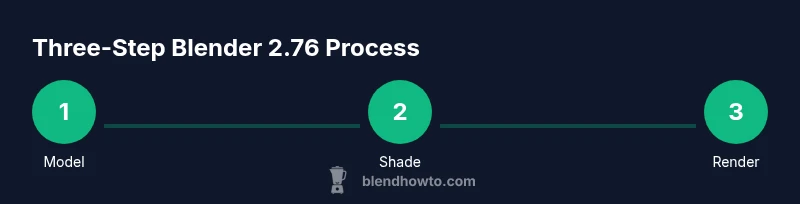
In this guide, you will master essential workflows in blender 2.76: navigate the interface, model a simple object, apply materials, set up a basic lighting and render, and troubleshoot common issues. You’ll need a computer with Blender 2.76 installed, a basic understanding of 3D terms, and patience for classic UI quirks from older Blender versions.
Getting Started with Blender 2.76: Installation and First Run
If you’re new to Blender 2.76, the first step is to install the software and verify your hardware meets the minimum requirements. Blender 2.76 runs on Windows, macOS, and Linux, and it benefits from a multi-core CPU and a mid-range GPU for smooth viewport interaction. In this section, you’ll learn how to download the correct version for your OS, set up basic preferences, and open your first project without getting lost in options.
Start by downloading the official Blender 2.76 build from Blender's release archive. Run the installer and follow the prompts; on macOS, ensure you grant the necessary permissions to let Blender access the graphics driver. When Blender first launches, you’ll see the default startup scene: a cube, a camera, and a light—an ideal canvas for hands-on experimentation.
Before diving into modeling, adjust a few preferences to reduce clutter and improve performance. In the Preferences panel, set the input to emulate 3D mouse if needed, enable “orient along active object” to simplify navigation, and configure the memory settings to allocate more RAM to Blender if you have plenty available. In Blender 2.76, the interface emphasizes a left-heavy layout where tool options appear as context-sensitive panels. Spend a few minutes resizing panels to suit your workflow and binding aliases for common actions. Finally, save a new project as a starting point; rename default objects to avoid confusion as you progress.
Blender 2.76 Interface Fundamentals and Navigation
Blender 2.76 uses a modular UI that combines the 3D Viewport, Outliner, Properties, and several editors in a flexible layout. The key to speed is understanding the main editors and how to switch between them quickly. The 3D Viewport is where modeling happens; the Outliner provides a hierarchical scene tree; the Properties Editor holds materials, render settings, and scene data. Common shortcuts save time: G to grab/move, S to scale, R to rotate; A selects all, B for box select; Ctrl+R creates a loop cut, and N toggles the right-hand Side panel. If you’re new, start with the default layout and gradually bind your own hotkeys to frequent actions.
Navigation in Blender 2.76 favors a blend of mouse and keyboard control. Use the middle mouse button to rotate, scroll to zoom, and Shift+Middle Mouse Button to pan. The T key reveals the Tool Shelf, and the N key toggles the Properties region. The Outliner helps you manage complex scenes, while the UV/Image Editor is essential for texture work. As you become comfortable, create a custom workspace for modeling that minimizes clutter and aligns with your workflow. Finally, save frequently and use the Autosave feature to protect your progress.
Core Modeling Workflows in Blender 2.76
Modeling in Blender 2.76 follows a clear, repeatable workflow: create a base mesh, refine its shape with editing tools, and add details using modifiers and sculpting when appropriate. Start by adding a simple primitive (e.g., a cylinder for a mug). Enter Edit Mode with Tab, select faces, edges, or vertices, and use extrude (E) to extend geometry. Use scale (S) and rotate (R) to shape components, and apply bevels (Ctrl+B) to smooth sharp edges. Loop cuts (Ctrl+R) add geometry for refinement. For a mug, you’ll extrude the body, inset and extrude to form a lip, and craft a hollow interior.
To create a handle, you can model a separate curved object (a torus or a rounded rectangle) and join it to the main body using the Join command (Ctrl+J). Maintain clean topology by keeping quads where possible and using the Merge by Distance option to fuse seams. Remember to keep a light touch on geometry: excessive vertices slow down the viewport and complicate texturing. After shaping, switch to Object Mode to assess proportions and symmetry. A quick mirror modifier can help preserve balance without duplicating work.
Be prepared to iterate. Save incremental versions, toggle between Edit and Object Mode to review edits, and use the Undo stack (Ctrl+Z) to back out any unintended changes. This section demonstrates a practical approach to creating a simple mug, but the same steps apply to many beginner-friendly models.
Materials and Shading in Blender 2.76
Materials in Blender 2.76 are created in the Physics/Material context and can be assigned to any mesh. Start by selecting the object, then open the Materials tab. Create a new material and adjust basic properties such as color, roughness, and specular highlights. In this era, you’ll likely use the Blender Internal or Cycles render engines, with shading unsupported features depending on the chosen engine. The Material Editor in 2.76 supports node-based shading, enabling you to combine textures, bump maps, and color attributes. For beginners, a simple diffuse color with a subtle roughness map provides realism without overcomplicating the setup.
UV mapping is essential for textures. In the UV Editor, unwrap the mug’s bodies to lay out texture coordinates, then apply a texture image if available. For a polished look, create a simple procedural texture or import a texture pack. Use the shading workspace to preview how lighting interacts with your material in different view modes. Remember to save textures in a compatible format and ensure image paths remain stable when moving projects between folders.
As you gain confidence, experiment with more advanced shading nodes, including bump or normal maps, to simulate surface details without adding geometry. Always test renders to verify how materials appear under your chosen lighting setup.
Lighting, Cameras, and Rendering in Blender 2.76
Effective lighting transforms a model from a static mesh into a believable scene. In Blender 2.76, add a three-point lighting rig: a key light, a fill light, and a backlight. Position lights to reveal form and avoid harsh shadows. Adjust color temperature to match the scene mood, and tune intensity and radius to achieve the desired look. The camera should be placed to emphasize silhouette and composition; use the Rule of Thirds as a guide. When you’re ready to render, switch to the Render tab and choose a render engine. Start with low samples for quick feedback, then increase for better image quality. Press F12 to render and adjust settings as needed.
Rendering in an older version means balancing speed and quality. In practice, a simple scene will render quickly, while complex texturing and global illumination may take longer. Save renders to image files like PNG or JPEG to compare results and iterate on lighting and shading. Remember to enable anti-aliasing where available and to keep texture sizes manageable for smooth performance in the viewport.
This section emphasizes practical workflows that will translate well to newer Blender versions while keeping the fundamentals intact.
Troubleshooting Common Issues in Blender 2.76
New users often encounter startup issues, viewport lag, or missing textures in Blender 2.76. If Blender crashes on startup, try resetting to factory defaults via File > Defaults > Load Factory Settings and restart. If textures don’t appear, verify image paths and ensure textures are in a reachable directory. For viewport performance, reduce the number of samples and simplify materials temporarily. If you ever lose track of objects in a busy scene, use the Outliner to locate and reselect items, or enable local view to isolate the active object. When exporting to other formats, check the export options to ensure compatibility with your target application. Regularly save incremental versions so you can revert to a stable state if a change introduces issues.
If keyboard shortcuts stop working, check the Input Preferences to ensure your keymap is active and not overwritten by a custom setup. Community forums and Blender’s release notes are valuable resources for version-specific quirks. Always back up your project before applying major changes or installing add-ons that may affect performance. This practical approach minimizes downtime and keeps your project on track.
Authority Sources and Further Reading
To ground the guide in credible references, consult foundational material on 3D graphics and software engineering from reputable institutions. For broader context on rendering, shading, and 3D workflows, see established publications and educational resources that discuss core concepts applicable across Blender versions. While Blender 2.76 is an older release, the fundamental techniques—modeling, UV mapping, texturing, lighting, and rendering—remain relevant for learners pursuing a solid grounding in 3D art. For deep dives, consider exploring official documentation and scholarly discussions from recognized outlets to enrich your understanding of 3D pipelines and digital content creation.
Authoritative Sources
- https://www.nih.gov
- https://www.nasa.gov
- https://www.cs.stanford.edu
Tools & Materials
- Blender 2.76 software(Official release build; download from the Blender release archive.)
- Computer with supported OS(Windows, macOS, or Linux; ensure graphics drivers are up to date.)
- Mouse with scroll wheel(Facilitates precise navigation and modeling.)
- Optional textures/images(For realism in materials and UV mapping.)
- External reference images(Guides for proportions and design.)
- Screenshot tool(Capture steps for notes or tutorials.)
Steps
Estimated time: 1-2 hours
- 1
Add base mesh
In Object Mode, press Shift+A and choose Mesh > Cylinder to create the mug body. In the operator panel, reduce the vertices for a simple, low-poly form. This gives you a clean starting shape to refine later.
Tip: Keep the initial geometry simple to make later edits easier. - 2
Enter Edit Mode and shape the body
Tab to enter Edit Mode. Select the top ring and extrude (E) to form the lip, then scale (S) to achieve the desired thickness. Use inset (I) for clean edge loops and keep the topology quad-dominant for smoother shading.
Tip: Use snapping (Shift+Tab) to align segments precisely. - 3
Create the hollow interior
Select the bottom faces and extrude inward to form the hollow interior. Inset slightly to create a defined inner wall. Exit Edit Mode to inspect the outer silhouette.
Tip: Keep a light touch on inner geometry to avoid rendering artifacts. - 4
Add a handle
Add a torus or curved plane as a handle mesh, shape it to match the mug’s proportions, then position and join it with the main body using Ctrl+J. Use the Mirror modifier if symmetry helps your workflow.
Tip: Position the handle so it doesn’t intersect the mug’s body. - 5
Apply basic material
Open the Materials tab, create a new material, and adjust base color, roughness, and specular highlights. Preview in the 3D Viewport with a simple light setup to gauge how the material reads under lighting.
Tip: Start with a solid color; you can refine textures later. - 6
Set up camera and render
Place the camera to frame the mug, add a simple three-point lighting setup, and render with F12. Adjust render samples and output resolution to balance quality and speed. Save your render as an image file for comparison.
Tip: Test a few angles to find the most flattering composition.
Frequently Asked Questions
What is Blender 2.76 best used for?
Blender 2.76 is ideal for learning core 3D modeling, shading, lighting, and rendering workflows. It provides practical experience with a traditional UI and established toolset, which remains valuable for foundational skills.
Blender 2.76 is great for beginners to learn the basics of 3D modeling, shading, lighting, and rendering.
Is Blender 2.76 still relevant for learning today?
Yes. While newer versions exist, the core concepts and workflow mechanics remain the same. Studying 2.76 helps you understand the evolution of Blender’s interface and techniques without being overwhelmed by newer features.
Yes, the fundamentals are timeless and teach the core ideas well.
How do I install Blender 2.76 on a modern OS?
You should download the archived 2.76 build from Blender’s release archive, then follow the installer prompts for your OS. If you encounter permissions prompts on macOS, grant access to the graphics driver as needed.
Download from the Blender archive and follow the standard installer steps; grant permissions if prompted.
What is the difference between Blender Internal and Cycles in 2.76?
Blender 2.76 supports multiple render engines, including Blender Internal and Cycles. Each engine has distinct shading options and performance characteristics; choose based on your needs for realism and speed.
Blender Internal and Cycles offer different shading approaches; pick the one that fits your project.
Why is my render noisy or grainy, and how can I fix it?
Noise typically results from low samples or poor lighting. Increase render samples, adjust light intensities, and use denoising options if available. Test renders at lower resolutions first to iterate quickly.
Increase samples and adjust lighting to reduce grain; try denoising if available.
Where can I find official documentation for Blender 2.76?
Official Blender documentation is hosted on Blender.org, and archived release notes for 2.76 can help with version-specific features. Look for historical guides or release notes in the archive.
Check the Blender release archive and historical docs for version-specific details.
Watch Video
What to Remember
- Practice basic modeling with a simple mug to learn extrusion and topology
- Use a three-point lighting setup for realistic renders
- Keep materials simple at first, then add textures for realism
- Save incremental versions to guard against mistakes
- Understand the workflow: model → UVs → shading → lighting → render