Blender 3D on Mac: A Practical Beginner Guide
A comprehensive, educational guide from BlendHowTo on running Blender 3D on macOS. Learn installation, interface tweaks, modeling, shading, animation, rendering, and troubleshooting tailored for Mac users for smooth, efficient workflows.


Install Blender on macOS and begin a beginner-friendly workflow for 3D modeling, shading, and rendering. This quick guide highlights essential steps, system checks, and setup tips to get you productive fast on a Mac. By following the steps, you’ll be ready to start modeling, texturing, and rendering with confidence.
blender 3d mac: a practical introduction on macOS
On a Mac, you can run Blender without licensing fees and with a robust set of modeling, sculpting, shading, and animation tools. The term blender 3d mac refers to running Blender's cross-platform pipeline on Apple hardware and macOS versions. This guide helps you get from download to your first render. You’ll learn how Blender on Mac handles performance, storage, and external assets, plus how to keep your projects organized. Whether you're modeling a character, prototyping a product, or creating a simple scene, the macOS environment shapes your workflow. Expect a clean, keyboard-driven interface, customizable workspaces, and a preference-driven setup that lets you tune the application to macOS conventions. The goal is to empower you to build confidence quickly, with a repeatable plan for future projects and practice sessions.
System requirements and preparation for mac users
Before installing Blender on a Mac, verify system compatibility, storage readiness, and software prerequisites. Blender's official notes indicate supported macOS versions, RAM recommendations, and graphics driver considerations. BlendHowTo's analysis, based on 2026 datasets, shows that most home Macs released in the last five years run Blender smoothly with an up-to-date OS and sufficient RAM. Ensure you have at least 8 GB RAM (16 GB recommended for larger scenes), a Metal-compatible GPU, and enough disk space for caches and assets. Close unnecessary background apps to free up memory, and consider using an external drive for large projects. Create a dedicated Blender projects folder to keep assets, textures, and renders organized. Finally, bookmark the official Blender download page to access the latest builds and release notes for macOS.
Installing Blender on Mac: getting started
Installing Blender on a Mac is straightforward when you follow the official distribution steps. Start by visiting blender.org and downloading the macOS installer package. Once the download completes, open the .dmg file and drag the Blender.app into the Applications folder. macOS may prompt you to allow installation from an unidentified developer; approve this in System Preferences if needed. After copying, launch Blender from Applications and confirm any first-run prompts related to plugins or user data. Keep the installer handy in case you need to reinstall or update. Pro tip: archive the downloaded .dmg in a dedicated folder for future access.
Navigating the Blender interface on Mac
Blender’s interface on macOS emphasizes a single, flexible workspace with a 3D Viewport, Outliner, and Properties editor. Start by closing any default panels you don’t need and customizing a layout that suits your project—many Mac users prefer a compact 3D Viewport alongside a simplified properties panel. Learn the main panels: the 3D Viewport for modeling, the Shader Editor for materials, the Timeline for animation, and the Asset Browser for importing textures and models. Use the right-click context menu to access tools, and customize keyboard shortcuts to accelerate your workflow. As you gain comfort, save custom workspaces so you can quickly switch between modeling, shading, and animation tasks.
Essential modeling workflows on Mac
Modeling on macOS with Blender follows a logical pipeline: block out shapes with basic primitives, switch to Edit Mode to refine topology, and employ modifiers for nondestructive changes. Start with simple forms like cubes or spheres to practice vertex manipulation, edge loops, and proportional editing. Use symmetry for character anatomy, and leverage the knife, extrude, and bevel tools to sculpt curvature. Keep a clean modifier stack and animate gradual improvements by saving incremental versions. Textures and UV maps emerge later in the pipeline, but planning UV layouts early can prevent texture stretching later. As you model, maintain a consistent scale to ensure assets fit in future scenes.
Shading, materials, and lighting for Blender on Mac
Shading in Blender on Mac leverages the Shader Editor to create realistic materials with nodes. Begin with a basic Principled BSDF shader, connect a texture or procedurals, and adjust roughness, metallic, and specular properties. Lighting — typically a three-point setup — can dramatically change mood, so experiment with HDRI environments for realistic reflections. Use Eevee for fast previews and Cycles for final renders where realism matters. On macOS, GPU-accelerated rendering can improve viewport feedback and render times; enable the appropriate backend under Preferences > System. Save material presets for reuse across projects to streamline workflows.
Animation basics for Mac users
Animation in Blender combines keyframes, timelines, and graph editors. Start with simple transforms—location, rotation, and scale—setting keyframes at the desired frames. Use the Timeline to scrub playback and the Graph Editor to smooth motion curves. Build a small test animation to understand interpolation, easing, and timing. If you’re new to animation, begin with a basic object moving through space and narrate a short sequence to learn essential timing. As you progress, add constraints and parenting to create more complex motion without scripting.
Rendering options and performance on macOS
Blender on macOS offers Eevee for real-time, fast previews and Cycles for high-quality renders. When you prepare to render, choose the appropriate engine based on your project goals. In Preferences > System, select your GPU for rendering or stick with CPU if the scene is lightweight. Manage samples, denoise settings, and resolution to balance quality and time. Rendering with high-resolution textures can benefit from a second GPU if available, but always monitor thermal throttling on laptops. Save render outputs in organized folders and consider using a dedicated render farm service for heavy workloads.
Troubleshooting common Mac-specific issues
If Blender won’t start, check macOS Gatekeeper permissions and security settings to allow apps from identified developers. Ensure you’re running a compatible macOS version and have the latest Blender build. If you encounter display or performance issues, reset Blender’s startup file and clear caches. GPU-related problems can often be mitigated by toggling the System graphics setting or switching the render engine. For plug-ins and add-ons, verify compatibility with your Blender version and macOS. Regular backups help mitigate data loss from unexpected crashes.
Project organization and backups for Blender on Mac
Adopt a consistent project structure: assets, textures, scenes, renders, and exports in clearly named folders. Use a versioning scheme (e.g., project_v01.blend) to track changes. Enable autosave and set a reasonable interval that matches your work pace. Regular external backups protect work against drive failures. Consider cloud backups for critical projects and keep a separate drive for active projects to minimize risk of data loss.
Next steps: learning paths and resources
After establishing a basic workflow, expand with focused topics: advanced modeling, UV mapping, sculpting, and rigging. Follow structured learning paths from BlendHowTo, and practice with short, real-world projects. Join Blender communities to share work, receive feedback, and discover best practices. Use official release notes to stay current with macOS compatibility and new features.
Safety, licensing, and maintenance tips
Blender is free and open-source, licensed under the GNU General Public License. Regularly update Blender to benefit from bug fixes and performance improvements on Mac. Do not download Blender from unofficial mirrors; always verify the source. Maintain system security by applying macOS updates and keeping backups. If you are using third-party assets, ensure they are properly licensed for your project.
Tools & Materials
- Mac computer with macOS 12+ or newer(Ensure hardware supports Metal and keep macOS up to date.)
- Blender installer from blender.org(Download the official macOS .dmg package.)
- Stable internet connection(Essential for downloads, textures, addons, and updates.)
- External storage (optional)(Useful for large assets and project backups.)
- Graphics drivers and OS updates(macOS handles drivers; keep system updated for best GPU support.)
Steps
Estimated time: 30-60 minutes
- 1
Download Blender
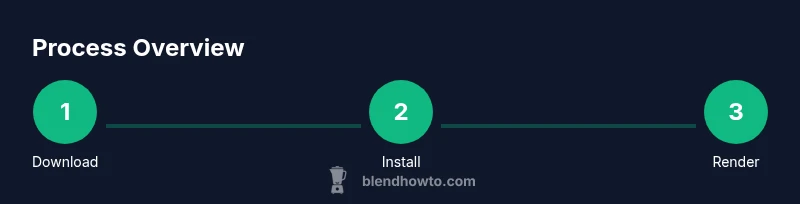
Visit blender.org and download the latest macOS installer. Save the file to your Downloads folder so you can locate it easily. Be sure to verify the file size against the official release notes if you want extra assurance. This initial step sets up the exact version you’ll install on your Mac.
Tip: Pro tip: keep a copy of the downloaded .dmg in a separate archive for easy reinstallation. - 2
Install Blender
Open the downloaded .dmg, then drag Blender.app into the Applications folder. macOS may prompt you to allow an app from an unidentified developer—approve this in Security & Privacy if needed. This step makes Blender accessible from Launchpad and the Dock.
Tip: Pro tip: install Blender in Applications to simplify backups and permissions. - 3
First launch and prompts
Open Blender from Applications. On first run you may see feature prompts or plugin warnings; accept defaults if you’re unsure. This initializes the user configuration and prepares Blender for your workflow. You’ll be greeted with the default layout.
Tip: Pro tip: disable or rearrange panels you won’t use to speed up the initial load. - 4
Set up a workspace
Arrange panels to suit your Mac workspace. A common setup is a large 3D Viewport, a Shader Editor, and a Timeline. Save this as a custom workspace so you can switch quickly between modeling, shading, and animation.
Tip: Pro tip: use a smaller font size for dense panels to keep everything readable. - 5
Enable GPU rendering
Go to Edit > Preferences > System and select the GPU compute option. If your Mac supports Metal, choose it as the backend for faster previews and renders. This helps you leverage the GPU for more demanding scenes.
Tip: Pro tip: run a quick test render to confirm the GPU is actively used. - 6
Create a project folder
In Finder, create a dedicated Blender projects folder with subfolders for assets, textures, scenes, and renders. This discipline prevents asset loss and keeps your project portable across machines.
Tip: Pro tip: include a versioned subfolder like v01, v02 for progress tracking. - 7
Import or create a model
Add a primitive or import a pre-made model to begin your training. Practice basic modeling tools (move, rotate, scale, extrude) and use the viewport shading to check geometry and proportions from multiple angles.
Tip: Pro tip: enable grid snapping when aligning multiple objects. - 8
Apply basic materials
Open the Shader Editor and connect a Principled BSDF shader to the material output. Add simple textures or colors to your model and adjust roughness and metallic values for a basic look.
Tip: Pro tip: use the UV Editor to map textures accurately across complex surfaces. - 9
Set up a test render
Switch to Eevee for quick previews or Cycles for higher realism, then render a test image. Tweak lighting, shadows, and material properties to reach your target look while monitoring render time.
Tip: Pro tip: enable denoising and adjust sample counts to balance quality and speed. - 10
Save and organize
Save your Blender file with a clear, descriptive name. Regularly save incremental versions and keep assets in the project folder to avoid missing textures.
Tip: Pro tip: enable autosave with a short interval during intensive work. - 11
Back up your work
Copy your project folder to an external drive or cloud storage. Regular backups reduce the risk of data loss due to hardware failures or software crashes.
Tip: Pro tip: check backup integrity by opening a copy of your latest project. - 12
Update and maintain
Check for Blender updates periodically and review release notes for macOS compatibility. Keeping Blender up to date ensures you have the latest features and performance improvements.
Tip: Pro tip: test new builds on a separate project to avoid regressions on active work.
Frequently Asked Questions
Is Blender free to use on Mac?
Yes. Blender is free and open-source and runs on macOS. You don’t pay per project or per render.
Yes—Blender is free to download and use on Mac.
Do I need Apple Silicon to run Blender smoothly?
Blender runs on both Intel and Apple Silicon Macs. Performance depends on CPU/GPU, RAM, and scene complexity.
It runs on both, but Apple Silicon can provide smoother performance for heavy work.
Where can I safely download Blender for Mac?
From the official Blender website at blender.org. Always verify the file hash if you want extra security.
Get Blender from the official site, blender.org.
Can Blender use the GPU on Mac for rendering?
Yes, Blender supports GPU rendering on macOS. Enable GPU compute in Preferences > System and select the Metal backend if available.
Yes, you can render faster on Mac by using the GPU.
What if Blender won’t start on my Mac?
Check macOS security settings to allow the app, confirm compatibility with your OS version, and try restarting Blender. If problems persist, clear startup files or reset preferences.
Make sure macOS allows the app and try a clean restart.
Do I need Python installed separately for Blender?
No. Blender includes its own Python distribution, so a separate installation is usually unnecessary.
Blender comes with Python built-in.
Watch Video
What to Remember
- Install Blender from the official site on macOS
- Configure GPU rendering for faster previews
- Organize projects with a clear folder structure
- Use a dedicated workspace for modeling, shading, and animation
- Back up work frequently to prevent data loss