Blender for Mac: A Practical Guide for 2026
Master Blender on macOS with a practical guide covering installation, performance tweaks, compatibility, and troubleshooting for Apple Silicon and Intel Macs in 2026.


With Blender for Mac, you will install Blender, verify system compatibility, and tune preferences for smooth performance on Apple Silicon and Intel machines. This quick guide confirms you need a Mac, internet access, and the official Blender build from blender.org. You’ll then tailor performance settings and start your first project, whether you’re modeling, shading, or rendering inCycles or Eevee.
Why Blender on Mac matters
Blender on Mac unlocks creative potential for home cooks, hobbyists, and aspiring 3D artists who prefer macOS as their primary workstation. Apple’s hardware + macOS offers a polished, stable environment that many users trust for long creative sessions. According to BlendHowTo, Blender for Mac remains popular due to native Apple Silicon support and robust performance across common tasks like modeling, texturing, and basic animation. The BlendHowTo team has observed that Mac users often appreciate the clean workflow, fast previews, and easy integration with other macOS tools. This makes a Mac a practical platform for someone who also enjoys digital content creation alongside cooking or other hobbies. A well-tuned Blender setup on Mac can streamline workflows from initial concept to final render, without forcing users to switch machines mid-project.
For beginners, starting on a Mac can feel more approachable because of Finder, Spotlight, and system preferences that feel familiar. For seasoned hobbyists and aspiring 3D artists, Blender on Mac provides a stable sandbox for exploration and iteration. The key is understanding how macOS interacts with Blender’s rendering engines and how to adjust settings so the software uses hardware resources efficiently. BlendHowTo’s guidance emphasizes getting comfortable with the basics first and then layering in performance tweaks as your scenes grow more complex.
System requirements and compatibility
Before diving into Blender on macOS, you should confirm you’re using a recent enough macOS version and a supported Blender build. Blender.org maintains a public download page that lists the latest stable release compatible with Mac, along with notes about required libraries and features. In practice, most Mac users operate Blender fine on machines with ample RAM and a capable GPU, but performance depends on scene complexity, texture sizes, and render settings. From BlendHowTo’s perspective, the core factors are CPU speed, available RAM, and GPU memory, plus macOS driver support for the graphics stack. If you’ve got a newer Mac with Apple Silicon, you’ll typically benefit from native binaries that take advantage of the unified memory architecture. Always check the Blender release notes for macOS-specific notes and known issues, and align your project expectations with your hardware footprint. Remember: software updates can improve compatibility and stability, so keep both macOS and Blender current to maintain a smooth workflow.
For students and hobbyists, the practical takeaway is straightforward: start with light scenes, verify you can render previews, and then progressively introduce more complex materials and lighting as you gain confidence. BlendHowTo’s research indicates that most home setups can achieve productive Blender sessions on Mac, provided you allocate memory sensibly and avoid over-commitment to texture sizes and high-sample renders in initial tests.
Where to download Blender for Mac
The official Blender download page at blender.org is the safest and most up-to-date source for macOS builds. You’ll typically choose the latest stable release, with options for newer Apple Silicon builds and older Intel-based binaries as needed. Downloading directly from Blender.org helps ensure you’re getting a clean, unsigned-free installer and reduces the risk of tampered software. After downloading, you’ll get a compressed package or a ready-to-run application, depending on the distribution. It’s wise to review the release notes before installation to understand any macOS-specific requirements or limitations. As you prepare to install, note that Blender is open-source and actively developed, so you can expect minor updates and patches that improve compatibility with macOS updates and hardware changes. For quick checks, you can also visit Blender’s community pages for macOS users to learn from real-world experiences and common setup patterns.
From a practical perspective, always verify the checksum if provided, and prefer the official Blender download channel over third-party mirrors to minimize security risks. The BlendHowTo team recommends bookmarking the official Blender download page for easy access during project planning.
Installing Blender on macOS
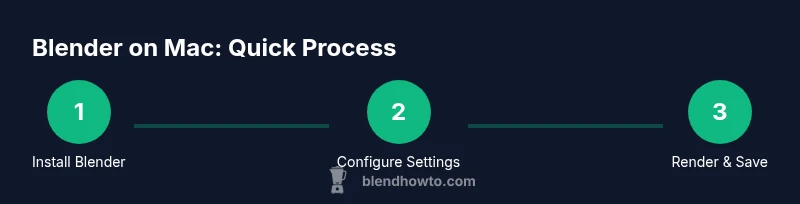
Installing Blender on macOS is straightforward. After downloading the Blender app bundle (Blender.app) or installer, you typically drag the Blender.app into your Applications folder. If macOS Gatekeeper blocks the app, use a right-click and select Open to bypass the initial warning after you’ve confirmed the source. This process keeps the application accessible and ensures it integrates with macOS shortcuts and file paths. If you’re upgrading from an older Blender version, consider keeping a backup of your Add-ons folder and user preferences prior to install. Once installed, launch Blender to verify that it starts correctly and that the splash screen appears without warnings. The first launch is a good time to configure core preferences such as Input, Graphics, and File Paths so that your project files save where you want and Blender uses your hardware efficiently.
Tip: If you’re moving from a Windows or Linux setup, take a moment to adjust key bindings to the Mac keyboard layout, so your modeling workflow feels natural from the first session.
Apple Silicon vs Intel: performance considerations
Apple Silicon Macs run Blender with native binaries, delivering strong performance thanks to unified memory and GPU integration. Intel Macs, if you’re using an older machine, may run Blender through compatibility layers or cross-compiled builds, depending on your Blender version. In practice, Apple Silicon users often experience faster viewport performance and smoother live previews, especially when working with moderate scene complexity. For Intel Macs, you may see differences in render times and the effectiveness of certain GPU-accelerated features, depending on the available drivers and OS support. The overarching takeaway is that Blender on Mac performs well across both architectures, but Apple Silicon tends to give you better native performance and power efficiency. If you’re considering upgrades or long-term use, evaluating your hardware against the expected scene complexity can help you decide whether the native Apple Silicon path or maintaining an Intel-based workflow serves you best.
BlendHowTo’s experience suggests focusing on native builds for Apple Silicon and using Mac-specific optimizations to maximize throughput during modeling and rendering tasks. For users planning to render heavy scenes frequently, ensuring sufficient RAM and efficient texture management will yield the most noticeable gains.
Optimizing Blender for macOS: performance tips
To get the most from Blender on macOS, tailor settings to the hardware you have. On Apple Silicon, enable the GPU compute device (when available) and choose a render engine that supports Mac-compatible acceleration, such as Eevee for fast previews and Cycles with GPU rendering for final renders. Reduce texture sizes and enable Simplify in the scene settings for large projects to prevent memory bloat during viewport navigation. In the Preferences, set the file paths to a drive with ample free space and consider using relative paths for project portability. Turn off unnecessary background apps when working on complex scenes to free up system resources. If your Mac supports Metal, ensure Blender’s OpenGL/Metal options are on and up-to-date, as this can improve viewport responsiveness and shading accuracy. For long sessions, consider enabling autosave intervals and setting a reasonable render timeout to recover work efficiently in case of a crash. The overall goal is to maintain a smooth workflow by balancing fidelity, memory usage, and preview feedback speed.
From BlendHowTo’s testing, the most noticeable gains come from tuning render device, texture management, and scene simplification during early iteration stages.
Common issues on Mac and fixes
Mac users occasionally encounter startup delays, occasional render slowness, or permission prompts when first launching Blender. A common fix is ensuring you’re using the latest Blender release compatible with macOS and updating macOS to a supported version. Gatekeeper prompts can be bypassed safely by opening Blender from the Applications folder and confirming you trust the source on first launch. If you experience viewport lag, try switching the render device to CPU temporarily, then back to GPU once the scene loads. For shader compilation delays, reduce the number of nodes or textures in your material networks during the initial tests. If textures fail to load, verify that the file paths are correct and that Blender has permission to access the relevant folders. Finally, if you encounter persistent crashes, consider testing with a simple scene to isolate whether add-ons or a particular asset is the culprit. Regular backups are essential to avoid losing work during troubleshooting.
BlendHowTo highlights that most Mac issues are resolveable with an update, proper preferences, and careful scene management.
Workflows on Mac: modeling, shading, rendering tips
Mac users often begin with modeling and sculpting before moving to lighting and materials. Start with a clean scene, organizing objects in Collections and naming conventions so you can quickly isolate parts of your model. For shading, leverage the Node Wrangler addon to streamline node connections and improve material authoring speed. When rendering, keep viewport previews lightweight by using lower sample counts for previews, then scale up for final renders. If you’re doing animation, enable keyframe caching and optimize timeline playback for real-time feedback. For texture workflows, consider using image textures stored on fast SSD storage and enabling image caching in the preferences. Finally, save frequently and use a versioning strategy for large projects, so you can revert to a known good state if a texture or shader changes break the look. These practices help you stay productive on a Mac as you grow from simple scenes to more complex pipelines.
BlendHowTo recommends building a consistent, repeatable workflow that minimizes backtracking and ensures reproducible results across sessions.
Getting started with addons and preferences
Addons can dramatically speed up common tasks. On macOS, install addons like Node Wrangler, LoopTools, and others that enhance modeling, shading, and UV workflows. Navigate to Preferences > Add-ons to enable built-in addons or install new ones via the Install button. Keep addon versions aligned with your Blender release to avoid compatibility issues. Practical Mac-specific tips include configuring autosave and memory management within Preferences, setting a preferred render engine, and organizing your startup file to ensure consistent environments across projects. If you depend on external renderer plugins, verify their Mac compatibility and license terms before enabling them in your workflow. The goal is to leverage addons that genuinely increase your productivity without introducing instability. Finishing touches include backing up your addon list and preferences so you can restore a familiar setup after updates.
For new Blender users on Mac, start with a small set of essential addons and add more as you gain confidence, avoiding feature overload at the outset.
Next steps and learning resources
To continue growing your Blender skills on Mac, rely on the official Blender documentation, community forums, and curated guides from BlendHowTo. Practice by following structured tutorials that align with your goals—modeling, shading, animation, or rendering. Consider short, focused challenges to reinforce concepts and measure progress. You can also join community groups to exchange tips about macOS-specific quirks, hardware considerations, and plugin compatibility. As you progress, you’ll build a robust toolkit that blends Mac-friendly workflows with Blender’s expansive feature set. The BlendHowTo team recommends committing to a regular practice routine, combining hands-on projects with review of peer work to accelerate learning and confidence.
Bonus: preparing for future updates on Mac
Blender evolves quickly, and macOS support improves with each release. Reserve a small portion of your workflow for testing new builds in a controlled environment, so you can adopt improvements without disrupting ongoing work. Keeping a changelog of updates and observed macOS behaviors helps you track what works best on your machine. Finally, consider joining Blender’s official release notes and community summaries to stay ahead of compatibility changes and performance enhancements on Mac.
Tools & Materials
- Mac computer (Apple Silicon or Intel)(A recent macOS version is recommended for best compatibility with Blender builds.)
- Blender official download (blender.org)(Choose the latest stable macOS build; keep an eye on release notes for Mac-specific notes.)
- Internet connection(Needed to download Blender and any add-ons; enables online tutorials and updates.)
- External storage or reliable backup(Useful for large projects to manage assets and backups without filling system drive.)
- Workbench or simple project files(Start with small projects to learn the workflow before scaling up.)
- Gatekeeper awareness(Be prepared to confirm opening Blender from the Applications folder after first launch.)
Steps
Estimated time: 30-45 minutes
- 1
Check compatibility and download
Confirm you have a recent macOS version and access the official Blender download page. Download the latest macOS build and review release notes for any macOS-specific notes.
Tip: If you’re on Apple Silicon, download the universal binary for best native performance. - 2
Install Blender on Mac
Open the downloaded package and drag Blender to the Applications folder. If Gatekeeper blocks it, right-click Blender.app and choose Open to bypass the block.
Tip: Keep a backup copy of your preferences in case you upgrade Blender later. - 3
Initial launch and basics
Launch Blender, accept the license, and set up the initial preferences (scene units, file paths, autosave). Create a quick test scene to confirm it runs smoothly.
Tip: Configure your input shortcuts to match your Mac keyboard layout for faster modeling. - 4
Configure render settings
Open the Render Properties and choose a render device (CPU or GPU if available). Start with Eevee for quick previews and Cycles for final renders when scene complexity grows.
Tip: Test both engines on a small scene to compare quality and speed before committing to a project-wide shift. - 5
Optimize performance
Adjust memory limits, texture sizes, and simplify settings to reduce memory usage. Enable GPU compute only if your Mac supports it and you have enough VRAM.
Tip: Use a lower sample count for previews and increase only for final renders. - 6
Save and backup
Set up autosave and save your project frequently. Create a simple versioning scheme (e.g., project_v01.blend) to prevent accidental data loss.
Tip: Back up important addons and preferences in a separate folder.
Frequently Asked Questions
Can Blender run natively on Apple Silicon Macs?
Yes. Blender provides native Apple Silicon builds that run directly on M1/M2-class Macs without requiring Rosetta. This typically yields better performance and energy efficiency for most workflows.
Yes. Blender runs natively on Apple Silicon Macs, giving better performance and efficiency.
Do I need Rosetta to run Blender on Intel Macs?
On Intel Macs, Blender can run as a native Intel build or through Rosetta if you don’t have a universal binary. Check the Blender release notes for the recommended build for your macOS version.
On Intel Macs, you may use the Intel build or Rosetta if needed; check Blender notes for the best option.
Where should I download Blender for Mac safely?
Download Blender from the official blender.org site to ensure you get a secure, up-to-date macOS build. Avoid third-party mirrors that might host modified binaries.
Download Blender from blender.org to ensure safety and freshness.
What are common Mac-specific Blender issues?
Common issues include startup prompts, viewport performance, and texture loading. Most are solvable by updating Blender and macOS, enabling GPU compute when appropriate, and adjusting memory settings.
Common Mac issues include startup prompts and slow viewports; update and adjust settings to fix.
Are Blender addons compatible on Mac?
Most Python-based addons work across platforms, including macOS. Verify compatibility with your Blender version and enable addons through Preferences.
Most addons work on Mac, just verify compatibility with your Blender version.
What’s a quick workflow for beginners on Mac?
Start with a simple project, configure a small set of essential addons, use Eevee for quick visuals, and gradually move to Cycles for final renders as you learn.
Begin with a simple project, then experiment with Eevee and Cycles as you learn.
Watch Video
What to Remember
- Install Blender from blender.org for security.
- Use native Apple Silicon builds for best Mac performance.
- Balance render settings with scene complexity to manage memory.
- Keep backups and addons organized to avoid workflow disruption.