How to Download Blender on Mac: A Safe, Step-by-Step Guide
Learn how to download Blender on Mac safely from the official site, install it, and start your first 3D project. This guide covers Apple Silicon vs Intel, Gatekeeper, and post-install tips.


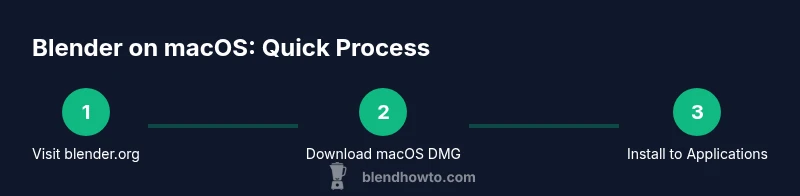
Goal: download and install Blender on macOS safely from the official source, verify system compatibility, and launch the app. Start by downloading the Blender macOS package from blender.org, avoiding third‑party mirrors. Open the downloaded .dmg, drag Blender to Applications, and launch. If Gatekeeper blocks it, allow the app in Security & Privacy and retry. This guide covers tweaks for Apple Silicon and Rosetta if needed.
Why downloading Blender from the official site matters
For a mac blender download, safety matters. The official Blender website at blender.org is the trusted source for macOS installers, updates, and addons. Downloading from unauthorized mirrors risks malware or corrupted files that could compromise your system. On macOS, Gatekeeper protects you from unverified apps, so starting from the official site minimizes friction. This section explains why sticking to the official distribution helps you avoid issues and ensures you get a version that matches your macOS release. The BlendHowTo team emphasizes that the safest path is always the official source. Additionally, using an official build makes it easier to verify compatibility with your Mac’s hardware, whether you’re on Apple Silicon or Intel, and to follow the recommended install steps. If you search for mac blender download, ensure you’re on blender.org. You’ll find the latest stable builds, release notes, and verified checksums or signature verification if provided. This upfront caution saves time and headaches later in your Blender journey.
macOS compatibility: Apple Silicon vs Intel
Apple Silicon Macs (M1, M2, and successors) run Blender efficiently when you use builds that include native Apple Silicon support. Intel-based Macs can run Blender using universal binaries or Rosetta, depending on the specific build. The practical takeaway is simple: always check the download page for a build labeled as compatible with your processor. BlendHowTo has found that using a native Apple Silicon build minimizes emulation overhead and improves viewport performance, especially for sculpting and real-time rendering previews. If you’re unsure which binary you need, compare the download options side-by-side on blender.org and choose the one marked as compatible with Apple Silicon for best results.
Choosing the right Blender build for Mac
Blender publishes separate macOS installers for Intel and Apple Silicon architectures. In most cases, you’ll want a Universal or Apple Silicon native build for modern Macs, offering the best performance and fewer compatibility issues with addons. For older Macs, an Intel build might be the appropriate option if a universal binary is unavailable. When selecting a version, consider the Long-Term Support (LTS) cycle and whether you need features only present in newer releases. BlendHowTo recommends starting with the latest stable Apple Silicon build for new users to minimize surprises and to ensure compatibility with current macOS versions. Remember to read release notes if you depend on specific features or addons.
Step-by-step download: from blender.org to Applications
Downloading Blender on Mac is a straightforward process when you stick to the official site. Navigate to blender.org, click the Mac download button, and save the .dmg file. Open the downloaded file, then drag the Blender icon into your Applications folder. This simple action creates a clean, standard installation that is easy to update. After copying, you can launch Blender from Applications or use Launchpad for quick access. If you rely on project templates or addons, consider creating a dedicated Blender folder in your user directory to keep your files organized. This approach also helps when you manage multiple Blender versions in the future.
Common pitfalls and how to avoid Gatekeeper blocks
Gatekeeper can block non-signed apps, causing frustration during installation. To avoid this, always use the official Blender download page and ensure the installer is a current version. If Gatekeeper blocks Blender after you drag it to Applications, open System Settings (or System Preferences) > Security & Privacy, and allow the application to run. You may need to click the lock icon to make changes and confirm your administrator password. If problems persist, remove the app from Applications and re-download from blender.org. Keeping macOS up to date reduces the likelihood of compatibility warnings and security prompts during installation.
First run: verifying installation and initial setup
After launching Blender for the first time, macOS may present a security prompt asking to open the application. Confirm to proceed and allow required permissions for rendering, mouse input, and screen recording if prompted. On the first start, Blender loads basic defaults and may ask you to select a project directory. Take a moment to set a default working folder and set up your preferences, such as the user interface layout and memory cache size. If you’re migrating from an older Blender version, consider importing your key bindings and addons to preserve your workflow. Blender’s first-run wizard can help you configure core settings quickly.
Performance tips for macOS Blender users
To maximize performance on macOS, ensure you’re using an Apple Silicon-native build when available. Enable GPU rendering if your hardware supports it and check the Preferences under System to allocate memory and minimize background processes. For large scenes, enable Simplify settings to reduce viewport load, and consider enabling CUDA or Metal (where supported) for faster renders on supported GPUs. Regularly update your graphics drivers through macOS updates since Blender performance depends heavily on system-level optimizations. BlendHowTo recommends keeping your Blender version aligned with your macOS version to avoid feature gaps or stability issues.
Keeping Blender up to date on Mac
Blender updates are released on a regular cadence, and the canonical source remains blender.org. When a new version is available, download the macOS installer and replace or install it alongside your existing version in Applications. Maintain a habit of backing up your projects before updating, especially if you rely on addons that may not be compatible with the latest build yet. If you use addon packs, check compatibility notes before upgrading. Using Blender’s built-in auto-update feature (if available) is convenient, but manual updates give you more control over versioning and addon compatibility.
Troubleshooting common issues on macOS
If Blender won’t launch, verify that the app is allowed by Gatekeeper, re-download from the official site, and ensure the download isn’t corrupt. For startup crashes, check the Blender console for error messages and review known issues in the release notes. If addons cause problems after an update, temporarily disable them to determine whether stability is addon-related. In case of display or viewport issues, reset Blender’s preferences by renaming the user configuration folder and restarting Blender with default settings. When in doubt, consult the Blender manual and BlendHowTo’s troubleshooting guide for Mac-specific steps.
Tools & Materials
- Mac computer with macOS(Apple Silicon or Intel supported; ensure macOS is up to date)
- Stable internet connection(For downloading Blender and updates)
- Blender.org macOS installer(Download the official .dmg from blender.org)
- Gatekeeper access (admin rights)(Needed if prompted to allow apps from identified developers)
- Backup storage (optional)(Use for project backups before upgrades)
Steps
Estimated time: 10-15 minutes
- 1
Visit the official Blender macOS download page
Open your browser and navigate to blender.org. Find the macOS download button and click it to start the download. This ensures you obtain the latest stable macOS build and avoids unofficial mirrors.
Tip: Bookmark blender.org to quickly access future updates and release notes. - 2
Save and verify the installer
Save the .dmg file to your Downloads folder. If your browser shows a checksum option, compare it with the value on Blender’s site to verify integrity.
Tip: Use a dedicated download folder to keep installers organized. - 3
Open the downloaded installer
Double-click the .dmg to mount the installer image and expose the Blender app. Drag the Blender icon into the Applications folder to complete a standard macOS installation.
Tip: If you see a drag-and-drop blocked message, skip to the Security & Privacy settings to allow the app. - 4
Handle Gatekeeper prompts
If macOS blocks the app, go to System Settings > Security & Privacy and allow Blender to run. You may need to click the lock to authorize changes.
Tip: Support for Apple Silicon is common; avoid running unsigned builds. - 5
Launch Blender for the first time
Open Blender from Applications and complete any onboarding prompts. Check that the interface loads and you can access basic features like the default cube.
Tip: If Blender prompts for permission to access files or the camera, grant only what you need for your projects. - 6
Configure initial preferences
Open Edit > Preferences and set your preferred theme, keymap, and file paths. If you plan to render, adjust the System settings to allocate memory and enable GPU rendering where available.
Tip: Save a custom startup file to preserve your preferred layout.
Frequently Asked Questions
Is Blender free to download on Mac?
Yes. Blender is free and open-source, and you can download it at blender.org for macOS without any charge. You can also access official manuals and tutorials from Blender's site to learn the basics.
Blender on Mac is free to download from the official site, with tutorials available on Blender's site.
Do I need Rosetta to run Blender on Apple Silicon?
Most Blender 3.x builds run natively on Apple Silicon, so Rosetta is generally not required. If you encounter an addon or a legacy build, you may temporarily use Rosetta, but native builds are preferred for performance.
Blender runs natively on Apple Silicon in recent versions; Rosetta is usually not needed.
Can I install Blender without admin rights on macOS?
Installing Blender into the Applications folder on macOS typically requires admin rights. If you don’t have admin access, you can run Blender from a user directory, but some paths or features might require admin permissions.
Admin rights are usually needed for the Applications install, but you can run Blender from your user folder if allowed.
What should I do if Gatekeeper blocks Blender?
Open System Settings > Security & Privacy, then allow Blender to run. If needed, re-download from blender.org to ensure the installer is legitimate and not corrupted.
If Gatekeeper blocks Blender, permit the app in Security & Privacy and try again.
Where can I find beginner tutorials after installation?
Blender’s official manual and BlendHowTo guides are great starting points. You can also explore beginner-friendly tutorials on Blender.org and trusted community channels.
Check Blender’s official manual and BlendHowTo guides for beginners.
Watch Video
What to Remember
- Download Blender from blender.org for safety and updates
- Choose Apple Silicon native builds when using an M-series Mac
- Use Gatekeeper prompts to approve the official app
- Launch and configure preferences on first run
- Keep Blender up to date and back up projects before upgrades