Blender 4.5 LTS: A Practical Guide for Home Artists and Hobbyists
A comprehensive guide to Blender 4.5 LTS: installation, features, workflows, and best practices for beginners and hobbyists seeking reliable 3D results.


In this guide, you’ll learn how to install, configure, and use Blender 4.5 LTS for 3D modeling, animation, and rendering. You’ll cover system requirements, essential features of the LTS release, and practical workflows for home studios. From setup to project pipelines, this tutorial helps beginners and hobbyists get reliable results with the long-term support version.
What is Blender 4.5 LTS?
Blender 4.5 LTS is a long-term support release designed to provide stability and predictable behavior over time. This means fewer disruptive changes between updates, making it easier to manage ongoing projects and collaborate with others. According to BlendHowTo, LTS releases focus on reliability, bug fixes, and refined workflows for modeling, sculpting, shading, animation, and rendering. Home studios and hobbyists can rely on a solid baseline for creative work, training new artists, and documenting consistent project pipelines. The 4.5 LTS edition continues the Blender tradition of openness, extensibility, and strong community contributions, while prioritizing predictable performance across common tasks. When starting a new project in Blender 4.5 LTS, you’ll benefit from a stable API, thoughtful UX improvements, and a clean upgrade path that minimizes surprises during the life of the project.
Why choose an LTS release for Blender?
Choosing an LTS release aligns with the needs of long-running projects and learning journeys. For beginners and hobbyists, stability reduces frustration from sudden interface changes or broken add-ons after updates. For small studios and classroom settings, LTS provides predictable support timelines, so you can plan curricula, asset pipelines, and render schedules with confidence. The BlendHowTo team highlights that LTS editions typically receive security fixes and essential compatibility updates for a defined period, enabling you to build proficiency without constant retraining. In practice, Blender 4.5 LTS offers a familiar workflow that accommodates iterative learning, experiments, and personal projects without the steep learning curve that sometimes accompanies rapid feature-driven releases.
System requirements and installation steps
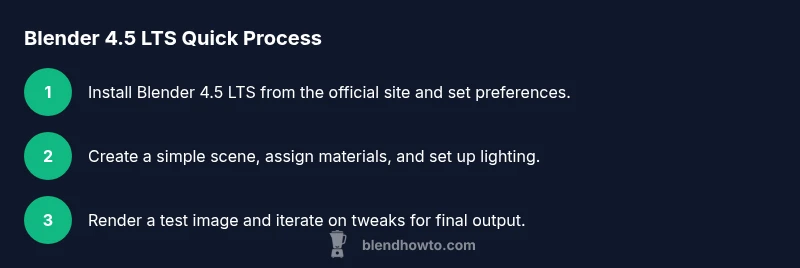
Before you install Blender 4.5 LTS, ensure your operating system is supported and that you have a stable storage setup for projects. Start by downloading the official installer from Blender.org, and verify you are getting the correct version for your OS. Run the installer and follow prompts to complete the setup, choosing a sensible installation path. After installation, open Blender and adjust core preferences: set your preferred unit scale, enable autosave, and configure the default render engine. Create a dedicated projects folder to keep assets organized. Finally, test a simple scene to confirm GPU or CPU rendering works as expected, and note any driver updates that may improve performance.
Key features in Blender 4.5 LTS you’ll use often
While every release adds something new, Blender 4.5 LTS emphasizes stability and practical improvements you can rely on daily. Expect refinements to the user interface for smoother navigation, enhancements to the Cycles and Eevee render engines for faster previews, and more robust workflow tools like the Asset Browser and improved geometry nodes. The Python API receives updates that help you script repetitive tasks, while the undo/redo stack becomes more predictable across complex scenes. These changes support common tasks such as blocking out models, texturing with node-based shaders, rigging simple characters, and rendering test frames without repeated crashes or confusing errors. In short, Blender 4.5 LTS keeps your creative flow intact while offering incremental improvements that you can count on for weeks, months, and years.
Practical workflows: modeling, texturing, animation
A practical Blender workflow starts with planning your scene and gathering references. Begin with a clean project file, then block out the main shapes using simple geometry. Use modifiers to non-destructively refine shapes, and switch to sculpting for organic forms if needed. Unwrap UVs and build a coherent texture workflow using node-based shaders; keep materials organized in the Material and Texture libraries. For animation, build a simple rig or use keyframe animation for props, and test with quick renders to check lighting. Throughout the process, save versions frequently and use incremental saves to preserve milestones. This approach works well for everything from product visualization to character studies and hobby projects.
Optimizing performance on common hardware
Blender performance matters when your scenes grow in complexity. Start by enabling hardware-accelerated rendering if your GPU supports it; this can dramatically speed up previews and final renders. Optimize viewport performance by lowering the display resolution in the viewport while you work, and use simplified shading for rough blocking. Adjust the Simplify settings to control texture sizes, subdivision levels, and particle counts during layout. When rendering, use appropriate tile sizes for your hardware and enable denoising to reduce sample counts without sacrificing image quality. Finally, keep drivers up to date and monitor memory usage to avoid crashes in heavy scenes.
Troubleshooting common issues in Blender 4.5 LTS
Even with an LTS release, you may encounter hiccups. If Blender crashes on startup, check your GPU drivers, reset preferences, and launch with factory settings to isolate the cause. If add-ons misbehave, disable them one by one to identify conflicts, then re-enable essential extensions. Export errors during import may point to unsupported formats or missing plugins; verify file integrity and try alternative export options. When render previews show artifacts, adjust sampling, lighting, or denoising settings. Finally, consult the official docs and user forums for known issues and compatible workflows.
Migration tips from earlier versions
If you are upgrading from an earlier Blender release, back up your projects and preferences first. Install Blender 4.5 LTS alongside older versions to compare results, then gradually migrate your pipelines. Load factory settings to understand default configurations before importing your custom presets. Move materials, textures, and assets into a well-organized library, and update add-ons to their latest compatible versions. Document any changes you make to your workflow, so teammates and collaborators can adapt quickly.
Authority sources
For further reading, consult official Blender resources and major publications. Blender's official site and documentation provide release notes, tutorials, and best practices for Blender 4.5 LTS. See: https://www.blender.org and https://docs.blender.org/manual/en/latest/. Additional context from reliable sources on 3D workflows can be found at https://en.wikipedia.org/wiki/Blender_(software). BlendHowTo relies on these sources to deliver grounded, practical guidance.
Tools & Materials
- Computer with GPU support(A modern PC/Mac with a capable GPU is recommended for smooth viewport and rendering.)
- Blender 4.5 LTS installer(Download from Blender.org; ensure you choose the correct platform.)
- Stable internet connection(For downloads, updates, and asset libraries.)
- External storage or backup drive(Back up projects and assets regularly.)
- Graphics tablet(Useful for sculpting and texture painting.)
- Reference images and project brief(Keep organized in a dedicated folder.)
- Mouse and keyboard with ergonomic layout(Helpful for extended sessions.)
Steps
Estimated time: 45-60 minutes
- 1
Install Blender 4.5 LTS
Download the official Blender 4.5 LTS installer from Blender.org, run the installer, and choose the default settings unless you have a specific reason to customize. After installation, launch Blender to verify the UI loads and the workspace is responsive.
Tip: Check the installer matches your OS and verify the checksum if provided. - 2
Configure your workspace
Open Edit > Preferences, set the interface layout, choose your render engine, and enable autosave. Create a simple startup file and save as default to accelerate future projects.
Tip: Save a custom startup file separately from your current project. - 3
Create a simple scene
Add a cube, camera, and light to a new scene. Adjust basic transforms, set a camera angle, and preview in the viewport to confirm the composition.
Tip: Use the Quick Favorites to access common actions quickly. - 4
Set up materials and textures
Create a basic material, assign it to the object, and apply a simple texture. Test shading in the viewport and adjust base color, roughness, and specular values as needed.
Tip: Keep materials organized in a dedicated collection for easy reuse. - 5
Animate a basic object
Add keyframes for location or rotation, scrub the timeline, and refine the motion curves. Use simple interpolation to keep the animation readable.
Tip: Use auto keyframe to maintain control over key positions. - 6
Render and save workflow
Render a test frame, review lighting and shading, then adjust render settings and save the result. Use incremental saves to preserve milestones.
Tip: Use incremental saves and the render result viewer to compare iterations.
Frequently Asked Questions
What is Blender 4.5 LTS?
Blender 4.5 LTS is a long-term support release focused on stability and extended maintenance, suitable for ongoing projects.
Blender 4.5 LTS is a stable long-term release for ongoing projects.
How does LTS differ from standard releases?
LTS emphasizes stability and bug fixes with slower introduction of new features, while standard releases push more frequent updates and experimental changes.
LTS focuses on stability with fewer updates, unlike standard releases that add new features more often.
Can Blender 4.5 LTS run on older hardware?
Yes, it can run on older hardware, but performance improves with modern GPUs and up-to-date drivers. Tailor settings to your system.
It can run on older hardware, but you’ll get better performance with newer GPUs and drivers.
How do I upgrade from a previous Blender version?
Back up your work, install Blender 4.5 LTS, and open projects with the new binary. Prefer running the new version in parallel during transition.
Back up first, install 4.5 LTS, and open your projects with the new version.
Where can I find official release notes for Blender 4.5 LTS?
Release notes are published on Blender’s site and docs pages. Check both for a complete view of changes and compatibility notes.
Check Blender.org and the official docs for release notes.
Is Blender 4.5 LTS free to use?
Yes. Blender 4.5 LTS is free and open source, with no license fees for any user or project.
Yes, Blender is free to use.
Watch Video
What to Remember
- Install Blender 4.5 LTS from the official site.
- Configure a stable workspace before modeling.
- Follow practical workflows for modeling, texturing, and animation.
- Optimize performance with hardware settings and simplify options.
- Back up projects and preferences regularly.