Blender 5.0 Download: Safe, Simple, and Free
Learn how to securely download Blender 5.0 from official sources, verify integrity, choose the right installer for Windows/macOS/Linux, and complete a smooth first run with practical setup tips.


This guide walks you through Blender 5.0 download safely across Windows, macOS, and Linux. It covers official sources, installer choices, and how to verify integrity before installation. You’ll learn how to avoid tampered files, perform a quick post-download test, and start Blender with recommended defaults for a smooth first run.
How to access Blender 5.0 download sources
According to BlendHowTo, the safest starting point for Blender 5.0 download is the official Blender.org site. This reduces the risk of tampered installers and ensures you get the authentic release. On the official page you’ll find links labeled for each supported operating system and for both stable releases and portable options. The site also provides release notes, which help you understand what’s new and what to expect in this version. Always verify you are downloading the correct file for your OS and language preference, and avoid clicking through third-party banners or pop-ups that resemble download prompts.
Why official sources matter
- Confidence in integrity: official downloads come with checksums and signatures.
- Consistent updates: you’ll receive security patches and bug fixes promptly.
- Clear licensing: Blender remains free and open source; official channels avoid licensing confusion.
What to bookmark
- The Blender Downloads page on Blender.org
- Release notes of Blender 5.0
- The checksum/signature section for the release
Official sources vs mirrors: choosing a safe path
Blender’s official distribution strategy emphasizes direct downloads from Blender.org rather than mirrors. Mirrors can be convenient but carry a small risk of file tampering or outdated builds. If you must use a mirror, cross-check the file’s checksum against the official value published on Blender.org. The BlendHowTo team recommends sticking to official channels whenever possible to reduce risk and ensure compatibility with your system.
How to spot legitimate download pages
- The URL should be under blender.org and use HTTPS.
- The page should show the current Blender 5.0 release notes.
- There’s typically a prominent “Download Blender” button that updates to reflect your OS.
System requirements in plain terms
Blender 5.0 is designed to run on a broad range of hardware, but performance improves with modern hardware and up-to-date drivers. In practical terms, you’ll want:
- A reasonably recent operating system with current security updates.
- Enough RAM to handle complex scenes (at least a few gigabytes for simple projects; more for heavy work).
- A GPU with up-to-date drivers to accelerate rendering and viewport performance.
- Adequate disk space for the application and sample projects.
If you’re unsure about driver compatibility, Blender’s official site often includes a quick checklist that helps you verify your GPU and driver version before installation.
OS-specific installer options and launcher behavior
Blender typically offers different installer formats based on OS:
- Windows: a standard installer or a portable ZIP variant.
- macOS: a DMG installer with a straightforward drag-and-drop install.
- Linux: several options including AppImage, Deb/Rpm packages, and tarballs.
For most home users, the installer or AppImage provides the easiest setup, while portable options are great for testing or running Blender without system-wide changes. On Linux, you may also run Blender directly from a downloaded AppImage without installing.
Launcher and first-run considerations
When you first launch Blender, you may be asked to choose a storage location, configure a few preferences (like UI theme and startup file), and optionally enable GPU rendering. It’s common to start with the default settings and adjust later as you explore add-ons and workflows.
Verifying integrity and authenticity
Integrity verification is a critical step that protects you from corrupted or tampered files. After downloading, locate the official checksum (often SHA-256) published on the Blender.org download page. Use a verification tool appropriate for your OS to compute the checksum of the downloaded file and compare it to the official value. If they don’t match, discard the file and re-download from the official source.
Quick checksum verification tips
- On Windows, use a built-in or trusted third-party checksum utility.
- On macOS, the Terminal can compute SHA-256 sums with the sha256sum or shasum command.
- On Linux, a simple sha256sum command is usually available by default.
If you’re using a corporate or school network, ensure your firewall or proxy isn’t altering the file during transit, which could invalidate the checksum.
Troubleshooting common download issues
Don’t panic if the download stalls or the installer appears damaged. Try these steps:
- Pause and resume the download or switch to a different network.
- Clear browser cache and try again from the official Blender.org page.
- Disable VPNs or proxies temporarily if they interfere with downloads.
- Verify you selected the correct OS version for Blender 5.0.
If problems persist, check Blender.org’s support or community forums for known outages or guidance on alternative download mirrors vetted by the BlendHowTo team.
What to do after you download: installation options and first run
After you download Blender 5.0, run the installer or extract the archive, depending on the format. On Windows or macOS, follow the on-screen prompts to install, then launch Blender from the Start Menu or Applications folder. If you used a portable or AppImage option, simply make the file executable and run it directly. Once Blender opens, check the default startup scene and verify you can create a basic object to confirm everything is functioning properly.
Tools & Materials
- Web browser(Ensure it’s up-to-date before downloading.)
- Official Blender.org account(Use only the official site to download.)
- Checksum utility(Used to verify the file integrity (SHA-256 preferred).)
- Storage for installers(Local disk with sufficient space.)
- Optional portable drive(Useful for testing Blender 5.0 without installing.)
Steps
Estimated time: 30-60 minutes
- 1
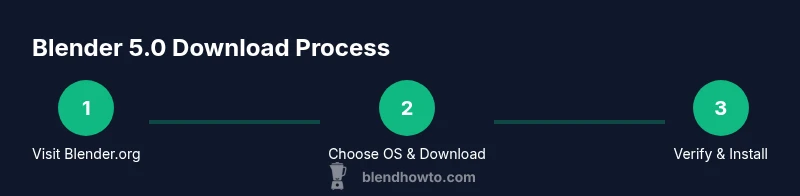
Open a trusted browser and go to Blender.org
Launch your browser and navigate to the official Blender download page. Confirm the URL starts with https and that you’re viewing the current Blender 5.0 release notes. This ensures you are starting from a trusted source and reduces risk from counterfeit installers.
Tip: Bookmark the official Blender.org downloads page for quick future access. - 2
Choose your OS and download the appropriate installer
On the downloads page, select your operating system (Windows, macOS, or Linux) and choose the recommended installer or AppImage/portable option. Avoid third-party download portals. Ensure the file corresponds to your system architecture (64-bit is standard for modern machines).
Tip: If you’re unsure about your OS type, check your system settings before choosing the file. - 3
Verify the download integrity
After the download completes, obtain the official checksum value from Blender.org and compare it with the checksum you generate locally. A match confirms the file is intact and authentic; a mismatch means you should re-download from the official source.
Tip: Use a trusted checksum tool and re-check if a network interruption occurred. - 4
Install or prepare the Blender package
Run the installer or extract the portable package according to the format you downloaded. On Windows/macOS, follow the prompts to install; on Linux, you may use AppImage, Deb/Rpm, or a tarball. Avoid making unnecessary system-wide changes unless you want Blender to be globally available.
Tip: For AppImage users, make the file executable before launching Blender. - 5
Launch Blender and complete the first run
Open Blender from your applications or start menu. The first run may ask for a few initialization steps (UI theme, layout, and memory settings). Complete these quickly to get to the default workspace and test a basic operation like adding a mesh.
Tip: Use the default startup layout for a smooth introduction to Blender 5.0. - 6
Configure basic preferences for your workflow
Adjust preferences such as theme, input, and rendering options to match your typical projects. If you’ll use GPU rendering, verify your GPU is enabled in the preferences and that the drivers are up to date.
Tip: Save a custom startup file so Blender opens with your preferred settings every time. - 7
Run a quick test project to verify health
Create a simple scene (e.g., a cube, apply a material, and render a basic image) to confirm Blender runs correctly. This validates installation and basic setup before you start serious work.
Tip: If rendering fails, check GPU drivers and Blender’s system information for clues.
Frequently Asked Questions
Is Blender 5.0 free to download?
Yes. Blender is open-source and free to download from the official Blender.org site. You can use it for personal and commercial work without paying license fees.
Blender 5.0 is free to download from the official site and can be used for all kinds of projects without any cost.
Can I run Blender 5.0 on Windows 10 or macOS Catalina?
Blender 5.0 is designed to run on recent operating systems with supported drivers. Check Blender.org’s system requirements and ensure your OS is up to date before installing.
It should work on supported Windows or macOS versions; just verify your system meets the requirements first.
What’s the difference between an installer and a portable version?
An installer installs Blender system-wide, while a portable version runs from a folder without formal installation. Portable options are handy for testing or using Blender on systems with limited permissions.
Installer installs, portable runs from a folder; portable is good for testing or restricted systems.
How do I verify the download integrity?
Obtain the official checksum from Blender.org, then compute the checksum of the downloaded file and compare. A match confirms integrity; otherwise, re-download from the official source.
Get the official checksum, run the checksum tool on your download, and compare.
Where can I find release notes for Blender 5.0?
Release notes are published on Blender.org and detail new features, improvements, and notes for 5.0. Reviewing them helps you plan your workflow.
Check Blender.org for the latest release notes to see what’s new in 5.0.
Watch Video
What to Remember
- Download only from Blender.org
- Verify integrity with official checksums
- Choose installer suitable for your OS
- Test run a simple scene to confirm setup