Is It Safe to Download Blender? A Practical Guide
Learn how to safely download Blender from official sources, verify file integrity with checksums, avoid scams, and install confidently on Windows, macOS, and Linux.


Yes, it is generally safe to download Blender from its official website and verified mirrors. Blender is open-source, widely used by artists and hobbyists, and distributed with digital signing and checksums to verify integrity. Always download the latest stable release and avoid third-party installers or untrusted mirrors.
Why download safety matters
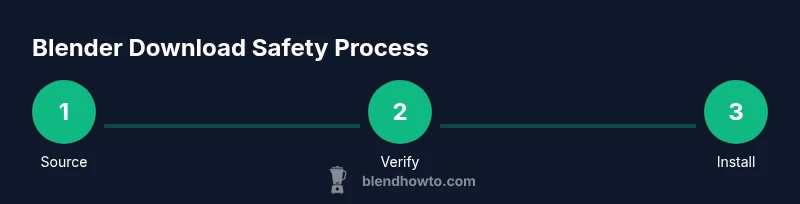
For anyone starting with Blender, the act of downloading the software carries risk if it comes from untrusted sources. A safe download protects your computer from malware, guards your personal data, and ensures you receive an authentic Blender experience without tampering. The BlendHowTo team has observed that users who verify download sources and checksums reduce security incidents and installation problems. Treat every Blender download as potentially risky, and implement a simple, repeatable process: confirm the source, verify the file, and test the install in a controlled environment. In addition to security benefits, a cautious approach minimizes unexpected software bundles, adware, or locale-specific variants that can complicate the setup on Windows, macOS, or Linux.
Throughout this article we’ll focus on practical steps you can take, whether you’re a home cook exploring 3D design for crafts or a hobbyist testing Blender’s rendering capabilities. A safe download flow helps protect your system, your data, and your project timelines, and it aligns with best practices shared by the BlendHowTo community.
How Blender is distributed and verified
Blender is an open-source project maintained by the Blender Foundation, with official releases published on the project’s primary site. Downloads typically include a direct installer or portable build for your platform, accompanied by checksums (like SHA-256) and occasionally a signature from the project maintainers. The verification process is designed to ensure the file you receive matches the original, unmodified artifact. For home users, this means the download you click on the official page should be the same file your system validates when you run a hash check. This model—official builds, checksum validation, and clear release notes—helps BlendHowTo emphasize safety without requiring users to become cryptography experts.
Official sources for Blender downloads
Always start from the official Blender website (blender.org) or from officially sanctioned mirrors listed on the site. Avoid third-party sites that offer Blender bundled with extra software or aggressive installer wrappers. When you land on the official page, double-check the domain, look for HTTPS, and verify that the page includes the latest stable release notes. If you’re using Linux, some distributions provide Blender through their package managers, but the official Blender binaries remain your best source for the most up-to-date features and security fixes. By sticking to official channels, you reduce the likelihood of receiving tampered files or outdated builds that no longer receive security updates.
What makes a download safe: signatures, checksums, and release channels
A safe Blender download should come from a trusted release channel and include verifiable integrity data. Key signals include a clearly displayed SHA-256 (or SHA-3) checksum, a digital signature or GPG signature from the Blender Foundation, and a release note that matches the file size and date you expect. Stable releases receive ongoing maintenance and security patches, while development or nightly builds may carry higher risk of instability. For most users, sticking to the latest stable release on the official site provides a reliable balance of features and security. BlendHowTo emphasizes verifying both the hash and the domain before initiating any download.
How to verify integrity of a Blender download
Verification differs by operating system but follows the same principle: compare the computed hash of the downloaded file with the published hash on the Blender site. On Windows, use built-in PowerShell commands or third-party tools; on macOS and Linux, sha256sum or shasum are common. Steps include downloading the installer, noting the expected hash from Blender’s page, computing the file’s hash locally, and comparing the two values exactly. If they don’t match, delete the file and re-download from the official source. This process is a simple, reliable guard against tampering and corrupted downloads.
Common scams and red flags to avoid
Beware of mirrors that use odd domain names, shortened URLs, or installers that bundle additional software. Avoid downloading Blender from questionable pop-up links or forums with vague version numbers. Red flags include requests for unusual permissions during install, forced adware, or installers that modify your system settings. Always verify the source, URL, and page security indicators before clicking download. If something feels off, trust your browser’s security warnings and stop the download—your future self will thank you.
Practical checks before downloading and installing Blender
Before you click download, confirm your operating system and architecture (Windows 10+ 64-bit, macOS 10.13+, or Linux with glibc support). Ensure you have sufficient disk space (Blender’s installer is modest but requires room for temporary files and texture caches). Update your antivirus and keep your system patched with the latest security updates. Consider enabling two-factor authentication for your online accounts if your browser supports it, and ensure your browser extensions are from reputable sources. A quick pre-check makes the actual download and install smoother and safer.
Quick-start security checklist for Blender users
- Download only from the official Blender site or vetted mirrors.
- Verify the file’s hash against the published value.
- Do not install software from unexpected prompts or bundled installers.
- Use a current browser with phishing and malware protections enabled.
- After installation, run Blender in a test scene to confirm features work as expected and that no system slowdowns or unusual network activity occur.
Tools & Materials
- Stable internet connection(Fiber or reliable broadband recommended)
- Official Blender download URL(blender.org or linked official mirrors)
- Checksum tool (SHA-256 or SHA-256 compatible)(Windows: PowerShell, macOS/Linux: sha256sum)
- Up-to-date web browser with security features(Avoid outdated or deprecated browsers)
- Disk space for installers and temp files(Minimum 2 GB free is safe)
- Antivirus/antimalware protection(Keep definitions current)
Steps
Estimated time: 20-30 minutes
- 1
Find the official Blender download page
Open your browser and navigate to blender.org. Confirm you’re on the official site by checking the domain and page security indicators. This step prevents accidental landing on fraudulent sites.
Tip: Bookmark the official URL to avoid accidentally clicking malicious links in the future. - 2
Choose the right platform and version
Select the correct installer for Windows, macOS, or Linux, and pick the latest stable release unless you have a specific feature need for a preview build. Avoid beta builds for critical projects.
Tip: If you’re unsure, choose the Long-Term Support (LTS) style release when available. - 3
Verify signatures or checksums
Look for a published SHA-256/SHA-3 checksum or a digital signature on the download page. Tools vary by OS but produce a hash you can compare to the one published.
Tip: If a signature is offered, verify it using the provided public key from Blender. - 4
Download to a dedicated folder
Save the file to a clearly named folder (e.g., Downloads/Blender) and avoid renaming during download to preserve the original filename for hash checks.
Tip: Pause other downloads to ensure the file isn’t corrupted mid-download. - 5
Verify integrity before installing
Compute the hash on the downloaded file and compare it to the value shown on the Blender site. If they don’t match, delete the file and re-download from the official source.
Tip: If hash values aren’t posted, contact Blender support or re-check the page after a short cooldown. - 6
Run the installer and perform a light test
Launch the installer or run Blender from the portable build. Open a simple scene to verify rendering, interface response, and plugin behavior without rebooting or changing system settings.
Tip: If Blender crashes during the first run, review system requirements and consider a clean reinstall.
Frequently Asked Questions
Is Blender free to download and use?
Yes. Blender is open-source and freely available for personal and commercial use without licensing fees. You can download, modify, and distribute it under its license terms.
Blender is free to download and use, with open-source licensing that covers personal and commercial use.
Can I trust Blender's official website for downloads?
Yes. The official Blender site is the primary source for authentic builds. Always verify the domain and look for HTTPS. If something seems off, use the official links from Blender's homepage.
Yes—the official Blender site is reliable when you verify the domain and secure connection.
What should I do if the download hash doesn’t match?
Do not install. Delete the file and re-download from the official source, then re-check the hash. If discrepancies persist, contact Blender support.
If the hash doesn’t match, stop, delete, and re-download from the official source.
Are there safe mirrors for Blender downloads?
The Blender Foundation recommends official channels; mirrors may exist but should be used only if clearly listed as official. Be cautious with unfamiliar domains.
Use only official mirrors listed by Blender to stay safe.
Does Blender support Windows, macOS, and Linux?
Blender runs on Windows, macOS, and Linux. Download the correct build for your operating system and architecture to ensure compatibility.
Blender is available for Windows, macOS, and Linux; choose your OS.
Do I need an account to download Blender?
No account is required to download Blender. You can access downloads directly from the official site without signing in.
No account is needed to download Blender.
Watch Video
What to Remember
- Verify source before downloading.
- Always check file integrity with a published hash.
- Avoid third-party installers and suspicious mirrors.
- Test Blender after install to confirm integrity.
- Keep your system protected and updated.