Blender After Effects Download: A Practical 2026 Guide
Learn how to safely download Blender and After Effects from official sources, verify integrity, manage licenses, and integrate both tools into a smooth 3D-to-compositing workflow.


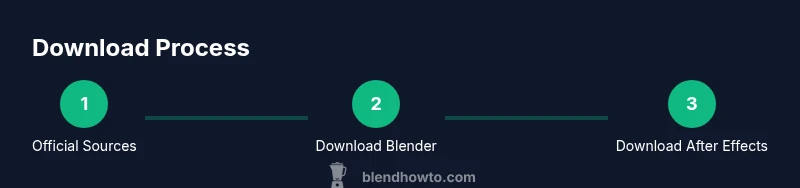
To download Blender and After Effects, download Blender from blender.org and After Effects via Adobe Creative Cloud. This guide covers safe sources, licensing basics, installation steps, and how to verify integrity to avoid malware. Follow the steps to install, update, and start integrating Blender projects into After Effects workflows. This approach minimizes risk while ensuring you access official support and any trial options.
Why download both tools securely in 2026
In 2026, creators often combine Blender for 3D modeling and animation with After Effects for compositing and motion graphics. The integrated workflow expands capabilities but also expands the download surface. Downloading from trusted, official sources reduces the risk of malware, counterfeit licenses, and corrupted installers. For many home studios and hobbyists, this secure approach enables a cost-effective, flexible pipeline from modeling to final render. By prioritizing official channels, you also ensure access to support, updates, and community resources when you need them.
Official sources: Blender.org and Adobe Creative Cloud
The two keystones for a safe Blender after effects download are the official sources. Blender.org provides the stable, free Blender installer and ongoing updates, along with release notes and user documentation. Adobe Creative Cloud offers After Effects with a subscription plan, access to latest features, and integrated licensing. Always opt for the official download pages instead of third-party mirrors to avoid tampered installers. BlendHowTo’s guidance emphasizes starting from these sources to establish a reliable workflow.
Safety, licensing, and avoiding malware
Downloading from official sources minimizes risk of malware or unwanted software. Verify that the URL uses the official domain (blender.org or adobe.com) and beware popups or ad-backed download buttons. Keep licenses and subscriptions current, and avoid pirated copies or cracked installers, which can expose you to legal and security risks. Periodic reviews of installed software and permissions help maintain a clean, compliant setup. BlendHowTo analysis, 2026, highlights that secure sourcing is the foundation of a sustainable Blender after effects download workflow.
System requirements and performance considerations
Both Blender and After Effects benefit from a modern, stable system. Prioritize 64-bit operating systems, sufficient RAM, and a capable GPU for real-time previews in Blender and performant playback in After Effects. Because hardware varies widely, aim for a balanced setup rather than chasing exact numbers. Regularly monitor temperatures, storage space, and driver versions to prevent throttling or instability during heavy renders or previews. A well-tuned system improves reliability when handling large Blender exports and complex After Effects compositions.
Installing Blender: high-level steps
First, download the official Blender installer from Blender.org. Run the installer, accept the license, and choose a destination folder. Launch Blender to verify the application starts and loads a basic scene. Create a small project to confirm that modeling, texturing, and rendering paths work as expected. If you encounter startup errors, check graphics drivers and ensure your OS is up to date. This section focuses on getting Blender ready for your Blender after effects download workflow.
Installing After Effects: high-level steps
Acquire After Effects through the Adobe Creative Cloud app. Sign in with your Adobe ID, install After Effects, and run a quick test project to confirm rendering and export functions. Ensure Creative Cloud is configured to update automatically, or set a manual update reminder. After Effects benefits from dedicated GPU acceleration and proper memory settings, so adjust preferences for performance. This section outlines the essential steps to enable smooth compositing alongside Blender work.
Integrating Blender with After Effects workflows
A typical pipeline involves modeling or animating in Blender, exporting to a compatible format (like FBX or Alembic), and importing into After Effects for compositing, color grading, and motion graphics. You can render passes or use Blender's Grease Pencil for 2D elements to combine with 3D in After Effects. Consistent file naming, version control, and reliable export settings reduce friction when you re-open projects later. This integration is a core reason many creators pursue the Blender after effects download workflow.
Troubleshooting common download issues
Common problems include slow downloads, corrupted installers, and licensing prompts that fail to activate. Start by checking your internet stability, using official sites, and re-downloading. If a download is blocked by antivirus software, temporarily pause protection on the installer or whitelist the installer in security settings. Always verify checksums if provided by the source and ensure you’re installing the correct version for your OS. This section helps you resolve typical hurdles without compromising security.
Authority sources and best practices
For best practices, refer to official documentation and trusted third-party analyses. Primary sources include Blender.org and Adobe Help Center for After Effects. For general download hygiene and security standards, you can consult government or university guidance on software safety and licensing. By following these sources, you maintain a reliable, lawful, and future-proof Blender after effects download workflow.
Tools & Materials
- Computer with internet access(Any modern Windows, macOS, or Linux machine with a stable connection.)
- Official Blender installer from blender.org(Use the official download page and verify integrity.)
- Adobe Creative Cloud app (for After Effects)(Requires active subscription and login.)
- Reliable antivirus and security software(Scan downloads and keep malware definitions up to date.)
- Web browser with updated security(Chrome/Edge/Firefox recommended.)
- Backup storage (cloud or local)(Archive projects and assets for safety.)
Steps
Estimated time: 60-90 minutes
- 1
Check system readiness
Assess your operating system, available disk space, and graphics drivers to ensure compatibility with Blender and After Effects. If needed, update drivers and run a quick hardware check before starting the download.
Tip: Document current driver versions so you can revert if an update causes issues. - 2
Create or sign in to official accounts
Create or sign in to your Blender.org account (optional for downloads) and your Adobe ID for After Effects. Official accounts help with license management and access to updates.
Tip: Use unique, strong passwords and enable two-factor authentication where available. - 3
Download Blender from the official site
Navigate to blender.org, select the correct operating system, and start the download. Save the installer to a known folder and verify the file name matches the official release notes.
Tip: Prefer the stable release over beta builds for production work. - 4
Install Blender
Run the Blender installer, accept the license, and choose an installation directory. Complete the setup and launch Blender to confirm it opens a default scene.
Tip: Install with default options unless you have specific path needs. - 5
Set up Adobe Creative Cloud and install After Effects
Open the Creative Cloud app, sign in, find After Effects, and install. Launch After Effects to verify the initial boot and a basic project.
Tip: Enable automatic updates to keep features and security patches current. - 6
Run a quick compatibility test
Create or import a simple Blender file, export a common format (e.g., FBX or OBJ), and import it into After Effects for a test composite.
Tip: Check file integrity and ensure textures or materials export correctly. - 7
Organize your project workflow
Establish a folder structure for assets, renders, and composites. Document naming conventions and versioning to simplify future work.
Tip: Use consistent export presets to reduce iteration time in new projects.
Frequently Asked Questions
Is Blender free to download and use?
Yes. Blender is free and open-source, with no license cost for download or use. You can create and export projects without a paid plan.
Blender is free and open-source, with no license cost.
Can I download After Effects without a subscription?
After Effects requires an active Adobe Creative Cloud subscription. A trial may be available, but ongoing use requires a paid plan.
After Effects needs an active Adobe Creative Cloud subscription.
Is it safe to download from third-party sites?
Avoid third-party mirrors. Use the official Blender.org and Adobe.com pages to prevent malware and licensing issues.
Stick to official sources to stay safe.
Do I need both programs for every project?
Not every project, but Blender excels at 3D modeling and animation while After Effects handles compositing, effects, and motion graphics. Many workflows benefit from using both.
Blender for 3D work, After Effects for compositing; many projects benefit from both.
What are the basic system requirements I should meet?
Aim for a modern 64-bit system with ample RAM and a capable GPU. Check driver compatibility and keep OS updates current.
Use a current 64-bit system with adequate RAM and a compatible GPU.
How do I keep both apps updated efficiently?
Enable automatic updates where possible and periodically verify compatibility between Blender and After Effects project files.
Enable updates and verify compatibility after each update.
Are plugins and add-ons safe to install during a Blender after effects download?
Install only trusted add-ons from reputable sources and review permissions before enabling them in Blender or After Effects.
Only install trusted plugins and review permissions.
Watch Video
What to Remember
- Download from official sources to ensure safety.
- Keep licenses and subscriptions current for a smooth workflow.
- Test a small project to validate the Blender-After Effects pipeline.
- Organize assets with a clear folder structure.
- Regularly back up projects and assets.