Blender Export Camera to After Effects: A Practical Guide
Learn how to export Blender camera data to After Effects with practical workflows, compatible formats, and troubleshooting tips for a smooth compositing project. Includes FBX/Alembic workflows, data-script options, and best practices.


You can transfer Blender camera animation to After Effects by exporting the camera data in a compatible format (FBX/Alembic) or via a dedicated data-export script that produces keyframes. Then import into After Effects using a conversion tool or by manually mapping the keyframes. Make sure the project settings (frame rate, units, and scale) match between Blender and After Effects.
Why exporting Blender camera to After Effects is useful
If you’re working on a visual project that blends 3D perspective with 2D composites, a clean blender export camera to after effects workflow can save hours of manual tweaking. According to BlendHowTo, aligning camera motion between Blender and After Effects ensures seamless parallax, accurate depth cues, and consistent timing across your shot. When you export the camera, you preserve essential parameters such as position, rotation, focal length, and lens settings, which are critical for convincing composites. This guide explains practical methods, common pitfalls, and best practices to help home cooks and hobbyists who are building 3D-animated scenes or product reveals in After Effects.
By following a repeatable process, you’ll reduce drift between the 3D render and the 2D composite and can reuse camera data for multiple takes. The aim is not to re-create the entire scene in AE but to allow the camera to drive a compliant 3D perspective so your lighting, shadows, and motion feel coherent across tools.
Key concepts you need to know
Before you begin, you should understand the core concepts that impact how camera data translates between Blender and After Effects. First, frame rate matters: Blender’s animation timing is driven by frames per second (fps), while After Effects uses the same unit system but may require adjustments in import settings. Second, coordinate systems differ: Blender uses a Z-up, right-handed space, whereas After Effects operates in a world where camera orientation needs careful mapping to the comp grid. Third, lens and focal length influence field of view (FOV); a given focal length in Blender may map differently to AE depending on your project’s sensor size. Finally, unit scale is important: confirm that Blender units align with After Effects units or adjust in your import script or pipeline. A deliberate preflight ensures minimal surprises as you transfer data.
Supported export formats and trade-offs
There are several approaches to moving camera data from Blender to After Effects, each with trade-offs:
- FBX export: A widely supported format for cameras and animation. Pros include broad compatibility and straightforward imports with keyframes and transforms. Cons include potential differences in unit scales and FOV preservation if the target pipeline isn’t configured consistently.
- Alembic (ABC): Excellent for baked camera animation and scene motion, with strong support for interpolate-heavy data. Pros include stable playback and robust frame alignment. Cons include larger file sizes and occasional complexity when only a camera is needed.
- CSV/JSON via a data-export script: Gives explicit control over keyframes (positions, rotations, FOV). Pros include precision and easy editing. Cons include the need for a custom importer on the AE side or a helper plugin to apply keyframes.
The right choice depends on your workflow, target tools, and how much you want to rely on third-party plugins. BlendHowTo recommends testing multiple formats on a short sequence to confirm fidelity before committing to a long shot.
- The main takeaway is to keep frame rate, units, and scale consistent across both programs to minimize drift when you import camera data into After Effects.
Preflight: aligning Blender and After Effects settings
Successful transfer starts with alignment. In Blender, set the scene to a clear metric unit system and a predictable scale (for example, 1 Blender unit equals 1 meter) and choose a frame rate that matches your AE project. In After Effects, create a placeholder composition with the same resolution and frame rate as your Blender render. Verify that the camera’s focal length and sensor size in Blender map to AE’s camera properties; misalignment here leads to perspective drift. It’s helpful to bake or freeze camera animation in Blender before export so you’re transferring exact keyframes rather than interpolated motion. Finally, check any axis orientation differences and plan how to apply Y/X flips if your AE workflow requires them.
Workflow A: FBX export and AE import
Exporting the Blender camera as FBX is a common approach for many users. In Blender, select the camera and any related animation data, then export using the FBX format with options that include camera animation. In After Effects, import the FBX through a compatible importer or a middleware tool that reads camera transforms and recreates a native AE camera. After import, scrub the timeline to ensure the keyframes align with the AE composition’s frame rate and timebase. If the importer presents a discrepancy in the FOV, you may need to adjust either the camera’s focal length in Blender or apply a post-import conversion in AE. This method is favored for its balance of simplicity and fidelity.
Workflow B: CSV/JSON export and manual keyframe recreation in After Effects
For maximum control, export camera data via a script to CSV or JSON that includes frame numbers, position (x,y,z), rotation (pitch,yaw,roll), and focal length. In After Effects, import the data and create a new camera, then keyframe its properties to match the exported timeline. This path is particularly useful when you need to customize mappings or when your AE ecosystem relies on data-driven animation. It does demand a little scripting on the AE side or a dedicated importer, but it yields precise control over each parameter and reduces surprises during comp work.
Tips for troubleshooting common issues and best practices
- Always bake camera motion in Blender before exporting to ensure the data exports as a fixed sequence rather than relying on runtime interpolation.
- Keep a small test scene with a few keyframes to validate the transfer pipeline before committing to a full shot.
- If you see a drift in time or spacing, verify the frame rate parity and the comp’s preview settings on both ends.
- Document your chosen workflow so teammates or future you can reproduce it reliably.
- Consider maintaining a simple “camera data sheet” (frame, position, rotation, focal length) for quick checks during the import phase.
Best practices and validation
To maximize accuracy, start with a short, controlled shot that has known geometry in both Blender and AE. Validate by overlaying a simple object with a known size in the AE composition and comparing parallax movement with the Blender scene. Use test renders that verify perspective and timing alignment, not just the first frame. Create a repeatable template where you export from Blender and import into AE using the same steps every time. This reduces drift across projects and teams, ensuring predictable results. BlendHowTo’s approach emphasizes repeatable workflows and cross-checks to minimize rework when you push a project from Blender to After Effects.
Tools & Materials
- Blender software(Latest stable release; ensure FBX/ABC export options are available.)
- After Effects(CS6+ or Creative Cloud; verify 3D camera support in your version.)
- FBX/ABC export plugin or built-in exporter(Use if your pipeline relies on non-standard imports.)
- Data-export script (Python/Node) for JSON/CSV(Optional but useful for data-driven workflows.)
- Test scene with a camera and a simple object(Helps validate export/import fidelity.)
- Reference sheet for camera parameters(Keep focal length, sensor size, and units consistent across apps.)
Steps
Estimated time: 45-90 minutes
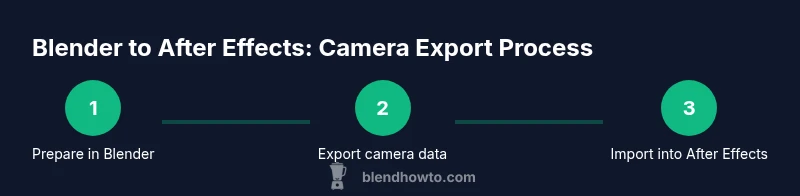
- 1
Prepare the Blender scene
Open your Blender project and isolate the camera animation you want to export. Ensure the camera is active and that its motion is baked so keyframes represent the actual motion. This step reduces surprises in later imports.
Tip: Bake the animation to a single action before exporting. - 2
Choose an export method
Decide between FBX, Alembic, or a data-export script (CSV/JSON). Consider your AE workflow: for quick handoffs, FBX is simplest; for precision, a data-export script gives fine-grained control.
Tip: Test both methods on a short sequence to compare fidelity. - 3
Export the camera data
Export the camera as FBX or run your data-export script to generate keyframe data. Verify that the exported file includes camera transforms and focal length. Keep the export settings consistent with your AE project configuration.
Tip: Double-check frame rate and units in the export panel. - 4
Prepare After Effects project
Create or open a composition that matches Blender’s resolution and frame rate. If importing FBX, use a compatible importer or plugin to read camera data and recreate a native AE camera.
Tip: Set the AE project to the same frame rate as Blender to avoid timing drift. - 5
Import and apply the data
Import the FBX or load your JSON/CSV data, then recreate or map keyframes to the AE camera properties (position, rotation, focal length). Validate by scrubbing the timeline and checking perspective in a test render.
Tip: When mapping rotations, consider converting from Blender’s Euler or Quaternion to AE’s rotation conventions. - 6
Verify and adjust
Play back the sequence in a test render, compare with Blender’s render, and tweak scale, lens, or timing as needed. Save this as a reusable template for future projects.
Tip: Document any tweaks so you can automate the process later.
Frequently Asked Questions
Can I export Blender camera data to After Effects directly?
Direct one-click imports aren’t universally supported. Most people move camera data via FBX, Alembic, or a data-export script that provides keyframes for AE. You may need a plugin or importer to translate the data into AE’s camera system.
Direct export isn’t standard; you usually use an intermediary format or script to transfer keyframes.
What formats work best for camera transfer?
FBX and Alembic are the most common formats for camera data transfer, with CSV/JSON scripts offering precise keyframe control. Your choice depends on your AE workflow and whether you prefer native AE keyframes or data-driven animation.
FBX or Alembic are typical, with CSV/JSON offering precise control.
How do I import FBX camera data into After Effects?
Use a compatible importer or plugin that reads camera transforms from FBX and recreates a native AE camera. If your tool doesn’t support direct camera import, you may need to map the transforms manually on a new AE camera.
Import with a tool that reads camera data or map keyframes manually after import.
What if the camera movement looks different in After Effects?
Check frame rate, unit scales, and focal length mapping. Differences in coordinate axes can also cause drift; adjust the camera orientation in AE to align with Blender’s motion.
If it looks off, verify frame rate and axis orientation, then tweak orientation in AE.
Is there a plugin that makes this easier?
Several plugins and scripts exist to facilitate Blender-to-AE camera data transfer, but results vary. Evaluate a few on test sequences to see which best fits your needs and workflow.
There are plugins, but test first to confirm fidelity.
Watch Video
What to Remember
- Match frame rate and units across apps
- Choose an export format that fits your pipeline
- Bake camera motion before exporting to avoid interpolation issues
- Test with short sequences to validate fidelity
- Document workflow for repeatable results