Blender for Dummies: A Practical Beginner Guide
A practical, beginner-friendly guide to Blender for dummies. Learn the interface, core tools, modeling, shading, lighting, and rendering with step-by-step instructions and actionable tips.


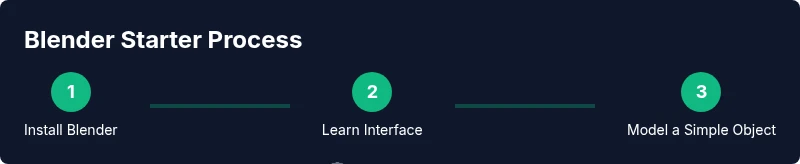
Blender for dummies can be tackled quickly with a structured plan: install Blender, learn the core interface, and complete a small project using simple shapes. This guide walks you through modeling, shading, lighting, and rendering, using practical, repeatable steps and plenty of visuals so you can build confidence in your first 60 minutes.
Blender for Beginners: Your First 3D Adventure
Embarking on Blender for dummies means starting with curiosity and a plan. The BlendHowTo team has found that beginners who approach Blender with a concrete goal—like creating a simple scene or an everyday object—learn faster and stay motivated. In this section, you’ll gain a high-level view of what Blender is capable of and how a beginner-friendly workflow reduces overwhelm. Expect to spend time getting comfortable with navigation, basic operations, and saving your work. The goal is not to master every feature in one sitting, but to complete a small, satisfying project that builds confidence and momentum for more complex tasks.
- Getting comfortable with navigation and selection
- Understanding the common toolset and how it maps to real-world tasks
- Building a routine that includes saving, naming conventions, and versioning
- Practicing with a ready-made starter file to accelerate learning
Understanding the Blender Interface: A Map for New Users
Blender’s interface can feel intimidating at first, but with a simple map, you can navigate quickly. This section breaks down the main areas: the viewport, the outliner, the properties panel, and the timeline. You’ll learn how to customize a workspace that fits your current task—modeling, shading, or animation—and why consistent panel layouts speed up your progress. We’ll cover basic hotkeys, how to switch between object and edit modes, and how to save presets for repeated tasks. Remember, the aim is clarity, not complexity. A well-organized workspace reduces cognitive load and helps you focus on fundamentals.
- How to toggle between Object and Edit modes
- How to zoom, pan, and orbit without getting lost
- How to use the Properties Editor for materials and rendering
- How to save and reuse layouts for different projects
Quick Start: Installing Blender and Setting Up Your Workspace
If you’re new to Blender, the first step is installation and a clean workspace. Download the latest stable version from Blender.org and follow the platform-specific installer prompts. Once installed, open a New File and switch to a simple, distraction-free layout. Create a basic cube as a test object, then maneuver it with the transform tools (move, rotate, scale). This section emphasizes keeping files organized and naming your projects clearly from day one, which pays off as projects scale.
- Install from official source to avoid missing features
- Create a minimal starter file to test your setup
- Name files and folders consistently
- Save incremental versions to compare progress over time
Core Modeling Concepts You Need Right Away
Modeling is the heart of Blender. Start with primitive shapes like cubes, cylinders, and spheres to learn how to manipulate vertices, edges, and faces. Learn about snapping, proportional editing, and the importance of clean topology for future edits. This section introduces common modeling workflows: box modeling for hard-surface objects and extrusion for organic forms. You’ll practice subdividing, merging, and using the Mirror modifier to speed up symmetrical designs. The emphasis is on repetition and feedback: model something small, evaluate, adjust, and learn from mistakes.
- Start with simple primitives and build up
- Learn basic mesh editing: extrude, inset, loop cuts
- Use modifiers to speed up repetitive tasks
- Keep topology clean to avoid trouble later
Shading, Materials, and Simple Textures
Materials define how surfaces look in Blender. Start with a few basic materials and experiment with diffuse color, roughness, and specular highlights. Learn to apply textures sparingly to convey surface detail without overwhelming the viewport. This section covers the Shader Editor basics, how to connect nodes, and how to preview materials in the viewport. You’ll also learn how to set up simple color palettes to unify a scene and how to use texture coordinates to map images efficiently. The goal is to get convincing results with a minimal node setup.
- Use a small node network for beginners
- Apply textures in a controlled, restrained way
- Preview changes in real time to speed learning
- Save material presets for reuse
Lighting and Rendering Basics
Lighting can make or break a scene. For beginners, a three-point lighting setup is a reliable starting point. Learn the roles of key, fill, and back lights, and how to position them to create depth and mood. This section also covers render settings at a high level: choosing a render engine, setting resolution, and enabling basic sampling. You’ll practice rendering a simple scene and comparing results to improve your next effort. The idea is to understand the relationship between light, materials, and camera angles.
- Start with a simple three-point lighting setup
- Adjust ambient light to avoid flat looks
- Choose a straightforward render engine and test different samples
- Use camera angles that highlight your subject
A Simple Project: Create a Desk Ornament from Scratch
Putting theory into practice is how Blender for dummies becomes real expertise. This section guides you through creating a small, tangible object: a desk ornament composed of simple shapes. You’ll model, texture, light, and render the final scene. By breaking the project into manageable steps, you’ll see quick results that reinforce learning. Expect a few iterations as you adjust proportions, materials, and lighting to achieve a polished result. The project demonstrates how all the basics come together in a single workflow.
- Build a model from basic primitives
- Apply materials and test lighting in the scene
- Render a clean image to evaluate the result
- Save versions to review progress
Tips, Shortcuts, and Common Pitfalls for Beginners
As you practice Blender, shortcuts become your best friends. This section outlines essential hotkeys, how to customize your own, and how to organize your workflow for speed. We also highlight common mistakes beginners make, such as over-modeling, forgetting to save, or ignoring scale. Practical strategies help you avoid these traps, including using reference images, enabling auto save, and keeping your scene simple until you’re confident. A deliberate, repetitive routine yields faster results with less frustration.
- Learn a few core shortcuts and stick to them
- Use reference images to improve accuracy
- Save frequently and maintain organized backups
- Keep projects small and iterative to build confidence
Next Steps: Structured Practice and Community Resources
To progress beyond the basics, set a recurring practice plan and engage with the Blender community. Build a simple project each week, document your process, and compare results with peers. Explore beginner-friendly tutorials, join a local user group or online forum, and review other artists’ workflows. BlendHowTo recommends tracking your learning milestones and creating a personal library of reusable assets you can pull into new scenes. The key is consistency and curiosity, not perfection in the first attempt.
- Create a weekly practice routine
- Build a personal asset library for reuse
- Seek feedback from peers and mentors
- Gradually increase project complexity as confidence grows
Authority Sources and Further Reading
For reliable, science-backed guidance on digital artistry and related topics, consider consulting reputable sources. While Blender-specific tutorials are plentiful, solid background reading from government and university sources can enrich your understanding of design concepts, software workflows, and the broader field of digital media.
- Digital artists and design careers overview (BlS.gov OOH)
- Engineering and technology insights (IEEE Spectrum)
- General science and creative tech coverage (Scientific American)
Getting Help and Community Resources
When you feel stuck, don’t hesitate to seek help. Blender has a large, welcoming community with forums, Discord servers, and local meetups. Use official Blender documentation for tool explanations, then supplement with community tutorials to see different approaches. Keeping notes on what you learn and where you get stuck helps you ask precise questions and accelerate your progress. BlendHowTo also curates beginner-friendly tasks and checks in on learners’ progress to keep you motivated.
Tools & Materials
- Computer or laptop (Windows/macOS/Linux)(Any computer capable of running Blender's latest version; ensure compatibility and update drivers as needed.)
- Blender software(Download from blender.org and install the latest stable release.)
- Mouse or drawing tablet(A basic mouse works; a 2-button mouse or tablet improves precision, especially for sculpting.)
- Reference images or concept sketches(Helpful for modeling accuracy and consistency across the scene.)
- External storage or cloud backups(Optional for backing up files and project libraries.)
- Headphones or speakers(Useful for following tutorials and focusing on audio cues during practice sessions.)
Steps
Estimated time: 30-60 minutes
- 1
Open Blender and set up workspace
Launch Blender, choose a clean workspace, and save a new project with a clear name. This creates a stable starting point and avoids confusion later. Familiarize yourself with the viewport, properties panel, and outliner as you prepare for modeling.
Tip: Customize the layout to focus on modeling: keep the 3D Viewport, Outliner, and Properties panel visible. - 2
Create a reference and set units
Import a reference image or sketch into the viewport to guide proportions. Set the scene units to a neutral scale so your model relationships remain consistent across tools and steps.
Tip: Use the N-panel to enable 'Background Images' for quick alignment. - 3
Add a primitive and enter Edit mode
Add a cube or cylinder as your base shape, then switch to Edit Mode to edit vertices, edges, and faces. Practice selecting components with right-click and using basic transforms.
Tip: Use X to delete, E to extrude, and G to grab/move for fast edits. - 4
Shape the model with basic edits
Use extrusion, scaling, and looping to form the silhouette of your object. Maintain clean topology and avoid unnecessary subdivisions early on.
Tip: Turn on Edge Display in the viewport to check topology flow during edits. - 5
Apply a simple material
Create a basic material in the Shader Editor and connect nodes to influence color and roughness. Keep the node setup minimal at first to learn how changes affect the render.
Tip: Use a single diffuse color with a touch of roughness to get realistic light interaction. - 6
Light the scene and set up a camera
Place a basic three-point light setup and position the camera to frame the object attractively. Adjust exposure and focal length to avoid blown-out highlights.
Tip: Keep shadows soft for a clean beginner look; tweak light position to reveal shape. - 7
Render a test image
Choose a simple render engine (EEVEE or Cycles), set a modest resolution, and run a quick render. Use the result to identify tweaks for materials, lighting, and camera angle.
Tip: Render a 2x preview first to save time during iterations. - 8
Save versions and reflect
Save incremental versions (e.g., project_v01.blend) to track progress. Reflect on what worked and what didn’t to guide future projects.
Tip: Keep a short notes file of changes for easy reference later.
Frequently Asked Questions
Is Blender really free to use for beginners?
Yes. Blender is free and open-source, with a robust set of features suitable for beginners and professionals alike.
Blender is free to use, with a rich feature set ideal for new learners and experienced artists alike.
Do I need a powerful computer to start?
You don’t need cutting-edge hardware to begin. Start on modest hardware and upgrade as your projects grow in complexity.
You can start on a modest computer, then scale up as you take on larger projects.
Is Blender hard for complete beginners?
There is a learning curve, but with a guided plan and small projects, beginners can progress quickly and gain confidence.
There’s a learning curve, but a guided plan and simple projects make it doable.
What beginner projects are good starting points?
Simple scenes like a mug, a cup, or a basic desk ornament are excellent starting points to practice fundamentals.
Begin with small objects like a mug or a simple desk ornament to practice basics.
Can Blender do 2D animation?
Yes. Blender includes Grease Pencil for 2D animation and storyboarding in a 3D workspace.
Yes—Blender supports 2D animation through Grease Pencil.
Where can I find more learning resources?
Start with Blender’s official tutorials and community forums, then explore structured beginner guides from reliable sources.
Begin with official Blender tutorials and community forums for structured learning.
Watch Video
What to Remember
- Explore Blender basics with small, repeatable projects.
- Master a few core tools before expanding to advanced features.
- Keep files organized and versioned for easy rollback.
- Practice shading, lighting, and rendering in small steps to see tangible results.