How to Color in Blender: A Practical Guide for Beginners
Learn step-by-step how to color objects in Blender using materials, textures, and color management for consistent results in Eevee and Cycles across scenes. Perfect for beginners and hobbyists.


By the end of this guide you will color any object in Blender using principled shaders, base colors, textures, and color management. You’ll understand how to apply materials to meshes, adjust lighting to make colors pop, and preview results in Eevee or Cycles. The steps work for beginners and hobbyists seeking reliable, repeatable results.
Understanding Blender's color pipeline
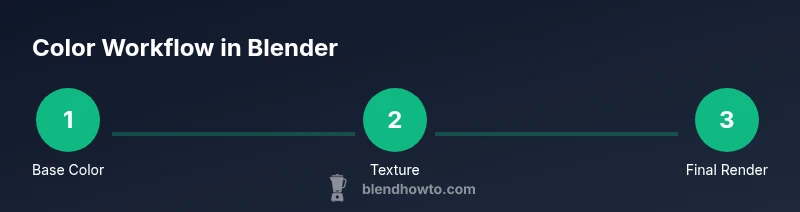
Blender handles color through a pipeline that starts with color management and a linear workflow. The key concepts you need to grasp are color spaces, sRGB vs linear space, and how lights and textures contribute to final color in your renders. According to BlendHowTo, getting colors right begins with a solid foundation in color management before you touch materials. In practical terms, you will work in a linear workflow, convert colors correctly for display, and preview results under different lighting conditions to ensure consistency across devices. You’ll learn how the UI exposes color through the Base Color input, textures, and node-based shading, and how that color travels from the material to the rendered image. This section sets the stage for precise, repeatable color decisions in your Blender projects.
Base colors and the Principled BSDF
In Blender, most color work starts with the Principled BSDF shader. This shader blends multiple aspects of color: a Base Color for the overall hue, and maps for roughness, metallic, and specular that influence how light interacts with the surface. Start by selecting the object and creating a new material, then drop a Principled BSDF into the node tree if it isn’t already there. Use the Base Color swatch to pick your primary hue, or input a hex value for precise color matching. Remember that your observed color will change with lighting, so always test under your scene lights. BlendHowTo recommends keeping a clean node layout so you can quickly compare color choices side by side.
Texture mapping and color textures
Color in Blender is often a combination of solid base color and texture data. A color texture image can drive Base Color or influence other shading channels with masks and maps. To use a texture, add an Image Texture node, connect Color to the Base Color input, and ensure the image is properly UV-mapped for the object. If you’re aiming for physical realism, separate albedo (color) maps from roughness maps and connect them to the appropriate inputs. Understand how texture tiling, alignment, and mipmaps affect perceived color at different distances.
Texture mapping and color textures
Color in Blender is often a combination of solid base color and texture data. A color texture image can drive Base Color or influence other shading channels with masks and maps. To use a texture, add an Image Texture node, connect Color to the Base Color input, and ensure the image is properly UV-mapped for the object. If you’re aiming for physical realism, separate albedo (color) maps from roughness maps and connect them to the appropriate inputs. Understand how texture tiling, alignment, and mipmaps affect perceived color at different distances.
Working with material nodes in Blender's Shader Editor
The Shader Editor is where color decisions become tangible. Start with a Principled BSDF node and then add color ramps, mix nodes, and emission nodes to control how color blends and glows. A simple flow: Image Texture (Color) -> Base Color of Principled; optionally insert a ColorRamp to push colors toward a specific palette. Use MixRGB to blend two colors or textures, with the factor deciding how much you mix. Keep node organization clear: label sockets and group related nodes into frames so you can swap palettes quickly.
Using Cycles vs Eevee for color accuracy
Both Eevee and Cycles render engines will show color, but their shading models and lighting can alter perceived hue and saturation. Cycles tends to provide more physically accurate lighting and soft shadows, while Eevee is faster and can be tuned to look similar with proper lights and shadows. When color matching for final output, test in both engines and compare results. If color accuracy is critical, rely on Cycles for final renders and use the same color management settings across engines.
Practical workflow: color from reference and color palettes
A repeatable color workflow begins with reference gathering and palette creation. Import reference images into Blender as image planes or use color picking from the UI to capture exact hues. Build a palette in the Color Management panel using hex values or HSL values, then lock those values when testing. For precise color decisions, set materials to a fixed color and then progressively adjust with textures and masks to layer color without drifting.
How lighting affects perceived color
Lighting shapes perception more than surface color alone. The same material can look very different under a warm incandescent light, a cool daylight HDRI, or a neon lamp. Use HDRI environments to see how color holds up under real-world lighting, and adjust your Base Color with the goal of achieving color stability under the expected lighting. Remember to render with consistent exposure and exposure settings.
Color management and output: saving renders
Color management determines how Blender maps scene colors to display devices. Set the View Transform to sRGB for web and film outputs, or ACES for high-dynamic-range workflows. When exporting images, choose a file format that preserves color (like PNG or EXR) and ensure the color space is consistent with your target platform. For animation, bake colors into textures if you need predictable results across different hardware setups. Regularly calibrate your monitor to reduce color drift.
Common pitfalls and troubleshooting
Common color pitfalls include overly saturated colors due to lighting and white balance, color fringing from aliasing in textures, and mismatched color spaces between textures and shaders. To troubleshoot, verify that color inputs are connected correctly, check the color space of image textures (sRGB vs Linear), and compare renders across both Eevee and Cycles. If colors look muted, re-check exposure, white balance, and environmental lighting; a quick test with a neutral grey card can reveal calibration issues.
Tools & Materials
- Blender software (2.8+)(Install the latest stable release from blender.org)
- Color reference images or swatches(For accurate color matching across palettes)
- Color picker or external color wheel(Helpful for selecting precise values quickly)
- Image textures for testing (albedo/color maps)(Optional but useful for texture work)
- Calibrated monitor(Reduces color drift during editing)
Steps
Estimated time: 45-60 minutes
- 1
Create a new material and assign to the object
Select your object, go to the Material properties, and click New to create a fresh material. Ensure the object uses that material by assigning it in the material slot. This step establishes the canvas for all color work.
Tip: Name the material something memorable (e.g., 'ProductColor_Main') to stay organized. - 2
Add Principled BSDF to the shader
In the Shader Editor, verify the material uses a Principled BSDF connected to the Material Output. This node is the default, versatile shader for color work and PBR workflows.
Tip: Keep the node layout tidy; enable 'Backdrop' for easier comparison of colors side by side. - 3
Set the Base Color
Click the Base Color swatch and choose your primary hue, or input a precise hex color. Remember color is influenced by lighting, so prepare to iterate after adding lights.
Tip: Use hex inputs for repeatable color values across scenes. - 4
Add a texture image (optional)
If using textures, add an Image Texture node and connect Color to the Base Color input. Load your image and ensure proper UV mapping so colors align with geometry.
Tip: Check texture’s color space (sRGB vs Linear) to avoid color shifts. - 5
Tweak roughness and metallic
Adjust Roughness and Metallicity to influence how light interacts with the color. Lower roughness yields crisper reflections; higher roughness softens highlights and color saturation.
Tip: Make small, incremental changes and compare renders frequently. - 6
Use a ColorRamp for palette control
Insert a ColorRamp between a texture and Base Color to push colors toward a chosen palette. This helps enforce a consistent look across assets.
Tip: Lock color stops to prevent accidental drift during edits. - 7
Test in both Eevee and Cycles
Render the same scene in Eevee and Cycles to compare color, lighting, and shadows. Slight discrepancies are normal; aim for consistency across engines.
Tip: Use the same View Transform and Exposure in both engines. - 8
Color management check
Verify the Color Management settings: View Transform (sRGB or ACES) and HDR/Exposure values. These choices impact final output colors significantly.
Tip: If final output demands web use, favor sRGB View Transform for predictability. - 9
Copy color setup to other objects
Create a single material or a material preset to reuse across multiple objects. This ensures color consistency across your scene or project.
Tip: Group repeated nodes into a Sub-Graph or Frame for quick reuse. - 10
Render and export
Do a final render and export at your target resolution and format. Save a color-accurate PNG or EXR for compositing or sharing.
Tip: Always keep a backup of your color-ready scene file before exporting.
Frequently Asked Questions
Do I need textures to color in Blender?
No, you can color with a solid Base Color alone. Textures add depth and realism, but basic color work can be done with base color and lighting.
You can color with base color alone; textures are optional but helpful for realism.
What is the difference between base color and albedo in Blender?
Base Color is the material’s color input in the shader; an albedo map is a texture that encodes color information without lighting. In Blender, albedo maps usually connect to Base Color to drive color while textures can also influence roughness or metallic channels.
Base color is the material’s color; albedo maps add color detail without shading.
Can I color-match using reference images in Blender?
Yes. Use the eyedropper tool in the color picker to sample colors from reference images or scenes, then apply those values to your material. This helps you reproduce colors consistently across shots.
Yes, sample colors from references using the eyedropper.
Which render engine should I use for color accuracy?
Cycles tends to provide more physically accurate shading, especially with lighting. Eevee is faster but can be tuned to approximate Cycles with careful lighting and color management.
Cycles tends to be more accurate, but Eevee can be good with the right lighting.
How do I export color settings for a project?
Export with proper color management (View Transform and Color Space) and choose a format that preserves color, such as PNG or EXR. Keep consistent color profiles across platforms.
Export with consistent color management and correct file formats.
Watch Video
What to Remember
- Start with a solid color management foundation.
- Combine base colors with textures for depth and realism.
- Compare results across Eevee and Cycles for consistency.
- Maintain consistent palettes across related assets.