How to Download Blender: A Practical Guide
Learn how to download Blender safely from the official site, choose the right installer for Windows, macOS, or Linux, and complete installation with confidence. A BlendHowTo practical guide for beginners.


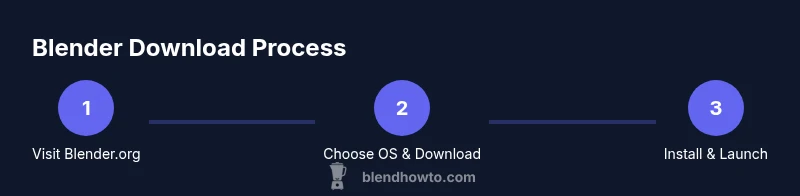
To download Blender, visit the official Blender website, choose your operating system, and download the installer. Run the installer, follow the on-screen prompts, and launch Blender to begin. This guide covers safety notes, OS considerations, and a simple setup workflow so you can start creating quickly and confidently.
Why Download Blender Safely and What You’ll Get
Downloading Blender is the first step toward accessing a powerful, free 3D creation suite that runs across Windows, macOS, and Linux. For new users, the process can feel daunting if you stumble onto unofficial mirrors or outdated installers. According to BlendHowTo, sticking to the official source reduces risk and ensures you get the latest stable features, tutorials, and community support. This section explains what Blender is capable of, what makes it unique, and how the official download path aligns with best practices in software acquisition. You’ll learn about the licensing model (free and open-source), compatibility considerations, and how Blender integrates with common 3D pipelines.
Where Blender Comes From and Why the Official Download Matters
Blender is developed as open-source software with a permissive license, which means you can use it for personal or commercial projects without paying a fee. The official download page is the trusted starting point for everyone from hobbyists to aspiring professionals. When you download Blender from blender.org, you get a clean installer, verified builds, and accompanying documentation. This reduces the likelihood of bundled software or unwanted extras. As you embark on your Blender journey, keep in mind that your computer’s performance and your operating system influence how smoothly Blender runs, especially when handling large scenes or complex rendering tasks.
Understanding System Requirements Before You Download
Before you click the download button, quick checks can save time later. Blender supports Windows, macOS, and Linux, with recommended builds for most modern machines. The official site provides a clear list of supported versions and advised hardware configurations for modest, mid-range, and high-end workloads. If you’re unsure, start with a simple scene and a default set of modifiers to gauge performance. BlendHowTo’s guidance emphasizes matching Blender’s requirements with your current hardware to avoid post-installation bottlenecks and frustration during initial practice.
What You’ll Need to Prepare
To ensure a smooth download and installation, you’ll want a stable internet connection, a recent web browser, and a few minutes of uninterrupted time. If you plan to run Blender on a laptop, consider closing other heavy apps to free up RAM during the initial launch and resource-intensive tasks like rendering previews. This section also highlights choosing the right language and installation options to match your workflow, which can affect learning curve and ease of use as you begin experimenting with modeling, animation, or texture work.
Common Pitfalls and How to Avoid Them
New users often run into common issues such as downloading from an unreliable source, choosing an incompatible build, or overcomplicating the installation with unnecessary add-ons. The official Blender download path minimizes these risks by delivering a single, vetted installer per OS. If you encounter a pop-up asking you to install extra software, pause and verify the source. A quick check of the file’s extension and the URL confirms you’re on blender.org. Following these checks will reduce the chance of misclicks or unwanted software.
A Quick Peek at What Happens After You Install
Once Blender is installed, you’ll launch into a familiar interface with multiple workspaces for modeling, sculpting, rigging, and rendering. The initial setup is lightweight, allowing you to start with default templates or quick tutorials. As you gain familiarity, you can customize keyboard shortcuts, enable add-ons from the Preferences panel, and begin experimenting with basic scenes. This section sets the stage for your first Blender project, reinforcing the idea that downloading is just the first step toward building 3D skills.
Tools & Materials
- Computer or laptop(With internet access and a supported OS)
- Web browser(Recent version for security and compatibility)
- Stable internet connection(Prefer wired or strong Wi‑Fi for downloads)
- Blender official site URL(blender.org, the trusted download source)
- Optional backup plan(Create a restore point or backup before installation)
Steps
Estimated time: 15-25 minutes
- 1
Prepare your system
Check your OS version and available disk space. Close unnecessary apps to ensure a smooth download and installation. Having a clean system reduces conflicts during setup.
Tip: Aim for at least 5-10% free disk space beyond Blender’s installer size. - 2
Visit the official Blender site
Open your browser and navigate to blender.org. Use a direct URL to avoid phishing sites. The official page clearly marks the current stable release.
Tip: Bookmark blender.org for quick access in future projects. - 3
Choose your OS and build
On the download page, select Windows, macOS, or Linux. Pick the recommended 64-bit build unless you have a specific reason to choose otherwise.
Tip: If unsure, start with the latest stable release. - 4
Download the installer
Click the download button and save the installer to your downloads folder. Avoid accepting additional software prompts.
Tip: Verify the file name matches Blender’s official naming convention. - 5
Run the installer
Launch the installer and follow on-screen prompts. For Windows, you may see a User Account Control prompt; allow it to proceed.
Tip: Choose a simple install path like C:\Blender or /usr/local/blender for clean organization. - 6
Complete installation
Finish the setup and opt for any default features you’ll need initially. You can customize later in Preferences.
Tip: Keep the installer options minimal during first install to avoid extra load. - 7
Launch Blender for the first time
Open Blender and confirm it starts correctly. The splash screen guides you to basic tutorials and sample projects.
Tip: Run a quick render to confirm the GPU/CPU configuration is functioning. - 8
Verify your version and basics
Check Help > About Blender to confirm the version. Open a basic scene to ensure modeling tools respond as expected.
Tip: If performance is weak, consider updating graphics drivers or adjusting preferences.
Frequently Asked Questions
Is Blender free to download and use?
Yes. Blender is free and open-source software released under an open license. You can download, install, and use it for personal or commercial projects without paying any fees.
Blender is free to download and use, with no upfront cost or license required.
Which operating systems does Blender support?
Blender runs on Windows, macOS, and Linux. The official download pages indicate the recommended builds for each platform, along with basic system requirements.
Blender supports Windows, macOS, and Linux with recommended 64-bit builds.
Do I need an account to download Blender?
No account is required. You can download Blender directly from the official site without signing in. An account may be helpful for accessing tutorials or community resources later.
No account is needed to download Blender; you can get it right away from blender.org.
Can Blender run on low-spec machines?
Blender can run on modest hardware, but performance depends on the project. Start with simple scenes and standard modifiers to test responsiveness before tackling heavy renders.
Yes, but start with simple projects to test performance on lower-spec machines.
What should I do if the download fails or is slow?
Pause for a moment, switch to a different network if possible, and retry the official Blender download page. Clearing the browser cache can also help resolve sticky downloads.
If download is slow, try a different network and retry from the official site.
What about portable or zip builds?
Blender offers official builds in various formats; however, most users benefit from the standard installer. Portable options exist but are typically aimed at advanced users.
Portable builds exist but are mainly for advanced users; most should use the installer.
Watch Video
What to Remember
- Download Blender from the official site to stay safe.
- Choose the correct OS and 64-bit build for best performance.
- Follow the simple install prompts and launch for a quick check.
- Verify version and settings in Blender after first run.
- Keep backups and driver updates in mind for smoother use.