Sketchfab Blender: Import, Optimize, Render
Learn to find, import, and optimize Sketchfab models in Blender for rendering, animation, or 3D printing. A practical, step-by-step workflow with texture handling, licensing tips, and troubleshooting.


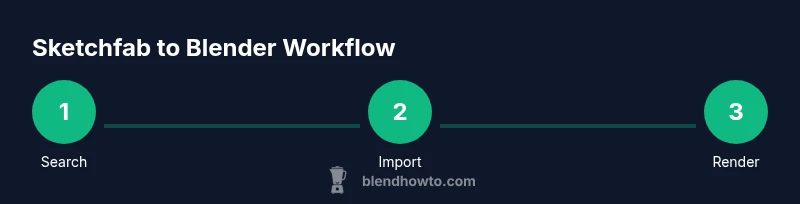
With Sketchfab and Blender, you can quickly locate, import, and adapt 3D assets for rendering, animation, or 3D printing. This quick guide outlines a practical workflow: search Sketchfab for compatible models, export in Blender-friendly formats, import into Blender, adjust materials, and optimize textures and geometry for your project. We'll cover licensing, texture handling, and common pitfalls.
Why sketchfab blender matters for Blender artists
According to BlendHowTo, the sketchfab blender workflow unlocks fast access to diverse 3D repertoires and helps you prototype scenes without building assets from scratch. Sketchfab hosts millions of assets, from stylized characters to architectural details, many of which can be downloaded in formats compatible with Blender. For home cooks experimenting with food-scene renders or hobbyist 3D artists building portfolio pieces, combining Sketchfab with Blender accelerates ideation and execution. The key is understanding licensing, geometry density, and texture pipelines so you don’t waste time cleaning up meshes or chasing missing textures. In practice, you’ll search for assets that match your target polygon budget, verify licensing terms, and choose downloads that include textures or materials amenable to Blender’s PBR workflow. The resulting pipeline is not about copying but about reusing capable base meshes as a starting point, then customizing them to suit your project. When done well, the sketchfab blender combination yields faster iterations and better visual results.
Preparing your Blender workspace for Sketchfab imports
Before you start pulling assets from Sketchfab, set up Blender for a smooth import flow. Ensure you are running a recent Blender release with the default startup file reset to avoid conflicting add-ons. Enable necessary importers in Preferences > Add-ons (for FBX, OBJ, GLTF, and image textures). Create a dedicated project folder with subfolders for meshes, textures, and exports. Set the scene scale to match common Sketchfab exports (meters as the unit system) and apply a consistent unit scale to avoid scale surprises in Blender and external engines. It’s also helpful to organize your user interface with a viewport layout that emphasizes 3D view and shading modes (Solid, Material Preview, and Rendered). Finally, confirm your GPU is configured for viewport rendering if you plan frequent texture-heavy previews. A clean, predictable workspace minimizes surprises when you import multiple Sketchfab models in a session.
Finding and evaluating Sketchfab assets
Choose assets that suit your project’s narrative and technical constraints. Start by filtering Sketchfab results by polygon count, texture resolution, and format. Favor glTF 2.0 or OBJ/MTL with embedded textures for Blender compatibility, but don’t overlook FBX when materials survive the transfer. Read licensing notes carefully; many models are free for personal use but require attribution or payment for commercial projects. Look at model reviews and the artist’s notes to gauge texture quality, UV mapping, and rigging quality. If you’re a beginner, prefer models with baked textures and pre-applied normal maps to reduce setup time. Save references for later comparison and build a short list of backups in case a model’s licensing or texture quality changes. Remember, your goal is to find flexible base assets that you can adapt rather than finalize in a single pass.
Importing assets from Sketchfab into Blender
Importing a Sketchfab asset is usually a two-step process: download the asset in a Blender-friendly format and then import it into your scene. Start by downloading the model in glTF 2.0 or FBX if textures are included; OBJ is acceptable for simpler models. In Blender, go to File > Import and choose the corresponding format; locate the downloaded file and import. Immediately check the scale, axis alignment, and common issues like inverted normals or missing textures. If textures don’t appear, re-link them by pointing Blender to the texture folder or re-download with embedded textures. After import, inspect the material nodes; some assets arrive with multiple materials that may not map cleanly to Blender’s Principled BSDF. Clean up geometry if there are duplicate vertices or non-manifold edges. Save incrementally as you go to avoid losing progress after an import hiccup. This careful start prevents cascading problems later in the pipeline.
Recreating materials and textures in Blender's PBR workflow
Many Sketchfab exports bring materials that map imperfectly to Blender’s shader system. Start by identifying a base color texture, roughness, metallic, and normal maps. In Blender’s Shader Editor, connect textures to the appropriate inputs (Base Color, Roughness, Metallic, Normal) of the Principled BSDF. If a model uses legacy or non-PBR textures, you may need to bake materials to simplified textures or recreate them using Blender’s nodes. For glossy surfaces, fine-tune specular and roughness to achieve realistic reflections, keeping in mind the scene lighting. If textures are missing, substitute with procedural textures or solid colors to preserve the model’s silhouette while you polish other details. Maintain a consistent color space and image resolution; upscaling textures can introduce noise. Finally, re-assign materials to ensure consistent shading across multiple objects, and group related materials for easier future edits.
UVs, textures, and light mapping considerations
Even well-made textures can look off if UV maps are poorly laid out. Open the UV Editor to check for overlapping islands, stretched textures, or wasted texture space. If you need higher fidelity, consider re-unwrapping areas with smarter seams and packing textures into atlases. For baked textures, ensure light maps align with the lighting direction you plan to use in rendering. When importing from Sketchfab, keep an eye on texture coordinates that might be flipped or inverted due to different conventions in the source software. Re-link textures if necessary and verify color management settings in Blender: set the color management to Filmmaker or Standard, depending on your target look. Finally, test renders from various angles to confirm textures hold up under lighting and camera movement.
Rendering, optimization, and export options
Rendering a Sketchfab-based scene efficiently requires balancing quality and performance. Use Eevee for quick previews and Cycles for final renders; for path tracing heavy scenes, adjust light bounces and denoising settings. Optimize geometry by reducing unnecessary subdivisions, applying modifier stacks non-destructively, and keeping a clean outliner. Texture sizing matters—consider downsampling large textures or using texture atlases to minimize draw calls. If your end goal is real-time usage in a game engine, export in a format that preserves skinning and LODs, and bake lighting into light maps if possible. For 3D printing, verify watertight meshes and export in a printable format like STL. Keep your render settings organized in a dedicated preset to streamline future Sketchfab projects. Finally, document the workflow so teammates can reproduce results consistently in BlendHowTo-guided productions.
Licensing, attribution, and best practices
Respect the asset creator’s licensing terms and provide proper attribution when required. Some Sketchfab assets are marked for commercial use with attribution, while others require a license or prohibiting redistribution. Maintain a record of where each asset came from, the license type, and the downloaded file versions to avoid compatibility issues later. When you remix or combine assets, ensure you have the right to modify with an appropriate license. If a model’s license shifts, update your project to reflect those changes. Best practices also include saving a separate folder for originals and derivatives, and using non-destructive editing so you can revert if attribution or licensing becomes problematic. Finally, keep a habit of crediting original authors in any rendered presentation or portfolio caption, reinforcing ethical and professional standards. BlendHowTo emphasizes respectful and compliant usage for all Sketchfab Blender workflows.
Troubleshooting common issues when using Sketchfab models in Blender
Users frequently encounter mismatched scales, missing textures, or unfamiliar material nodes after import. Start by verifying the unit scale in Blender matches the export scale; misalignment is a common cause of placement errors. If textures are missing, re-link them from the local texture directory or re-export with embedded textures. For unsupported shader networks, simplify materials by baking to a single diffuse texture or creating a clean Principled BSDF network. Non-manifold geometry can cause rendering errors or printing failures; fix these with mesh cleanup tools and by removing duplicate vertices. If animations don’t play, check that the armature and animation data are correctly imported and that actions are assigned to the right object. Finally, for large assets, use the Decimate modifier or a multi-resolution approach to maintain performance while preserving silhouette.
Practical workflow example: a quick case study
Imagine you want to assemble a cozy kitchen render featuring a Sketchfab mug and a loaf of bread. You’d start by selecting a mug with baked textures and a small polygon count. After downloading in glTF, you’d import into Blender and check scale, orientation, and materials. You would then recreate the stone countertop texture with a realistic roughness and a subtle specular highlight, bake a light map for the scene, and render a 2-3 second animation showing a steam plume. This case study demonstrates how a well-planned pipeline—asset selection, careful import, material recreation, texture optimization, and rendering—can yield a polished result with modest hardware.
Tools & Materials
- Blender (latest stable)(Install the latest official release; ensure GPU-accelerated render if available)
- Sketchfab account(Free tier acceptable; ensure you can download assets)
- Web browser(For browsing Sketchfab and downloading assets)
- Internet connection(Stable download speeds)
- External storage (optional)(Backups for textures and derivatives)
- USB drive or cloud storage access(Optional backups for large assets)
Steps
Estimated time: 60-120 minutes
- 1
Prepare Blender and Sketchfab setup
Rationalize your project folder, reset startup file, and confirm importers are enabled. Set the unit scale to meters to ensure consistent export/import behavior. This step prevents scale and compatibility issues later.
Tip: Test import with a small sample model to verify format compatibility. - 2
Browse assets with licensing filters
Navigate Sketchfab, apply filters for polygon count and license type, and shortlist 3–5 candidates. Read the license notes carefully to confirm permissible use and attribution needs.
Tip: Prefer assets with embedded textures or GLTF exports for fewer texture-link issues. - 3
Download Blender-friendly format
Choose glTF 2.0 or FBX with textures; OBJ is acceptable for simple shapes. Save downloads in a dedicated project folder.
Tip: If texture files arrive separately, gather them in the same folder as the model. - 4
Import the model into Blender
Use File > Import to bring in the chosen format. Check scale, axes, and initial material connections. Fix obvious issues before deeper work.
Tip: If textures don’t appear, use the texture path re-link feature or re-download with embedded textures. - 5
Inspect and simplify geometry
Look for duplicate vertices, non-manifold edges, and overly dense areas. Apply a mild decimation or clean geometry to keep performance high without sacrificing silhouette.
Tip: Work with a backup copy before making large geometry changes. - 6
Recreate materials in Blender
Map textures to the Principled BSDF, adjusting Base Color, Roughness, Metallic, and Normal inputs. Rebuild shaders if the original uses non-PBR maps.
Tip: Bake problematic textures if shader complexity becomes a bottleneck. - 7
Texture relinking and baking
Relink any missing textures and bake complex materials to simpler maps if needed. Ensure consistent color management across assets.
Tip: Consider creating a texture atlas to reduce draw calls. - 8
Optimize for target use
Decide whether the asset will render in Cycles/Eevee or be used in real time. Adjust settings accordingly and prepare any necessary light maps or LODs.
Tip: For real-time, keep polycount low and bake lighting where possible. - 9
Test render and finalize
Run test renders from multiple angles, refine lighting, and confirm textures hold up under different viewpoints. Save presets for future workflows.
Tip: Document the steps you took and package the assets for reuse.
Frequently Asked Questions
Is Sketchfab free to use with Blender?
Many assets on Sketchfab are free for personal use; commercial use may require licenses. Always check licensing details on the asset page.
Many assets are free for personal use, but check licensing for commercial use.
How do I import a Sketchfab model into Blender?
Download the model in a Blender-friendly format (glTF/FBX), then use File > Import to bring it into Blender. Verify scale and textures, and relink textures if needed.
Download in a Blender-friendly format, then import via File > Import and adjust as needed.
Why do textures look wrong after import?
Textures may be missing or mapped with different UVs. Remap textures in the Shader Editor or bake textures to stable maps.
Textures may be missing or mapped differently; remap or bake textures.
Can I modify Sketchfab assets in Blender?
Yes, if the license allows modification. Track derivatives and preserve attribution per the license terms.
Yes, if allowed by license; keep track of derivatives and attribution.
What formats best preserve materials when importing to Blender?
glTF 2.0 is generally most reliable for Blender; FBX is common but verify material mapping after import.
glTF 2.0 is usually best; FBX can work but check materials.
How can I optimize Sketchfab assets for real-time rendering?
Use texture atlases, reduce polygon count, and bake lighting where possible when exporting to game engines.
Lower poly count and bake lighting for real-time usage.
Watch Video
What to Remember
- Choose assets with compatible textures and licenses.
- Rebuild materials in Blender for consistent rendering.
- Verify licensing and attribution before use.
- Document workflows to enable repeatable results.