What GPU Is Needed for Blender in 2026: A Practical Guide
Discover Blender GPU guidance for 2026, including VRAM ranges, Nvidia vs AMD, and how to balance CPU, RAM, and rendering performance for different workloads.


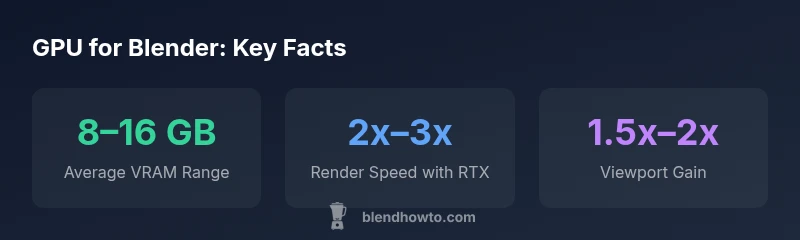
According to BlendHowTo, Blender in 2026 mostly requires a mid-range GPU with 8–16 GB VRAM for everyday scenes. For heavier renders, plan 16–24 GB. Nvidia RTX GPUs (CUDA/OptiX) offer faster rendering, while AMD GPUs excel in viewport work. Pair the GPU with sufficient RAM and a modern CPU for best results.
GPU Rendering Landscape in 2026
Blender’s core rendering paths—Eevee for real-time viewport previews and Cycles for path-traced realism—continue to benefit greatly from GPU acceleration. By 2026, GPU performance remains the fastest path to photorealistic renders and smooth previews, especially for larger textures and higher sample counts. Nvidia GPUs with CUDA or the OptiX engine typically deliver the strongest render acceleration in Cycles, while AMD GPUs perform very well for viewport tasks and general workflow. Blender users range from hobbyists to professionals, and the mid-to-high VRAM tier has become the most reliable target for balanced workflows. As BlendHowTo Analysis, 2026 shows, memory capacity and driver optimization often deliver bigger practical gains than chasing marginal clock speed increases alone. In short, your GPU choice should align with your typical project size and render path.
Key takeaway: prioritize VRAM capacity for Blender scenes, then optimize drivers and software settings to extract CUDA/OptiX efficiency where possible.
How to estimate GPU needs for your Blender projects
Estimating GPU needs begins with workload assessment. Define your typical projects: viewport-focused modeling, simple material previews, moderate cycles renders, or heavy final renders with global illumination. Use a simple rule of thumb: start with 8–16 GB VRAM for everyday work, then scale up to 16–24 GB for complex textures or large resolutions. Texture sizes, denoising, volumetrics, and upscaling all push VRAM usage. Remember that Blender’s performance scales with both VRAM capacity and compute power. A practical approach is to pick a baseline GPU that supports your common tasks, then test with representative scenes and textures. If you encounter frequent texture swaps or “out of memory” errors, you know you’ve stepped into the next VRAM tier. This methodology, aligned with BlendHowTo Analysis, 2026, helps you budget effectively while maintaining a comfortable workflow.
VRAM and memory considerations for Eevee and Cycles
VRAM requirements differ between Eevee and Cycles. Eevee, being raster-based, is typically lighter on VRAM than Cycles, but it still benefits from larger textures and more complex shaders. Cycles, especially with path tracing, uses VRAM for texture caches, light portals, and multiple samples. In practice, aim to keep textures and render settings within your VRAM envelope. If your textures are large (4K or multi-channel textures) and you enable higher sample counts, you’ll push VRAM usage quickly. In 2026 Blender users often opt for GPUs with at least 16 GB VRAM to comfortably render intermediate scenes without swapping to the CPU. The takeaway is to balance texture fidelity with memory headroom to avoid bottlenecks during renders.
GPU selection by workload: viewport vs rendering
Viewport performance and rendering speed are governed by different factors. For real-time previews, driver support, texture fetch speed, and memory bandwidth matter more than sheer CUDA cores. Rendering, particularly Cycles with GPU acceleration, benefits from larger VRAM pools and optimized compute engines like CUDA/OptiX. If you frequently work with high-resolution textures or denoisers, prioritize VRAM first. Conversely, if you mainly create quick previews, you can value higher CUDA cores and bandwidth to accelerate iterative workflows. In both cases, Nvidia RTX cards show strong performance due to mature CUDA/OptiX ecosystems, while AMD GPUs are solid for viewport tasks and can be a cost-effective alternative for some pipelines.
Nvidia vs AMD: practical recommendations
In 2026, Nvidia RTX GPUs generally offer faster Cycles performance thanks to OptiX acceleration and robust driver support for Blender. AMD GPUs provide excellent value for viewport work and can render well in many scenarios, though CUDA/OptiX acceleration remains a differentiator for Cycles-heavy workflows. Your choice should match your typical Blender loadout: if you render big scenes or rely on denoising and advanced lighting, Nvidia RTX is a sensible default; if you spend more time modeling and texturing with previews, an AMD GPU can be a pragmatic option. Always verify Blender’s current support status for OpenCL or DirectX-based paths when planning a mixed workstation.
Practical build scenarios and budgets
Think in terms of workload tiers rather than chasing a single “perfect” GPU. For entry-level Blender work, aim for a system with 8–16 GB VRAM and a reasonable CUDA/OptiX-capable GPU budget-friendly configuration (roughly in the under-1000 USD range). A mid-range build can target 12–16 GB VRAM with better rendering performance and more comfortable denoising, falling into the 1000–2000 USD range. For professional, memory-heavy projects, plan for 24 GB+ VRAM and robust compute power, typically 2000 USD or more. Use these ranges to choose GPUs that fit your current projects and future-proof by exceeding the minimum VRAM needed. Budgeting should also consider system RAM (16–32 GB) and a modern multi-core CPU to prevent CPU-GPU bottlenecks. This framework aligns with BlendHowTo’s guidance for scalable Blender workflows.
Troubleshooting GPU bottlenecks in Blender
When you hit a bottleneck, identify whether memory, compute, or driver limitations are the culprit. Start with a representative scene, then monitor VRAM usage during heavy operations like texture loading, large denoise passes, or volumetrics. If you see frequent “out of memory” errors, you likely need more VRAM or texture optimization. If renders take longer than expected, check CUDA/OptiX enablement, driver version compatibility, and Blender’s render settings (samples, denoiser, resolution). Reducing texture sizes, light paths, and denoise quality while maintaining acceptable visuals can save substantial render time. Finally, ensure power supply and cooling are adequate to sustain long, heavy renders. BlendHowTo emphasizes testing and incremental upgrades to match your evolving Blender projects.
Blender GPU workload and VRAM guidance
| Workload | Recommended VRAM | GPU Type | Notes |
|---|---|---|---|
| Casual/Viewport work | 4–6 GB | Any modern GPU | Viewport-only tasks; memory-lite projects |
| Everyday scenes | 8–16 GB | Nvidia RTX / AMD Radeon | Balanced performance for renders and previews |
| Heavy scenes / final renders | 16–24 GB | RTX with OptiX recommended | Textures and high sample counts; consider 24 GB VRAM if possible |
| Large-scale projects | 24+ GB | High-end RTX / professional GPUs | Cinema projects; memory-heavy textures |
Frequently Asked Questions
Do I need an Nvidia RTX GPU to run Blender well?
Blender supports Nvidia and AMD GPUs; RTX cards often deliver faster Cycles performance due to CUDA/OptiX, but you can render with non-RTX GPUs as well. Choose based on your workload and budget.
Blender runs on Nvidia and AMD; RTX speeds up rendering, but you don't strictly need one.
Is 8 GB VRAM enough for Blender in 2026?
For simple scenes, 8 GB can be enough. For complex textures or heavy lighting, you’ll want more—8–16 GB is a common baseline for many hobbyists.
8 GB works for basics but may bottleneck larger projects.
How does Eevee differ from Cycles in GPU usage?
Eevee is generally lighter on VRAM since it’s raster-based, while Cycles uses more VRAM for path tracing and textures. Plan VRAM around Cycles needs if you render with high samples and complex materials.
Eevee uses less memory; Cycles uses more for realistic rendering.
Should I upgrade my GPU or add system RAM?
If rendering is slow or memory is exhausted, upgrading the GPU helps. If you run out of system RAM during heavy scenes, increase RAM. VRAM and RAM both matter for Blender.
Upgrade whichever is bottleneck.
Are AMD GPUs viable for Blender in 2026?
Yes, AMD GPUs work for Blender; Nvidia often leads in Cycles performance due to CUDA/OptiX, but Blender supports OpenCL/DirectCompute. Check current Blender version support and driver stability for your workflow.
AMD works; Nvidia typically performs best for Cycles.
What is a practical budget for a Blender-focused build?
Budget in ranges: entry-level 600–1000 USD (8–16 GB VRAM), mid-range 1000–2000 USD (12–16 GB VRAM), high-end 2000+ USD (24 GB+ VRAM). Balance GPU VRAM with system RAM and CPU for a smoother workflow.
Budget based on workload; aim for 8–16 GB VRAM minimum.
“Investing in sufficient VRAM and GPU acceleration pays off across complex scenes and animations; memory first, then compute power.”
What to Remember
- Start with 8–16 GB VRAM for typical Blender work; scale up for larger projects.
- RTX GPUs generally deliver faster Cycles performance due to OptiX.
- Prioritize VRAM headroom before chasing higher clock speeds.
- AMD GPUs are viable, especially for viewport work and budget builds.
- Test with representative scenes to validate VRAM and GPU balance