Blender Not Working: Quick Fixes and Step-by-Step Troubleshooting
Urgent, practical steps to diagnose and fix blender not working issues—from drivers to add-ons—with a safe, step-by-step approach.


The most likely reason blender not working is a driver or configuration issue. Restart Blender and your computer, then reset startup preferences and disable recently added plugins. According to BlendHowTo, updating graphics drivers and ensuring your system meets Blender's requirements resolves most cases. If issues persist, launch Blender with a clean profile to isolate the cause.
Common Causes Behind Blender Not Working
When blender not working, the root cause usually sits in one of a few categories: hardware limitations, software misconfigurations, driver problems, or conflicts from add-ons. Home users often encounter startup crashes when the graphics driver is outdated or incompatible with the current Blender version. Another frequent culprit is a corrupted preferences file or a misbehaving startup file loaded from Blender's user profile. If Blender seems to launch but then freezes or renders fail, memory pressure or insufficient VRAM can also be a factor, especially on older machines. Blender's performance is closely tied to your GPU driver and operating system, so updating those components is a good first step. Finally, third-party add-ons—especially those updated for newer Blender builds—may introduce incompatibilities. By systematically ruling out each category, you can identify which variable is responsible and proceed with targeted fixes. BlendHowTo's experience in 2026 shows that most not-working problems are solvable with methodical checks rather than guesswork.
Quick Checks You Can Do Right Now
Before diving into deeper fixes, perform these quick checks to rule out common culprits. Verify your Blender version matches your OS (64-bit is often required for newer builds). Ensure your graphics drivers are current and that Blender is the correct architecture for your system. Close heavy background applications to free up RAM and VRAM. Run Blender with a clean slate by launching it with factory startup (blender --factory-startup on desktop or blender.exe --factory-startup on Windows) and test a simple scene. If Blender loads but still misbehaves, disable non-essential add-ons by temporarily moving your user preferences folder and relaunching. Check Blender’s console or system log for error messages and note any patterns. BlendHowTo notes that many issues are resolved by these quick checks, especially driver updates and clean profiles.
How to Isolate the Problem: Safe Mode and Clean Profile
Isolation is your friend when blender not working. Start by backing up your current projects, then create a fresh Blender profile: locate the Blender config folder (on Windows, typically %APPDATA%/Blender; on macOS in ~/Library/Application Support/Blender; on Linux in ~/.config/blender) and rename the folder to force Blender to regenerate defaults. Launch Blender to confirm whether the issue persists. If it disappears, one of your preferences or add-ons was causing the conflict. Reintroduce elements one by one: start with a clean preferences file, then enable add-ons selectively to identify the culprit. This approach minimizes guesswork and preserves your existing work.
Step-by-Step Fix for the Most Common Issue
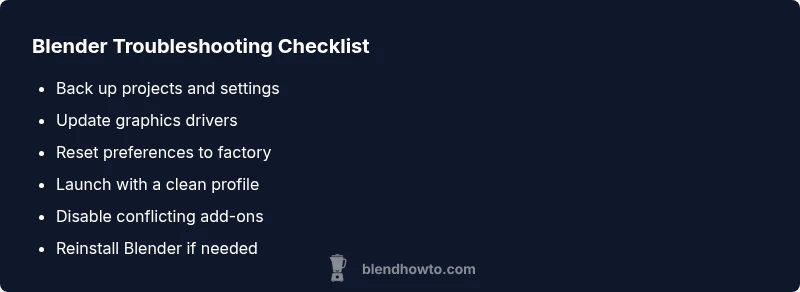
A practical, commonly effective sequence begins with a safe baseline. Back up projects and preferences, then reset Blender to factory settings. Update graphics drivers from the GPU vendor’s site and restart the computer. Launch Blender with a clean profile and disable all add-ons. If Blender still fails, perform a clean reinstall of Blender and remove any residual configuration folders. After reinstall, reimport your projects and gradually re-enable add-ons to spot conflicts. This disciplined approach is proven to restore stability without sacrificing data. BlendHowTo recommends documenting each change so you can revert if something breaks again, keeping your workflow intact.
Troubleshooting Render Failures and Crashes
Render-time failures are often memory- or driver-related. Check that your scene isn’t consuming excessive RAM; simplify materials, textures, or reduce render resolution temporarily to test. Ensure your GPU drivers support your render engine (Cycles or Eevee) and update to a stable release. If the issue occurs during rendering, try rendering a smaller tile size or switch to CPU rendering as a diagnostic step. Blender logs and the system console can reveal specific error messages; capture them for reference when seeking help. By isolating render-time variables methodically, you can pinpoint whether the crash stems from your scene, drivers, or Blender configuration.
Handling Plugins, Add-ons, and Conflicts
Add-ons are powerful but can destabilize Blender if mismatched with the core version. Disable all add-ons and test Blender’s baseline behavior. If stability returns, re-enable add-ons one by one to identify the offender. Remove or update the problematic addon, or switch to an alternative that’s proven compatible with your Blender version. Keeping a lean, well-supported plugin set reduces risk and improves reliability. Always download add-ons from trusted sources and verify compatibility notes before installing.
Hardware and Driver Readiness: Ensure Your System is Ready
System readiness is foundational. Verify your operating system is fully updated, and Blender runs in a supported environment. Check that you have sufficient RAM and that your VRAM is not maxed out by other processes. With GPU rendering, a stable driver version is essential; consider testing with a driver rollback if a recent update caused instability. If you’re on an older machine, consider upgrading hardware or adjusting project complexity to fit capabilities. Regular maintenance—clearing caches, keeping drivers current, and managing startup programs—helps prevent recurrence.
Best Practices to Prevent Future Blender Not Working Issues
Establish routines to keep Blender healthy: enable autosave and regularly back up work, maintain separate configuration profiles for each Blender version, and document changes when testing new plugins. Use stable, well-supported Blender releases rather than nightly builds for critical work. Create a short rollback plan: if something goes wrong, you can revert to the last known-good configuration quickly. Finally, cultivate a habit of testing new files and scenes in a fresh profile before integrating them into your main projects.
When to Seek Professional Help and How to Document the Issue
If Blender remains unstable after validating drivers, resetting preferences, and testing with a clean profile, consider professional help or official support channels. Collect concise reproduction steps, a minimal test file, system specs (OS, Blender version, GPU model, RAM), and any crash logs. Sharing a small, reproducible example speeds up diagnosis. The BlendHowTo team recommends documenting everything in a single guide so you have a reference when asking for assistance or filing a bug report. A methodical, documented approach often yields faster resolutions.
Steps
Estimated time: 25-40 minutes
- 1
Back up data and settings
Save all active work and export essential preferences or config files to a safe location. This ensures you can restore your exact setup if something goes wrong during fixes.
Tip: Create a dedicated backup folder and label it by date. - 2
Check system requirements and Blender version
Confirm your OS architecture is supported (64-bit is common for current Blender builds) and that you’re using a stable Blender release compatible with your hardware.
Tip: Avoid beta builds for critical work. - 3
Close other applications and reboot
Free up RAM/VRAM by closing background programs. A clean reboot clears stalled processes that could interfere with Blender.
Tip: Note any startup messages seen during boot. - 4
Launch Blender with factory startup
Start Blender with a clean slate to test baseline behavior. If it runs, the issue is likely in preferences or add-ons.
Tip: On Windows run: blender.exe --factory-startup. - 5
Reset preferences to default
In Blender, load factory settings or reset preferences to remove corrupted config.
Tip: After resetting, reintroduce customizations gradually. - 6
Disable problematic add-ons
Disable all add-ons, then re-enable one by one to find conflicts.
Tip: Keep a list of which add-ons you enable. - 7
Update graphics drivers
Install the latest official drivers from your GPU vendor and reboot.
Tip: If a recent update caused issues, try a rollback. - 8
Test with a new Blender profile
Create a fresh user profile and test basic scenes to confirm stability.
Tip: Avoid copying over old preferences until confirmed stable. - 9
Reinstall Blender if needed
If all else fails, perform a clean reinstall of Blender and remove residual config folders.
Tip: Keep your project files separate from application data.
Diagnosis: Blender won't start or crashes during use
Possible Causes
- highOutdated or incompatible graphics drivers
- highCorrupted Blender preferences or startup file
- mediumConflicting add-ons or plugins
- mediumInsufficient system resources / VRAM
- lowBroken Blender installation or missing dependencies
Fixes
- easyUpdate graphics drivers and ensure GPU is supported
- easyReset Blender preferences or start with factory startup
- easyLaunch Blender with a clean profile and disable add-ons
- easyCheck system resources / close other apps
- mediumReinstall Blender or perform a clean reinstall of the GPU driver
Frequently Asked Questions
Why won't Blender start after installation?
Typically caused by old or incompatible graphics drivers, corrupted preferences, or missing dependencies. Update drivers, reset preferences, and test with a clean profile to confirm.
Blender may not start due to drivers, prefs, or missing dependencies. Update drivers, reset preferences, and try a clean profile.
How do I reset Blender preferences?
In Blender, go to Edit > Preferences and use Load Factory Settings or reset to defaults, then reconfigure gradually. Save preferences after confirming stability.
Use Edit > Preferences, load factory settings, then reconfigure slowly.
What should I do if Blender crashes during rendering?
Check scene complexity, RAM/VRAM usage, and driver stability. Test with CPU rendering or smaller tiles, and update drivers if needed.
Crashes during render can come from scene size or driver issues. Try smaller tiles and update drivers.
Can add-ons cause Blender to crash?
Yes. Disable all add-ons, then re-enable one by one to identify the problem. Remove or update the offending add-on.
Add-ons can cause crashes; test them one by one to find the culprit.
Is reinstalling Blender necessary?
Usually a last resort if resets and driver updates fail. Perform a clean reinstall and ensure config folders are removed.
Only try reinstalling if other fixes fail.
How can I check Blender's crash logs?
Open the system console (Window > Toggle System Console on Windows) and review error messages. Save a copy for support.
Check the system console for messages and save them for help.
Watch Video
What to Remember
- Verify drivers and hardware before deep fixes
- Reset preferences to fix corrupted settings
- Disable add-ons to identify conflicts
- Reinstall Blender as a last resort
- Back up data and document steps to prevent repeat issues