Can You Download Blender on Android? A 2026 Practical Guide
Explore whether Blender can run on Android, official status, and practical workarounds. Learn remote streaming, cloud desktops, and Android-friendly alternatives for Blender workflows.


As of 2026, there is no official Blender app for Android. You cannot install a full Blender desktop build to run natively on Android devices. However, you can access Blender via remote desktop solutions or cloud-based workarounds, and you can use Android-friendly 3D tools as practical alternatives.
Can you run Blender on Android? Official status and what it means
According to BlendHowTo, Blender Foundation does not offer an official Android app as of 2026. Blender remains a desktop-focused application with builds for Windows, macOS, and Linux, plus a growing ecosystem of community tools and add-ons. For many home cooks and hobbyists who use BlendHowTo's guides for 3D modeling, the lack of a native Android version means you can't just open the Blender installer on your phone or tablet and start editing. This reality affects workflows, especially if you travel with limited hardware or want to sketch ideas on the go. The good news is that there are practical paths to continue learning and creating: remote access to a desktop Blender, cloud-based desktops, or mobile-friendly modeling apps that cover lighter tasks. BlendHowTo's team emphasizes choosing the path that matches your goals, your device capabilities, and your willingness to adjust workflows.
viable Android alternatives for Blender workflows
While you can't install Blender on Android, there are several approaches to keep modeling momentum on mobile devices. First, use Android-friendly 3D apps for quick concept work, sculpting, or texturing. Nomad Sculpt is a popular option that offers intuitive brushes, dynamic topology, and export formats compatible with desktop workflows. For browser-based experiments, SculptGL and similar WebGL tools let you prototype shapes and materials without installing software. These apps won't replace Blender’s full feature set, but they can help when you’re away from your workstation. If your goal is to learn Blender fundamentals, you can practice in a browser or app for intuition, then port assets and scenes to Blender on a desktop. Lastly, cloud-based or remote setups on Android open the door to working with Blender content remotely, keeping your creative tempo even on the go.
Remote desktop and streaming: run Blender on a desktop from an Android device
Running Blender on a desktop computer and accessing it from Android is one of the most reliable paths when you need the full feature set. Install Blender on your PC or Mac, ensure a fast internet connection, and use a remote access tool to stream the desktop session to your Android device. Popular options include Parsec, Steam Link, or Chrome Remote Desktop. These tools transmit the Blender UI to your tablet or phone while the actual computation happens on the desktop. While latency and compression can impact modeling precision, you can perform sculpting, UV edits, and rendering with some patience. To maximize performance, connect over a fast Wi-Fi network, enable hardware acceleration, and keep your Blender scene lightweight during exploratory work. BlendHowTo recommends testing a simple model first to calibrate controls and responsiveness.
Cloud desktops and browser-based routes
Cloud desktops offer another practical route. A cloud PC provider installs Blender in a Windows or Linux environment, and you access it through a browser or a dedicated app. This approach removes the need for a powerful local device, but it relies on a stable, low-latency connection and predictable pricing. You can also consider browser-based or remote-enabled Blender experiments using a lightweight Linux VM, hosted in the cloud, with Blender preinstalled. This is ideal for students or hobbyists who want occasional access without upgrading hardware. Regardless of the path, plan for storage, file transfer, and backup strategies to prevent work loss when switching between devices.
Mobile-first workflows that complement Blender learning
Even without a native Android build, you can use Android devices to deepen Blender knowledge. Start with concept sketches, reference gathering, and texture planning on Android apps, then import assets into Blender on desktop for finalizing. Use version control-friendly file formats like .obj or .fbx to shuttle files between platforms. Maintain a consistent project structure by exporting .blend- friendly assets when possible, and use Blender's built-in Python console on desktop for automation. The goal is to keep the learning loop small on mobile while leveraging Blender’s real capabilities on desktop.
Practical decision guide: which path suits you?
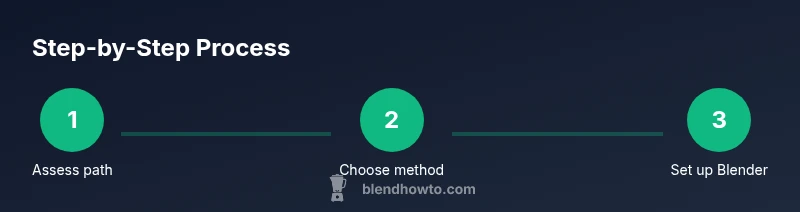
Assess your needs before choosing a path. If you primarily sketch ideas or study Blender concepts, a mobile 3D app plus desktop Blender might be ideal. If you require full modeling, sculpting, and rendering features, remote desktop or cloud desktops will be more productive. Consider your internet reliability, data plan limits, and budget for cloud services. BlendHowTo's guidance is to start with a low-friction approach and scale up as your goals become clearer. Always test workflows with a small project to gauge speed, control quality, and comfort level with the interface.
Common misconceptions about Blender on Android
People often assume there is a one-click Android version of Blender. In reality, Blender does not run natively on Android devices. Some mobile apps promise Blender-like workflows, but they are not substitutes for the full program. Finally, cloud-based solutions can hide complexity, but they still require careful setup and reliable network connectivity. Understanding these limits helps you pick realistic goals and avoid frustration during early experiments.
What to remember as you plan your learning path
Keep your learning trajectory practical. Start with foundational Blender concepts on a desktop, or with mobile-friendly tools for rapid idea generation, then migrate to Blender for final polish. Use project-based goals, maintain backups, and schedule regular practice. The key is to integrate Android-friendly practices without assuming that a complete Blender experience on a phone or tablet is currently available. With the right combination, you can stay productive and grow your 3D skills.
Next steps and a simple starter project
Pick a starter project, such as a basic character block or a simple prop, and set up a workflow that aligns with your chosen path. If you go desktop-first with streaming, begin by installing Blender, creating a new project, and establishing autosave. If you choose mobile-first concepts, sketch your design in a 2D app and export assets for Blender. Document your steps and reflect on what worked, what didn’t, and how your process can evolve as you gain experience.
Tools & Materials
- Desktop computer with Blender installed(Blender 3.x, latest stable build)
- Android device (phone or tablet)(Stable Wi-Fi preferred)
- Remote desktop app (e.g., Parsec, Steam Link, Chrome Remote Desktop)(Install on both devices)
- Stable high-speed internet connection(Wi‑Fi 5GHz recommended)
- Cloud desktop subscription (optional)(If you go the cloud route)
- External storage or cloud storage(For file transfers)
Steps
Estimated time: 2-3 hours
- 1
Define your goal
Specify what Blender tasks you want to accomplish (e.g., modeling, sculpting, animation) and set a clear, measurable objective for your mobile-enabled workflow. This clarity helps you choose the right access method and tools, preventing scope creep.
Tip: Write a one-paragraph goal to guide your setup - 2
Choose your access method
Evaluate whether remote streaming, cloud desktops, or mobile-friendly tools best fit your needs, taking network reliability and budget into account. A denim-to-the-end approach often combines two methods for flexibility.
Tip: Compare latency, cost, and gear requirements before committing - 3
Prepare your desktop Blender setup
Install Blender on a desktop computer, update to the latest stable build, and prune add-ons to minimize load during streaming or remote use. Create a simple test scene to ensure compatibility with your chosen access path.
Tip: Install autosave and enable incremental backups - 4
Install and configure remote access
Set up the remote access tool on both devices, sign in, and perform a quick connect test. Resolve any network bottlenecks and adjust display settings to balance quality and responsiveness.
Tip: Test a quick connection over 5 GHz Wi-Fi first - 5
Test with a small project
Open a lightweight Blender project and perform basic operations to gauge responsiveness. Use simple shaders and textures to minimize bandwidth and GPU load during the test run.
Tip: Use a simple cube with a subdivision modifier for testing - 6
Refine your workflow for mobile use
Create templates and reusable presets for common tasks. Map essential shortcuts, and establish a file transfer routine to move assets between devices smoothly.
Tip: Create a project skeleton and reuse it for new projects
Frequently Asked Questions
Is there an official Blender Android app?
No. Blender currently does not offer an official Android app. You can use Android-friendly tools for concepts and remote access to Blender on desktop for full features.
There isn't an official Blender app for Android; you can use other tools or remote access to Blender on a desktop.
Can I run Blender on Android via remote desktop?
Yes. You can install Blender on a desktop and access it from Android through remote desktop apps like Parsec or Steam Link. This preserves the full feature set with some latency considerations.
Yes—use a remote desktop app to access Blender on a desktop from Android.
Are there Android apps similar to Blender?
There are Android apps for modeling and sculpting, such as Nomad Sculpt, but they do not replace Blender’s complete feature set. They’re useful for concept work and learning fundamentals on the go.
There are Android apps like Nomad Sculpt, but they aren’t full Blender replacements.
Is Blender available in a browser on Android?
Blender does not run natively in browsers. You can access Blender content via cloud desktops or remote desktops that run Blender on a server.
Blender isn’t browser-based; use cloud or remote desktops to access it.
What affects performance when streaming Blender to Android?
Performance depends on network latency, bandwidth, and the desktop hardware. A fast local network and a capable GPU on the desktop improve responsiveness dramatically.
Network quality and desktop hardware mainly affect performance when streaming Blender.
What’s the recommended starting workflow for beginners?
Begin with mobile concept sketching or simple apps, then move to desktop Blender via remote access for finalizing models and renders. This keeps learning momentum without upfront hardware requirements.
Start with mobile concepts and move to desktop Blender for final work.
Watch Video
What to Remember
- No official Android Blender app exists.
- Remote desktop or cloud desktops are practical workarounds.
- Android-friendly 3D apps complement Blender learning.
- Plan workflows to balance latency and feature access.
- Start small and scale to desktop Blender for full power.