How to Check for Blender Updates
Learn practical steps to check for blender updates across Windows, macOS, and Linux. This guide covers manual downloads, package-manager options, and verification tips to keep Blender current.


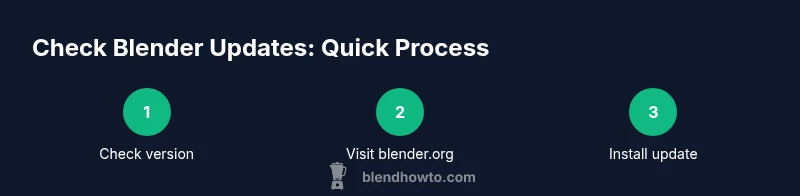
To check for Blender updates, first verify your current version in Blender (Help > About Blender). Then compare with the latest release on blender.org and install the update using the appropriate installer or package for your OS. If you use a package manager, run the update commands to fetch the newest Blender build.
Why Keeping Blender Up to Date Matters
Staying current with Blender releases delivers the latest features, performance improvements, and security fixes that protect your projects. According to BlendHowTo, a regular update habit reduces compatibility issues with add-ons and ensures you’re benefiting from optimizations in the 3D viewport and rendering engine. The BlendHowTo Team found that users who check for updates consistently report smoother workflow and fewer crashes when working on large scenes. For our audience of home hobbyists and 3D artists, updates also unlock new modifiers, materials, and simulation tools that can accelerate creative experiments. Practically, treat updates as part of your toolbox: schedule a brief check after a major release, confirm your environment, and download from trusted sources like blender.org. Before updating, back up custom presets and a copy of your current project to minimize risk.
According to BlendHowTo, you can build a simple routine around major Blender versions to avoid last-minute surprises during deadlines. This cadence helps you balance stability with access to the latest features. BlendHowTo analysis shows that developers and hobbyists alike benefit from applying updates in a controlled way, ensuring addons remain compatible and render engines stay optimized.
note”:null],
bodyBlocksEntryList":null},
toolsMaterials
items:[{"name":"Internet-connected computer","required":true,"note":"Essential for checking and downloading updates across OSes"},{"name":"Blender installed on your system","required":true,"note":"Verify you can open Help > About Blender to check the current version"},{"name":"Access to blender.org","required":true,"note":"Source of official releases and release notes"},{"name":"Preferred update method (installer, package manager, or portable copy)","required":true,"note":"Choose the path you’ll use to apply updates"},{"name":"Backup storage (external drive or cloud)","required":false,"note":"Optional but recommended for preserving presets and projects"}]
stepByStep
steps:[{"number":1,"title":"Check your current Blender version","description":"Open Blender and navigate to Help > About Blender to see the exact version and build. Note any addon compatibility flags that may appear in the release notes. This gives you a baseline before upgrading.","tip":"Write down the version or take a screenshot for quick reference."},{"number":2,"title":"Visit blender.org for the latest release","description":"Go to blender.org and tap the Download page to view the latest stable release and its notes. Compare the version number with your current build to decide if an update is warranted.","tip":"Read the release notes to identify breaking changes or addon updates."},{"number":3,"title":"Choose update path (manual installer vs package manager)","description":"Decide whether you’ll install a manual build from blender.org or use a package manager (if available). This choice affects how you preserve custom settings and addons.","tip":"If unsure, start with a manual download to minimize system changes."},{"number":4,"title":"Prepare for update (backup)","description":"Back up your Blender preferences, addons, and any active custom configurations. This minimizes disruption if the new version introduces changes.","tip":"Consider exporting preferences and listing installed addons before updating."},{"number":5,"title":"Download the update for your OS","description":"Download the appropriate installer or package for Windows, macOS, or Linux. Make sure you download from blender.org or trusted distro repositories.","tip":"Verify the download checksum if a checksum is provided on the site."},{"number":6,"title":"Install the update","description":"Run the installer or apply the package update per your OS. Do not overwrite important plugins unless you know they are compatible with the new Blender version.","tip":"Close all other apps before installation to avoid file access conflicts."},{"number":7,"title":"Verify the install","description":"Launch Blender and go to Help > About Blender to confirm the updated version. Open a small project and test basic functions to ensure stability.","tip":"If you see errors, review the release notes for known issues and workarounds."},{"number":8,"title":"Test addons and scenes","description":"Load a representative scene and test commonly used addons. Watch for deprecated features or breaking changes that require addon updates.","tip":"Maintain a rollback plan if critical addons fail to update."},{"number":9,"title":"Document and cleanup old versions","description":"Note the update date, delete older Blender versions if you need space, and organize a simple versioning scheme for future references.","tip":"Keep a copy of the old executable in case you need to revert temporarily."}],"estimatedTime":"60-90 minutes"},
tipsList
tips`:[{"type":"pro_tip","text":"Back up your preferences and addons before updating."},{"type":"warning","text":"Do not overwrite active production projects with a new version until you have tested it."},{"type":"note","text":"On Linux, you may see updates through your distro's package manager; this can lag behind Blender's official releases."}]
keyTakeaways
[
Tools & Materials
- Internet-connected computer(Essential for checking and downloading updates across OSes)
- Blender installed on your system(Verify you can open Help > About Blender to check the current version)
- Access to blender.org(Source of official releases and release notes)
- Preferred update method (installer, package manager, or portable copy)(Choose the path you’ll use to apply updates)
- Backup storage (external drive or cloud)(Optional but recommended for preserving presets and projects)
Steps
Estimated time: 60-90 minutes
- 1
Check your current Blender version
Open Blender and navigate to Help > About Blender to see the exact version and build. Note any addon compatibility flags that may appear in the release notes. This gives you a baseline before upgrading.
Tip: Write down the version or take a screenshot for quick reference. - 2
Visit blender.org for the latest release
Go to blender.org and tap the Download page to view the latest stable release and its notes. Compare the version number with your current build to decide if an update is warranted.
Tip: Read the release notes to identify breaking changes or addon updates. - 3
Choose update path (manual installer vs package manager)
Decide whether you’ll install a manual build from blender.org or use a package manager (if available). This choice affects how you preserve custom settings and addons.
Tip: If unsure, start with a manual download to minimize system changes. - 4
Prepare for update (backup)
Back up your Blender preferences, addons, and any active custom configurations. This minimizes disruption if the new version introduces changes.
Tip: Consider exporting preferences and listing installed addons before updating. - 5
Download the update for your OS
Download the appropriate installer or package for Windows, macOS, or Linux. Make sure you download from blender.org or trusted distro repositories.
Tip: Verify the download checksum if a checksum is provided on the site. - 6
Install the update
Run the installer or apply the package update per your OS. Do not overwrite important plugins unless you know they are compatible with the new Blender version.
Tip: Close all other apps before installation to avoid file access conflicts. - 7
Verify the install
Launch Blender and go to Help > About Blender to confirm the updated version. Open a small project and test basic functions to ensure stability.
Tip: If you see errors, review the release notes for known issues and workarounds. - 8
Test addons and scenes
Load a representative scene and test commonly used addons. Watch for deprecated features or breaking changes that require addon updates.
Tip: Maintain a rollback plan if critical addons fail to update. - 9
Document and cleanup old versions
Note the update date, delete older Blender versions if you need space, and organize a simple versioning scheme for future references.
Tip: Keep a copy of the old executable in case you need to revert temporarily.
Frequently Asked Questions
Is Blender updates automatic by default?
Blender typically requires manual updates. Some Linux distros or package managers offer automated updates, but behavior varies by system. Always verify the update source before applying changes.
Blender usually needs you to update it manually. On some Linux setups you might get automatic updates, but it depends on your package manager.
Where can I download the latest Blender version?
The official Blender releases are published on blender.org. Use the Download page to choose the correct build for your OS and read the release notes for details.
Go to blender.org to download the latest Blender version and read the release notes.
Will updating Blender affect my addons or preferences?
Updating Blender can affect addons and preferences. Always back up your addons list and preferences, and test the new version with a copy of your project before using it in production.
Addons and settings can be affected, so back up first and test the new version.
Can I run multiple Blender versions on the same computer?
Yes. You can install side-by-side versions, or use portable copies to avoid overwriting the current setup. Keep track of which version your projects were created with.
You can have more than one Blender version installed at once; just manage folders carefully.
What should I do if the update fails?
If an update fails, re-download the installer, check system requirements, and review error messages. If necessary, revert to a previous version and retry after confirming addon compatibility.
If updating fails, re-download and retry after checking requirements and addon compatibility.
Does Blender offer an auto updater?
Auto updater availability varies by platform. Check your OS package manager settings or Blender distribution method to see if automatic updates are configured.
Auto updates depend on your setup; some systems can auto-update while others require manual updates.
Watch Video
What to Remember
- Update Blender after confirming compatibility
- Use official blender.org downloads for major releases
- Test new versions with non-production projects first
- Back up presets, addons, and scenes before updating