How to Recalculate Normals in Blender
Learn how to recalculate normals in Blender to fix shading and lighting issues. This step-by-step guide covers when to recalibrate normals, how to do it in Edit Mode, and how to verify results with practical tips for Blender beginners and pros.


With this guide you will recalculate normals blender to fix shading artifacts and lighting inconsistencies in Blender. You’ll learn when normals need recalculation, how to perform it in Edit Mode, and how to verify results using overlays and Auto Smooth. Practical tips help beginners and seasoned artists avoid common pitfalls.
Why normals matter for shading in Blender
Normals are the invisible arrows that indicate which way each vertex or face is facing. They determine how light interacts with surface geometry, so when normals point in the wrong direction or are inconsistent, shading can look blotchy, dark, or blown out. Recalculate normals blender is a fundamental repair technique that aligns face orientations and stabilizes lighting across a model. Understanding normals empowers you to diagnose shading issues quickly and choose the right fix, rather than guessing or trying random tweaks. In this guide you’ll see how proper normals lead to smoother renders and more predictable materials, even on complex meshes.
For most organic or hard-surface models, starting with clean normals saves time during texturing, lighting, and export. When you recalculate normals, you’re not changing the geometry—you're correcting the guidance the shading system uses to interpret each polygon. This often eliminates artifacts caused by mixed orientations, hidden faces, or duplicated vertices. The result is more accurate shading that behaves consistently under different lights and camera angles.
Vertex vs face normals: what Blender uses
Blender maintains two core concepts: vertex normals (direction at each vertex) and face normals (direction for each polygon). Lighting calculations can rely on either or both, depending on the shading mode and the geometry. In most workflows, vertex normals are averaged across adjacent faces to create smooth shading, while face normals determine the flat orientation of individual polygons. When you need predictable shading—especially after modeling changes or importing from other software—recalculating normals ensures Blender’s math aligns with your intended geometry.
Different render engines and shading settings can emphasize these normals differently. For example, Eevee’s screen-space lighting can expose subtle inconsistencies more readily than cycles in some scenes. By understanding how Blender uses normals, you can pick the right method (outside vs inside, Auto Smooth, or manual flipping) to achieve the look you want.
When to recalculate normals blender
You should consider recalculating normals blender when you notice shading artifacts such as dark seams along edges, faceted shading on smooth surfaces, or inconsistent lighting across UV islands. Importing models from other software or combining multiple objects often introduces mismatched normals. If you see faces shaded incorrectly only on certain sections, check for inverted faces or stray vertices first. Recalculating normals is typically a fast, non-destructive fix that preserves geometry while correcting orientation cues used by the shading pipeline.
Another cue is when you’ve applied transforms or modified topology without revalidating normals. In cases involving non-manifold edges, duplicates, or complex boolean operations, recalculating normals can reveal underlying geometry issues that need additional cleanup.
Quick checks to know if normals are the issue
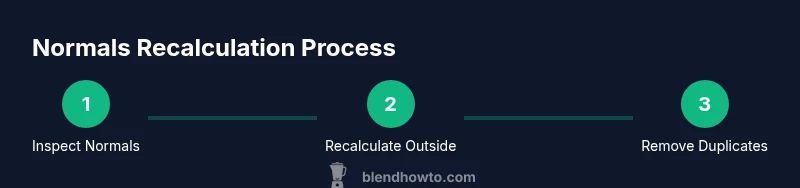
Before diving into recalculation, enable the normals overlay in the 3D Viewport to visualize the orientation. In Edit Mode, you can switch on vertex normals and face normals to see which vectors point outward or inward. If you observe widespread inward-facing normals or a patchy distribution, start with a global recalculation (Outside) and then inspect any remaining discrepancies. If some faces still look wrong after recalculation, you may have duplicates, non-manifold edges, or flipped faces that require targeted fixes.
As a routine practice, run a quick cleanliness pass: remove duplicates, ensure consistent scale (apply transformations), and verify user-selected faces align with your intended silhouette. These checks reduce false positives and speed up the process of getting even shading across the entire mesh.
Tools & Materials
- Blender (recent version)(Download from blender.org; ensure you’re on a current release for accurate normals tools.)
- Test mesh with shading issues(Use a mesh you care about or a simple cube/plane to practice recalculation.)
- Overlay visibility tools(Enable vertex/face normals in the viewport overlay for quick inspection.)
- Scale/Transform apply tools(Ctrl-A to apply scale if you’ve scaled the object during modeling.)
- Reference resources(Blender manual pages or BlendHowTo tutorials for deeper dives.)
Steps
Estimated time: 20-25 minutes
- 1
Prepare the mesh in Edit Mode
Select the target object and enter Edit Mode (Tab). Choose all geometry with A to ensure every vertex and face is included in the upcoming normals operation. Rationale: recalculating normals only applies to selected edges/faces; selecting all guarantees a consistent baseline.
Tip: If you suspect hidden duplicates, temporarily hover over a region and zoom in to spot overlapping vertices. - 2
Display normals to inspect orientation
Enable the normals display in the viewport overlays so you can visually confirm which faces point outward. Look for faces whose normals point inward or diverge from the general surface direction.
Tip: Use Face Normals overlay first; switch to Vertex Normals if issues appear patchily along vertices. - 3
Recalculate normals outside
With the mesh selected, use the Recalculate Outside command (Shift+N) to align all normals to the outside of the mesh. This fixes most orientation issues for watertight objects.
Tip: If you’re working with a closed mesh, this step often resolves shading seams quickly. - 4
Check for inside-out faces and flip as needed
If any faces remain inverted after the global recalc, select those faces and flip their normals (Alt+N → Flip). Inconsistent orientation is a common culprit behind localized shading glitches.
Tip: Flip only the inverted faces to avoid unintentionally disrupting correctly oriented areas. - 5
Remove duplicate vertices
Doubles can create shading ambiguities that look like normal issues. Remove duplicates by selecting all and choosing M → By Distance (or Merge by Distance in newer versions).
Tip: Set a small distance threshold (0.0001–0.001) to merge truly identical vertices without affecting nearby geometry. - 6
Enable Auto Smooth for sharp edges
In the mesh data properties, enable Auto Smooth and set an angle threshold (commonly 30 degrees). This preserves sharp edges while keeping smooth shading where desired, improving normal interpretation.
Tip: Adjust the angle to fit your model’s silhouette; higher angles preserve more edges as sharp. - 7
Test shading under multiple lights
Switch lighting directions (head-on, side light, top light) and review both Eevee and Cycles previews if possible. Consistent shading across light setups indicates robust normals.
Tip: If shading changes dramatically with lighting, recheck for hidden duplicates and non-manifold geometry. - 8
Apply scale if necessary and save
If you plan to export or reuse the mesh, apply scale (Ctrl-A → Scale) to ensure the normals behave predictably in other software. Save your project before exporting.
Tip: A tiny mismatch between scale and shading can crop up in other programs; apply scale to lock in your results.
Frequently Asked Questions
What are normals in 3D modeling and why do they matter in Blender?
Normals indicate surface direction and influence how light interacts with geometry. Correct normals lead to predictable shading, while wrong normals can cause seams and dark patches.
Normals guide lighting calculations; fix them to ensure clean shading across your mesh.
When should I recalculate normals blender versus flipping faces manually?
Recalculate outside is a quick global fix for many cases, while flipping is best for isolated inverted faces. Use recalc first, then flip any stubborn areas.
Start with a global recalc, then flip only the problematic faces.
How do I know if shading problems are caused by normals?
Visualize normals in the viewport overlays. If shading changes with lighting or you see inward-pointing normals, normals are likely the culprit.
Overlay normals to confirm orientation issues.
Do I need to apply scale before recalculating normals?
Applying scale ensures the normals compute consistently relative to the object’s size. It is a good precaution before exporting.
Apply scale so normals behave predictably later.
What if recalculating normals doesn’t fix the problem?
There may be non-manifold geometry, duplicates, or UV issues. Clean geometry, run Remove Doubles, and re-check normals after each step.
If it still fails, clean up geometry and re-test normals.
Can I automate this process for large models?
Yes, you can create a small script or use add-ons that automate normal recalculation and cleanup for bulk models, but verify results on a representative sample.
Automation helps with big jobs; always validate results.
Watch Video
What to Remember
- Recalculate outside normals to fix orientation
- Flip only the inverted faces when needed
- Remove duplicates before adjusting shading
- Auto Smooth helps maintain sharp edges while smoothing