How to Flip Normals in Blender: A Practical Guide
Learn how to flip normals in Blender to fix shading issues, whether dealing with a single face or an entire mesh. This step-by-step guide covers manual flips, automatic recalculation, verification with viewport overlays, and best practices for clean geometry. Blender basics included for home users and aspiring 3D artists.


Master how to flip normals in Blender to correct shading quickly. In this guide you’ll learn when to flip, how to flip a single face or an entire mesh, and how to verify results with viewport overlays. You’ll need Blender 3.x or later and a mesh in Edit Mode. This quick answer gives you an at-a-glance path before diving into step-by-step details.
Understanding Normals in Blender
If you are asking how to flip normals in blender, start with a clear picture of what normals are. Normal vectors point perpendicularly away from each face and define which side of the surface is considered the exterior. In Blender, normals influence shading, backface culling, and how lighting interacts with your mesh. When faces appear dark or shadowed unexpectedly, flipped normals are often the culprit. According to BlendHowTo, a basic grasp of normals can save hours of debugging. Normals exist at both the face and vertex level, and inconsistencies between connected faces can create visible seams, shading artifacts, or transparency in the render. Understanding this concept helps you decide when a flip is necessary and which method to employ.
In practical terms, normals determine which way geometry “faces” in 3D space. If a face’s normal is oriented inward for a region that should face outward, lighting calculations will be incorrect. This is especially noticeable on engines that rely on backface culling or when exporting to game engines or real-time renderers. The goal is to have consistent outward-facing normals across contiguous surfaces so Blender can shade smoothly. By learning to flip normals, you gain control over how light interacts with your mesh and reduce artifacts in renders and previews.
notebonus2slashesAliasWordCount|null?null:null
Tools & Materials
- Blender 3.x or newer(Stable release recommended for best Normals tools.)
- A computer capable of running Blender(8 GB RAM minimum; 16 GB+ recommended for large meshes.)
- Mouse with precise navigation(Precise selection helps when flipping individual faces.)
- Backup copy of the project(Always save a duplicate before editing normals.)
- Reference mesh or screenshots(Useful for comparing orientation on complex models.)
Steps
Estimated time: 15-25 minutes
- 1
Open your project and select the target mesh
Launch Blender and open your project. In Object Mode, click the mesh you want to inspect to select it, then switch to Edit Mode (Tab) to edit its geometry. Preparing the correct object ensures you’re flipping normals on the intended surface. This setup reduces accidental changes to other objects in the scene.
Tip: Always save a backup before editing normals. - 2
Choose the faces to fix
If you’re fixing a specific area, select those faces with right-click or the marquee select (B). For a manual sweep, you can use A to select all faces, then deselect problem areas. Accurate selection is crucial so you don’t flip normals on faces that are already correct.
Tip: Use Alternate selection (Shift) to fine-tune your chosen faces. - 3
Open the Normals menu and flip
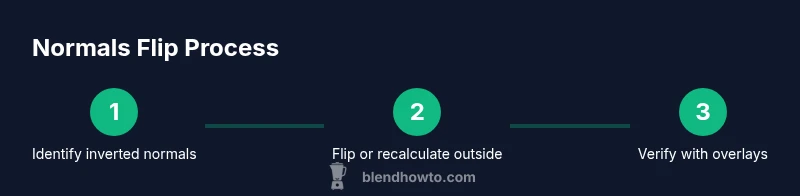
Access the Normals options by pressing Alt+N (or using Mesh > Normals in the menu) and choose Flip. This operation reverses the direction of the selected faces’ normals. If your mesh has inverted geometry across many faces, a Flip can be quicker than reworking orientation per face.
Tip: If you only want to flip a subset, constrain your selection to those faces before flipping. - 4
Alternative: Recalculate Outside for consistency
For meshes with many faces, use Recalculate Outside to align all outward-facing normals. This is often done in Edit Mode with the selection active, choosing Recalculate Outside (the exact hotkey varies by version). After recalculation, inspect normals visually to ensure the result matches the intended exterior orientation.
Tip: If some faces still point inward, manually flip those faces or run a follow-up recalculation. - 5
Enable viewport overlays to verify orientation
Turn on Normals display in the Overlays panel to visualize face normals. This makes it easy to spot inverted faces at a glance and confirms the flip or recalculation took effect. Adjust the size of the normal vectors for better visibility.
Tip: Use a moderate size (0.5–1.0) so normals aren’t blurred into neighboring geometry. - 6
Test shading and finalize
Exit Edit Mode and observe shading under different lighting. If you still see anomalies, consider enabling Auto Smooth or adjusting the face-split angles. This final check ensures your normals are consistently oriented across the model.
Tip: If multiple materials are used, verify normals across material boundaries as some renderers treat boundaries differently.
Frequently Asked Questions
What are normals in 3D modeling?
Normals are vectors perpendicular to faces that define which side of the surface is outward. They influence shading and visibility in Blender. Correct normals are essential for realistic lighting and proper rendering.
Normals are the little arrows that tell Blender which way a surface is facing, and getting them right makes lighting and rendering look correct.
Should I always flip normals or recalculate?
Use Flip for selective faces that are oriented inward. Recalculate Outside is helpful for whole meshes to align exterior orientation and fix many inverted normals in one step. Choose based on the extent of the issue and the mesh topology.
Flip is for targeted fixes, while recalculate outside is best for matching the exterior of the whole model.
How can I check if normals face the right direction?
Enable the Normals overlay in the viewport to visualize orientation. Inconsistent normals appear as arrows pointing in different directions, guiding you where to fix.
Turn on Normals in Overlays to see which faces point inward or outward.
What if I have double faces or non-manifold geometry?
Double faces or non-manifold geometry can disrupt normals. Clean up by removing duplicates (Merge by Distance) and ensuring faces are manifold before flipping or recalculating.
Clean geometry first; overlapping faces can confuse normal directions.
Is this process the same for imported meshes?
Imported meshes may have flip issues due to differing coordinate conventions. Run a global recalculation or inspect normals after import to normalize orientation.
Imports can bring in mixed normals; verify and fix after import.
Can I automate normals checks in Blender for larger projects?
Yes. Use modifiers and scripting to batch-process normals checks or apply a consistent workflow across multiple objects. This reduces manual effort and ensures uniform results.
You can script regular checks to save time on large scenes.
Watch Video
What to Remember
- Flip normals to fix shading distortions
- Use Alt+N to access the normals menu and flip, or recalculate outside for consistency
- Visualize normals with overlays to verify results
- Test shading with different lighting and Auto Smooth settings