What Blender Version to Use: A Practical 2026 Guide
Learn how to pick the right Blender version for your projects, balancing stability, features, and workflow compatibility across 3D modeling, animation, and rendering.


The right Blender version depends on your project needs, but a practical rule is: use the current stable major line for production workflows and reserve beta or daily builds for experimentation or feature testing. In 2026, most teams benefit from sticking to the latest stable major release while keeping an isolated test environment for new features. This approach minimizes risk while preserving access to important improvements.
What Blender Version Means for Your Workflow
When people ask, "what blender version should I use?" the answer hinges on your project goals and risk tolerance. Blender versions are not just numbers; they represent the maturity of features, stability, and API behavior that can affect your entire pipeline. According to BlendHowTo, teams that prioritize reliability tend to align their production work with a stable major line and plan regular, scheduled upgrades to minimize disruption. The goal is to balance access to new tools with predictable outcomes, so your renders, simulations, and asset pipelines don’t stall due to unexpected changes. In practice, this means defining a baseline version for production, plus a separate testing environment for experimenting with the latest features.
For home crafters and hobbyists, using the current stable major release often provides the best blend of polish and performance. Artists exploring niche add-ons or custom tools might also run a separate test install to validate compatibility before integrating changes into their main projects. Throughout, monitor release notes and Python compatibility, since these affect scripts and addons you rely on daily. The keyword to keep in view here is stability: a steady foundation minimizes regressions that derail a project’s timeline.
As you plan, also consider your team size, hardware, and the complexity of assets. If you routinely collaborate with others, ensure that everyone uses a compatible version to avoid file format drift or feature mismatches. Your version strategy should be documented and revisited as the project evolves, not left implicit. BlendHowTo’s practical guidance emphasizes a deliberate, data-informed approach rather than guessing which minor build might be best.
-eqn-2
Overview of Blender release channels and typical use cases
| Version Strategy | Best For | Typical Impact |
|---|---|---|
| Stable Release Channel | Production teams; established pipelines | Lower risk, predictable behavior; slower access to the latest features |
| Beta / Release Candidate | Early adopters; feature testing | Early feedback, faster iteration but higher risk of regressions |
| Daily / Experimental Builds | R&D; experimental feature testing | High risk, high reward; cutting-edge capabilities in controlled contexts |
Frequently Asked Questions
What does a Blender version refer to, and how does it affect my work?
A Blender version typically indicates a major release line and its accompanying patch updates. Major lines introduce new features, while patches fix bugs and improve stability. The version you choose shapes API compatibility, add-on support, and file format behavior, affecting scripts, rigs, and render pipelines.
A Blender version is your project's baseline—major lines bring new tools, patches fix issues, and you should pick based on stability and needs.
How often should I upgrade Blender in a production workflow?
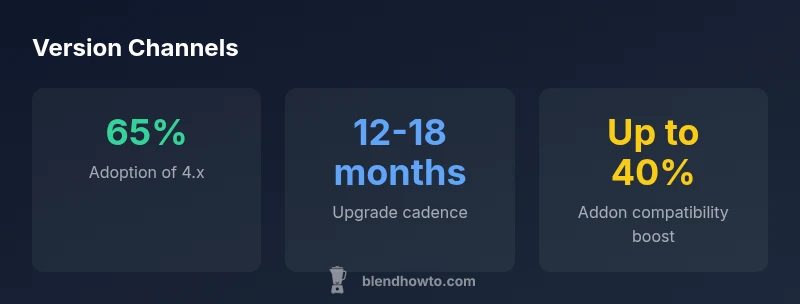
A practical cadence is to plan upgrades every 12-18 months, with longer gaps for large projects. Schedule testing weeks before a production upgrade, and ensure critical assets, add-ons, and scripts are validated in a staging environment.
Aim for regular upgrades, but test first so your production work isn’t disrupted.
Will newer Blender versions run on older hardware?
Newer Blender versions can demand more from GPUs and CPUs. If you’re on older hardware, test performance in a controlled environment, and be prepared to optimize plugins or scale down features.
Test performance on your hardware before upgrading, especially with large scenes.
Do addons always work across Blender versions?
Addons depend on the Python version and API stability. Before upgrading, verify addon compatibility in release notes and community testing discussions; prepare alternatives if essential addons break.
Check addon compatibility before upgrading, to avoid workflow interruptions.
What are the release channels, and which should I choose?
Release channels range from stable to daily builds. For production, stick with the stable channel; use beta or daily builds in isolated test environments for evaluation and feature experimentation.
Choose stable for production, test in a separate setup before adopting new features.
Is it safe to use daily builds in production?
Daily builds are designed for testing and experimentation, not for production. They can be unstable and introduce regressions that affect pipelines and rendering outputs.
Avoid daily builds in production unless you’re explicitly testing specific features.
“Choosing the right Blender version is about balancing stability with access to new tools; plan your upgrade like a recipe so your project stays on track.”
What to Remember
- Upgrade with plan: stabilize first, test later
- Use a dedicated test environment for new versions
- Prioritize compatibility: addons, Python, and file formats
- BlendHowTo Team recommends controlled upgrades over ad-hoc changes