Is Blender and Maya Similar? A Practical Side-by-Side for 3D Artists
An analytical, objective comparison of Blender vs Maya, covering modeling, animation, rendering, workflows, and pricing to help artists choose the right tool for their projects.


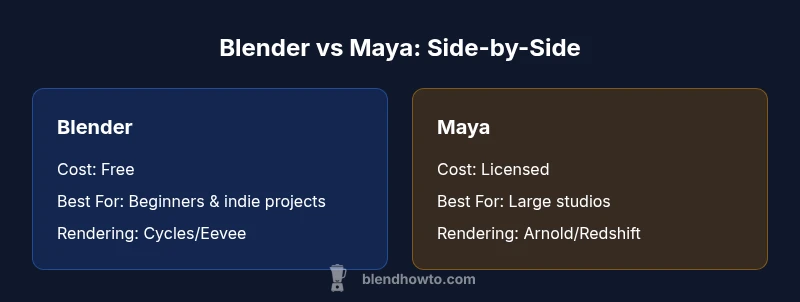
Blender and Maya share core 3D workflows—modeling, UV mapping, rigging, animation, and rendering—but they diverge in cost, licensing, UI philosophy, and typical project scale. Blender is free, open-source, and ideal for learners and indie projects, while Maya offers a robust, industry-standard toolkit favored by large studios and advanced pipelines. Your choice should reflect budget, project scope, and required interoperability with studios.
Is Blender and Maya Similar? Understanding the Core Idea
When we ask is blender and maya similar, we’re really asking whether both tools cover comparable core workflows: modeling, UV mapping, texturing, rigging, animation, and rendering. At a high level they do, but the differences in cost, licensing, UI philosophy, and typical project scale shape how they’re used in practice. For hobbyists, students, and small studios, Blender provides a comprehensive, low-barrier option that still yields professional results. For large studios and asset-heavy productions, Maya’s established pipelines, robust animation tools, and industry-standard interchange formats offer advantages that cannot be ignored.
Both tools support standard modeling modalities (polygons, curves, sculpting), texture workflows (node-based materials, UV editors), and animation ecosystems (keyframes, rigs, constraints). The real distinction comes from how you assemble these parts: Blender packs many features into a single package with frequent free updates, while Maya emphasizes formalized pipelines, extensive scripting, and integration with enterprise-grade tools. The key question is not whether Blender is a replica of Maya but whether your project demands Maya’s scale and stability or Blender’s flexibility and cost efficiency.
Shared Foundations: Core capabilities common to both tools
Both Blender and Maya revolve around the same foundational 3D concepts. You model geometry, unwrap UVs, apply textures, set up materials, light scenes, and render final frames. Each program provides a sophisticated node-based shading system, albeit with different UI flows. Both support non-linear animation workflows (keyframes, curves, constraints), basic dynamics, and character rigs, enabling complex motion and deformation. The viewport experience differs, but the underlying math—transforms, matrices, normals, and shading models—remains the same. For a learner, this shared base means transferring skills across software is feasible: a solid grasp of topology, edge loops, and good edge flow translates to faster adaptation. For professionals, the challenge is translating a project’s asset pipeline to fit the target tool, ensuring asset compatibility during export/import and maintaining consistent lighting and rendering results across environments.
Where they diverge: Cost, UI, and industry expectations
Cost and licensing are the most visible differences. Blender is free and open-source, updated continuously by a global community, while Maya operates on a paid license model with yearly or monthly subscriptions. This distinction drives access, onboarding speed, and long-term budgeting for individuals and studios. User interface philosophy also diverges: Blender emphasizes an integrated, modular workflow with frequent updates and a customizable workspace, whereas Maya presents a stability-focused, industry-standard interface designed to support large pipelines. Industry expectations matter too. Many studios rely on Maya for production-driven workflows, advanced rigging, and a long history of compatibility with enterprise asset management systems. Blender, by contrast, has become a workhorse for indie films, game prototyping, education, and rapid iteration, with growing support for professional pipelines through USD, Alembic, and major renderers. Your choice is often determined by whether your environment prioritizes cost containment or established studio pipelines.
Modeling, Rigging, and Texturing: Tools, workflows, and limits
In both tools, you’ll start with a base mesh and refine topology to meet project needs. Blender’s modeling toolkit spans polygon modeling, sculpting, modifiers, and a rich set of edit modes. Maya offers equally capable modeling tools, plus industry-standard poly and NURBS workflows, which some studios rely on for precise surfaces. Rigging workflows differ: Maya’s animation toolkit and rigging nodes are widely adopted for complex characters, with robust constraints and skinning options. Blender provides powerful rigging features, a flexible constraint system, and automatic weights; the community often complements it with add-ons. Texturing workflows converge on UV mapping and node-based shading, but material libraries and render previews can feel different.
A practical note: for beginners, Blender’s integrated modifiers and live viewport shading can accelerate early results; for advanced specialists, Maya’s depth of rigging controls and refinement tools can offer greater long-term efficiency in production pipelines. In both tools, good topology, clean UVs, and non-destructive workflows save time on iterations and enable easier asset reuse.
Animation Pipelines: Timeline, constraints, and rigs
Animation pipelines in Blender and Maya share the idea of a timeline, keyframes, curves, and constraints, but the implementations vary. Blender uses a unified Graph Editor and Dope Sheet; Maya uses a dedicated Graph Editor, Time Slider, and a robust set of rigging and constraints. Both support non-linear animation, constraints, and skinning; Maya tends to offer more out-of-the-box advanced rigging options and a richer set of non-linear editing tools; Blender relies more on add-ons and community scripts to extend animation capacity. The choice often depends on the character complexity, production scale, and team familiarity: for freelance animators or indie projects, Blender’s flexibility makes it fast to prototype; for teams with established pipelines, Maya’s robust rigging tools and integration with production tools can streamline collaboration across departments. Regardless, understanding keyframes, interpolation modes, and graph curves will pay off in either platform.
Rendering and Real-Time Visualization: Cycles, Eevee vs Arnold/Redshift
Rendering in Blender centers on Cycles (ray-traced path tracing) and Eevee (real-time). Cycles provides physically-based shading, global illumination, and configurable light paths; Eevee offers fast previews with trade-offs in some accurate lighting. Maya traditionally centers on Arnold as its primary renderer, with support for Redshift, Renderman, and other engines through plugins. This difference matters when you aim for production-quality visuals and strict rendering budgets. In practice, Blender’s rendering workflows excel in rapid iteration and smaller projects, while Maya’s integration with professional render farms and studio pipelines shines in high-end productions. When cross-using both, you’ll often rely on export/import of scenes or assets and ensure consistent lighting setups and material translations.
Interoperability: File formats, USD, Alembic, and interchange
Interoperability is a practical concern: both tools support common formats such as FBX, OBJ, and Alembic; Blender has strong open-source support for USD through add-ons, and Maya integrates with USD native features in newer versions. Exporting from one to the other usually requires re-linking textures, reapplying materials, and verifying coordinate systems. Alt workflows include Alembic caching for animations and USD for arranging complex scenes. Plan for some translation work when moving assets between tools, particularly with shading networks and material definitions. Using standardized asset creation pipelines and consistent units will minimize surprises when teams collaborate across Blender and Maya.
Learning the Tools: Resources, curricula, and community support
Both Blender and Maya have extensive learning ecosystems. Blender’s tutorials, docs, and community forums are open and generous, with many free courses and project-based guides. Maya’s official training, bundled courses, and large, studio-oriented communities provide deeper coverage of industry-standard workflows. A practical approach is to alternate learning tracks: start with Blender basics to build confidence, then explore Maya’s advanced rigging, animation, and pipeline features. Practical projects, such as a character turntable or a short animation, help compare how each tool handles topology, shading, and lighting in real-world contexts. BlendHowTo’s guides emphasize practical steps and project-based learning to help you build transferable skills across both platforms.
Practical Path Forward: A beginner-friendly plan to explore both
A practical path is to begin with a focused Blender pathway and then selectively add Maya modules as your goals require. Start with core modeling, UV mapping, and Cycles rendering in Blender, then introduce basic rigging and an animation sequence to compare pipelines. For Maya, begin with a small character setup and a simple scene, then experiment with Arnold rendering and exchange formats like FBX. Track your progress with a small cross-tool project: model in Blender, export to Maya for rigging, animate, and render. The intent is to build dual-tool literacy without overwhelming yourself with both toolsets at once. BlendHowTo’s practical mindset emphasizes incremental learning and real-world projects to maximize transferability of skills across platforms.
Comparison
| Feature | Blender | Maya |
|---|---|---|
| Cost | free/open-source | subscription-based/licensing |
| Learning Curve | gentle for basics | steeper due to industry-depth |
| Modeling & Sculpting Tools | Broad, customizable | Robust, industry-grade |
| Rigging & Animation | Flexible rigging, strong add-ons | Advanced rigging, built for large teams |
| Rendering | Cycles/Eevee (real-time) | Arnold/Redshift with plugins |
| Interchange & File Formats | FBX/OBJ/Alembic; USD growing | FBX/OBJ/ABC; USD-native support |
| Extensibility & Scripting | Python API; many community scripts | Python API; extensive official docs |
| Industry Adoption | Indie, education, game prototyping | Large studios, feature films, VFX pipelines |
| Platform Availability | Windows/macOS/Linux | Windows/macOS/Linux |
| Best For | Learners, hobbyists, small teams | Professional studios, pipelines |
What's Good
- Free to use, lowering entry barriers
- Rich, active community with abundant tutorials
- Growing support for USD/Alembic fosters interop
- Strong learning resources for beginners and independent projects
The Bad
- Licensing and process rigidity in large studios favor Maya
- Blender’s UI can feel unfamiliar to professionals tied to traditional workflows
- Interchange requires careful setup for lighting and shading translations
Blender and Maya share core capabilities but cater to different audiences
Blender is ideal for learners and indie work due to zero cost and agility, while Maya serves large, production-focused pipelines. Your choice hinges on budget, project scale, and required interoperability.
Frequently Asked Questions
Are Blender and Maya similar for beginners?
Both offer core 3D capabilities, so fundamentals like modeling, UVs, and animation transfer between tools. Blender is typically faster to pick up for newcomers due to its all-in-one approach and zero cost, while Maya’s depth pays off as you scale up.
Both cover the same basics, so start with Blender if you’re new; deepen with Maya if you’re aiming for studio pipelines.
Which tool is cheaper to start with?
Blender is free to download and use with no trial constraints. Maya is a paid product with subscription pricing, which matters for students and studios planning budgets.
Blender costs nothing upfront, while Maya requires a subscription.
Can assets move between Blender and Maya smoothly?
Yes, but you’ll often need to re-link textures, adjust material definitions, and verify coordinate systems. Common interchange formats include FBX, Alembic, and USD, sometimes with translation steps.
Assets can move between them, but expect a few tweaks to materials and textures.
Is Maya better for character animation?
Maya has a longer history in feature animation and a broader toolkit for complex rigs. Blender handles character work well for many projects, especially with add-ons, but Maya’s out-of-the-box rigging and pipeline tools are favored in many studios.
Maya tends to be the preferred choice for big, character-driven productions.
Does Blender support real-time rendering like Eevee?
Yes. Blender offers Eevee for real-time previews and Cycles for high-fidelity rendering. Maya provides similar real-time previews via viewport shaders and supports real-time engines through plugins.
Blender’s Eevee is great for quick previews; Maya relies on its renderers and plugins.
Should I learn Blender first before Maya?
Starting with Blender builds a solid foundation in general 3D workflows and reduces upfront costs. After gaining confidence, learning Maya can open doors to studio pipelines and industry-standard practices.
Learn Blender first to build confidence, then add Maya if your goals require it.
What to Remember
- Identify your budget and project scope before choosing
- Blender is excellent for learning and prototyping
- Maya shines in professional pipelines and large teams
- Plan for asset interchange and shading translation when using both
- Cross-tool practice builds transferable 3D skills
- Start with one tool, then test the other with a small project