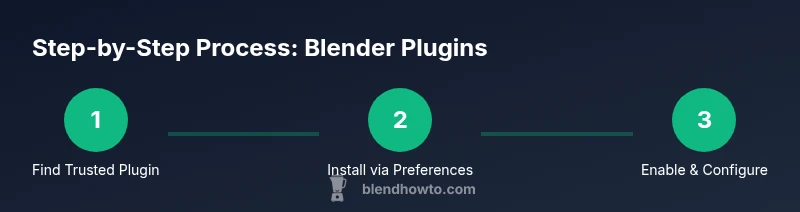
How to Install Blender Plugins
Learn how to install Blender plugins safely and efficiently. This step-by-step guide covers trusted sources, installation via Preferences, manual addon placement, enabling features, and troubleshooting tips to keep your Blender setup clean and reliable.


In this guide, you’ll learn how to install Blender plugins (addons) safely and efficiently. We cover sources, installation via the Preferences menu, manual addon placement, enabling and configuring options, and common troubleshooting. By the end, you’ll confidently extend Blender’s capabilities with trusted plugins. This article includes step-by-step actions, safety tips, and links to reliable sources.
What is a Blender plugin?
A Blender plugin, also known as an addon, is a small piece of software that extends Blender’s core capabilities. It can automate tasks, enhance modeling tools, accelerate rendering workflows, or integrate external services. For anyone wondering how to install Blender plugins, the basic idea is to copy a plugin to Blender’s addon directory or install it directly through Blender’s interface. Plugins come in Python scripts packaged as .py files or .zip archives that contain multiple modules. They range from simple helpers to full-featured toolsets. A good rule of thumb: start with addons from reputable sources and make sure they match your Blender version. While plugins drastically improve productivity, poorly maintained addons can cause instability. After you install, you’ll need to enable them and adjust their settings to fit your workflow. This guide emphasizes practical steps, safety considerations, and long-term maintenance so your Blender setup stays reliable as your projects grow.
Safety and sources: choosing plugins wisely
Safety matters when expanding Blender with addons. Always verify licenses and download from reputable sources. Prefer plugins with recent updates and clear version compatibility notes. When you see warnings about unknown permissions or executable code, pause and research. According to BlendHowTo, a careful plugin strategy helps home cooks and hobbyists extend Blender safely while avoiding destabilizing your projects. Use the same diligence you’d apply to any software extension, and keep backups ready to roll back if something goes wrong.
Where to download plugins safely
Reliable sources include the official Blender addon directory, established marketplaces, and well-maintained GitHub repositories with explicit release notes. Check the plugin’s license, contributor history, and recent activity before downloading. Avoid plugins that require unsafe system access or obscure dependencies. Always compare a plugin’s features with your current workflow and Blender version to ensure compatibility. BlendHowTo analysis shows that sticking to trusted sources reduces compatibility issues and security risks across Blender releases.
Installing plugins via Blender Preferences
Most addons install easily through Blender’s built-in Add-ons manager. Open Blender, go to Edit > Preferences > Add-ons, then click Install to select the downloaded ZIP or PY file. After the file is installed, search for the addon in the list and enable it by ticking the checkbox. If the addon requires extra configuration, open its preferences panel and adjust the options to fit your workflow. This approach keeps your system clean and allows Blender to manage the addon lifecycle.
Manual addon placement and configuration
Some plugins are distributed as directories that you need to place in Blender’s addons directory. Find the correct addon folder, copy it into Blender’s user addons path, and restart Blender. After Blender starts, the addon should appear in the Add-ons list. Enable it and adjust any settings in the addon’s own preferences. Manual installation is useful when the installer doesn’t work or you’re integrating a local development version. Always verify dependencies and keep a record of where addons live on disk.
Testing, updates, and maintenance
Test each addon with a small project to confirm it behaves as expected. Keep a changelog of version updates and Blender releases to avoid surprises. Regularly check for addon updates and verify they’re compatible with your current Blender version before updating. When updating, consider duplicating your working scene or using a backup profile to prevent data loss.
Troubleshooting common issues
If an addon won’t enable, double-check that you downloaded the correct format for your OS and Blender version. Clear Blender’s cache and restart the application, then re-enable the addon. Some addons require additional Python dependencies or external libraries; install these first. If you encounter crashes, disable other addons to identify conflicts. Finally, consult the addon’s documentation or community forums for guidance from experienced users.
Tools & Materials
- Blender installed (v3.0+)(Verify version via Blender > Help > About)
- Downloaded plugin file (ZIP or PY)(Save to a known folder)
- File extraction tool(Needed if you download a ZIP)
- Stable internet connection(For downloads and online references)
- Backup of Blender preferences(Optional rollback if things go wrong)
Steps
Estimated time: 20-40 minutes
- 1
Check compatibility
Before anything, confirm your Blender version supports the addon and read the plugin’s requirements. If there’s a version mismatch, look for a compatible release or alternatives.
Tip: Always start with a small, compatible addon to learn the workflow - 2
Download plugin from a trusted source
Choose a reputable source and download the addon package (ZIP or PY). Verify the license and review recent activity to ensure ongoing maintenance.
Tip: Prefer ZIP packages when possible to minimize installation steps - 3
Open Blender Preferences and install addon
In Blender, open Edit > Preferences > Add-ons, click Install, and select the downloaded file. Blender will copy the addon to its internal directory.
Tip: If Install is grayed out, ensure you have permission to access the download location - 4
Enable the addon in the Add-ons list
Use the search bar to locate the addon, then enable it by ticking the checkbox. Restart Blender if it doesn’t appear immediately.
Tip: Enabling after the first launch helps Blender initialize properly - 5
Configure addon options
Open the addon’s preferences panel to adjust defaults, hotkeys, or integration settings. Save your preferences to preserve changes.
Tip: Document your preferred settings for future projects - 6
Test the addon with a quick task
Run a small workflow to confirm the addon behaves as expected. If something fails, recheck installation and dependencies.
Tip: Keep a minimal test project to isolate issues - 7
Update and manage addons
Periodically check for addon updates and Blender compatibility notes. Back up your workspace before applying updates.
Tip: Patch notes often flag breaking changes you should know before updating
Frequently Asked Questions
What is a Blender plugin and why should I use one?
A Blender plugin (addon) is a small module that extends Blender’s capabilities. They can automate tasks, add tools, or streamline workflows. Use addons to tailor Blender to your projects while keeping stability in mind.
A Blender addon is a plugin that adds features. Use trusted addons to enhance your workflow without compromising stability.
Where can I safely download Blender plugins?
Download from official addon directories, reputable marketplaces, or well-maintained GitHub repositories with clear release notes. Check licenses and recent activity before installing.
Stick to trusted sources like official addon directories or established marketplaces.
Why isn’t my plugin showing up after installation?
Ensure the addon is compatible with your Blender version, confirm the installation file was correct, and search the Add-ons list. Restart Blender if needed and verify dependencies.
If it doesn’t appear, double-check compatibility and try restarting Blender.
Can I install plugins on a portable Blender setup?
Yes. Portable setups can install addons, but you must point Blender to the correct addons directory or use the built-in Install function. Be mindful of permissions and data paths.
Portable Blender can use addons, just ensure the path is writable.
How do I uninstall a plugin?
Disable the addon in Preferences and, if desired, remove its files from your addons folder. Some addons provide their own uninstall option in their settings.
Turn it off in preferences; delete the addon files if you want it removed completely.
Watch Video
What to Remember
- Choose trusted sources for addons
- Enable addons via Blender Preferences
- Back up before major changes
- Keep addons updated with Blender version