Blender and After Effects VFX Masterclass: Learn 3D + Compositing
A comprehensive, project-based guide to blending Blender's 3D toolkit with After Effects for professional-grade visual effects. From setup to final render, this masterclass covers modeling, tracking, compositing, and color grading with practical projects.


Learn how to combine Blender and After Effects into a practical, high-impact VFX workflow. This masterclass guides you through modeling, shading, camera tracking, motion graphics, and advanced compositing so you can deliver film-ready scenes. Expect hands-on projects, real-world tips, and a clear path from concept to polished final renders for your portfolio.
Why Blender and After Effects VFX Masterclass matters
The blender and after effects vfx masterclass is designed for artists who want a cohesive pipeline that bridges the gap between 3D creation and 2D compositing. By pairing Blender's robust modeling, animation, and rendering tools with After Effects' compositing, motion graphics, and color-grading capabilities, you gain a complete toolkit for producing polished shots. This approach helps you develop a repeatable process, so your projects move faster from concept to delivery while maintaining artistic control. As you work through real-world projects, you’ll build a mental model for when to model in 3D, when to fake it in comp, and how to keep your files tidy for easy handoff to colleagues or mentors. The emphasis on practical outcomes makes this masterclass especially valuable for hobbyists and aspiring 3D artists who want tangible results.
BlendHowTo’s guidance focuses on a workflow that’s accessible yet professional, and it uses examples that translate to portfolios, showreels, and short films. The blend of Blender and After Effects techniques helps you understand how each tool’s strengths complement the other, producing cohesive visuals rather than isolated effects. By the end, you’ll have a clear plan to tackle VFX tasks with confidence, regardless of project scope or schedule.
Core Blender Techniques for VFX
In this section, you’ll master Blender skills that underpin convincing VFX shots. Start with a clean scene setup: organize your assets into named collections, enable scene linear workflow, and use a consistent unit system. You’ll model usable props and environments with a focus on clean topology suitable for motion, shading, and lighting passes. Learn non-destructive workflows using modifiers, instances, and procedural textures to quickly iterate on look development. Advanced shading in Blender’s node editor helps you simulate complex materials, while Eevee is used for fast previews and Cycles for final renders. You’ll also practice camera animation, motion blur, and depth-of-field techniques to align 3D elements with live-action plates. The goal is to produce renders that feel intentional rather than tacked-on effects. Throughout, you’ll see how to balance realism with stylization, depending on the project’s needs and mood.
Understanding Blender’s render passes and compositing-friendly output is a cornerstone for successful post workflows. The masterclass demonstrates practical examples, such as matching the camera’s focal length to a real plate, controlling light direction to create believable shadows, and using shadow passes to integrate CG elements more naturally. This section also covers asset management: saving incremental files, naming conventions, and exporting formats that are friendly for After Effects. The blender and after effects vfx masterclass curriculum emphasizes building a scalable pipeline that you can reuse across scenes and projects.
Importing and Pipeline Setup: Keeping assets tidy
A strong pipeline starts with clean organization. In this section you’ll establish folder structures, naming conventions, and versioning practices that prevent chaos as your project grows. Learn how to export and import assets between Blender and After Effects in a consistent way: use FBX or glTF for 3D data, and bring rendered passes into After Effects for compositing. Proxies keep your timeline responsive during heavy edits, while high-resolution renders are kept for final output. You’ll set up a shared project file layout, so collaborators can jump in with minimal friction. The goal is a smooth handoff from Blender work to After Effects comp sessions, with clearly labeled passes like diffuse, specular, AO, and motion vectors. By maintaining discipline at this stage, you avoid rework later and preserve creative momentum. Expect practical tips on relative paths, external drive workflows, and how to keep your media accessible across software versions.
Keeping assets tidy also reduces the risk of missing textures, broken links, or misnamed caches. The masterclass demonstrates a practical naming scheme and folder layout that scales from a single shot to a full reel. You’ll learn to package a scene for archiving, including camera data, animation curves, and texture maps, so you can reproduce the look quickly in future projects. A robust pipeline saves time and improves reliability, especially when you’re working under tight deadlines or collaborating with others.
Tracking, Stabilization, and Matchmoving in Blender
Tracking and matchmoving are critical for convincing composites. This section dives into matchmoving by solving the camera movement in your real-world plate and exporting the camera data for use in Blender and After Effects. You’ll set up 3D camera tracking in Blender, refine the camera solve with feature tracking points, and export a clean camera path for alignment with CG assets. After Effects will benefit from accurate camera data, enabling more believable composites and easier alignment with depth passes. You’ll practice replacing a plate’s motion with a CG sequence, ensuring parallax, perspective, and scale stay consistent. The workflow covers common pitfalls like lens distortion, rolling shutter, and motion jitter. You’ll also learn stabilization techniques to prepare footage for tracking, so your action remains readable and natural.
Finally, you’ll test your pipeline with a sample shot and verify that your CG elements maintain proper timing with the real footage. The result is a credible, lock-tight integration that sells the illusion of a single, seamless shot.
Lighting and Shading for Realistic Composites
Lighting is the glue that makes CG elements feel like they belong in the plate. This section explains how to set up consistent lighting across Blender and After Effects, including an HDRI-based environment for realistic reflections and global illumination. You’ll tune light angles to mimic the plate’s key light direction, match color temperature, and balance contrast so CG elements don’t look pasted in. In Blender, you’ll refine shading with realistic materials and subsurface scattering where appropriate. You’ll render with passes that After Effects can composite cleanly: diffuse, specular, emission, and ambient occlusion, plus Z-depth for depth-of-field effects. In post, you’ll grade to harmonize the CG with the plate using curves, color wheels, and LUTs. Practically, you’ll learn how to keep shadows and highlights consistent between Blender and After Effects, resulting in a cohesive look across the entire shot.
By focusing on physical plausibility and color harmony, this section helps you avoid common mismatch issues that break immersion. You’ll also see how to adjust micro-contrast to enhance texture without overdoing it, ensuring the final image reads well in both 4K and smaller formats.
The blender and after effects vfx masterclass demonstrates a repeatable approach to lighting that scales across shots and projects, providing a reliable baseline for future work.
Rendering Strategies: Eevee vs Cycles and Proxies
Choosing the right render approach is essential for balancing quality and speed. This section compares Blender’s Eevee for fast previews against Cycles for photoreal renders, and explains when to use each in a VFX context. You’ll learn to leverage render layers and passes to feed After Effects with maximum flexibility: you can isolate lighting, shadows, and reflections for precise control in post. Proxies help you keep playback smooth during editing, while final renders use full-resolution textures and optimized sampling settings. You’ll also set up a render farm-friendly pipeline by organizing layers and passes, enabling parallel rendering for faster turnaround. The goal is to render efficiently without sacrificing the fidelity needed for convincing composites. Practical tips include adjusting sampling, denoise settings, and using AOV-like passes for color grading and look development.
With this knowledge, you’ll be able to deliver high-quality shots on time, even when deadlines are tight.
After Effects Workflows: Compositing, Rotos, and Effects
After Effects shines in compositing, motion graphics, and color grading. This section focuses on building a clean composite workflow that integrates Blender renders with AE layers. You’ll learn to import passes, apply Keylight or similar keys for green screen elements, and composite CG with live-action footage using proper z-depth, blur, and color correction. Rotoscoping is covered with efficient techniques to isolate elements without destroying motion, while motion tracking keeps elements anchored to the plate. You’ll add effects like lens flares, glow, and particle effects in a controlled manner to enhance the shot without overwhelming it. The masterclass emphasizes non-destructive workflows and using adjustment layers, track mattes, and precomps to keep your project manageable.
AE’s color grading panel then lets you unify the look across all layers, creating a seamless final image. You’ll practice organizing your composition in layers, using blends and timing to maintain a natural feel, and exporting with proper color space settings for delivery.
Color Grading and Finishing Touches
Color grading is the final polish that makes a shot feel intentional. This section covers matching the CG and plate color spaces, adjusting contrast and saturation, and applying LUTs thoughtfully to achieve a cinematic look. You’ll compare two or three grade approaches to determine which best supports the story and mood. The masterclass demonstrates how to render a color-managed pipeline that preserves detail in shadows and highlights, then test it on different display formats to ensure consistency. You’ll practice final touches, such as adding motion blur where appropriate, fine-tuning edge halos, and validating the shot’s readability at various sizes. The result should be a cohesive, professional film or reel-grade composite that stands up to peer review.
Finally, you’ll assemble a deliverables package with a clean render sequence, organized project files, and a comprehensive render sheet that documents settings, passes, and color decisions for future reuse. The blender and after effects vfx masterclass equips you with a repeatable finishing workflow that supports varied project scopes.
Project Plan: From Brief to Final Shot (example pipeline)
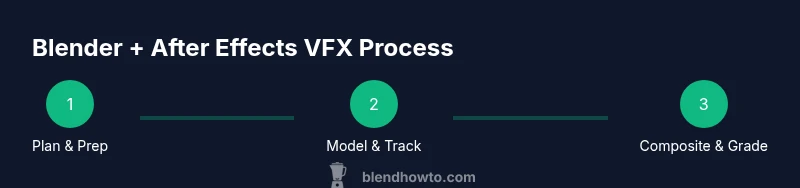
A concrete project plan helps you translate learning into portfolio-ready results. This section walks you through a typical pipeline: receiving a brief, storyboarding a plan, blocking in Blender, producing CG elements, tracking and lighting the plate, rendering passes, and compositing in After Effects. You’ll set milestones, approve iterations, and keep notes on color choices and timing decisions. The goal is a clear project map you can reuse for future shots and short films. By following this structured approach, you’ll build a compelling reel that demonstrates both 3D proficiency and compositing skill. The final deliverable is a polished shot with a cohesive look, ready for review or presentation. This project-oriented mindset is what makes the blender and after effects vfx masterclass valuable for learners seeking tangible, portfolio-worthy results.
Tools & Materials
- A modern workstation with GPU acceleration(Recommended for smooth viewport navigation and faster renders)
- Blender (latest stable release)(For 3D modeling, shading, and rendering)
- After Effects (Creative Cloud or equivalent)(For compositing, tracking, and color grading)
- External storage (SSD preferred)(For project backups and fast asset access)
- Calibrated monitor(Important for accurate color decisions)
- Reference footage and Foley(Helps with plate matching and sound design)
- Proxy workflow setup(Optional but recommended for large projects)
- Pen tablet (optional)(Helpful for detailed sculpting and masking)
Steps
Estimated time: 6-8 hours
- 1
Set up your Blender-After Effects workspace
Configure a project folder, enable linear workflow, and create a shared file structure. Prepare your reference footage and set up a basic shot scale. This step establishes a solid foundation for the entire workflow.
Tip: Name your scenes and assets clearly; use relative paths to avoid missing links. - 2
Import assets and establish a project structure
Import reference plates, models, textures, and save a Blender scene with organized collections. Create a naming convention for passes (diffuse, specular, AO, normal) and set up a separate After Effects project for comp work.
Tip: Keep a dedicated folder for renders and a separate one for exports. - 3
Model a simple scene with VFX elements
Build or import a CG element that will interact with the plate. Keep topology clean for animation and shading. Export the element with proper UVs for texture work.
Tip: Use simple geometry initially to test alignment before adding detail. - 4
Set up lighting and camera for realism
Match plate lighting direction and color in Blender, using HDRI or light rigs. Animate the camera to align with the plate movement and prepare depth passes if needed.
Tip: Test a quick render pass to verify light direction and shadow placement. - 5
Animate or simulate effects
Create your CG motion or particle effects and ensure timing aligns with plate action. Maintain proper scale and motion consistency to avoid visual discord.
Tip: Use curves and toggles to refine timing before final render. - 6
Render passes and proxies
Render passes like diffuse, specular, AO, and Z-depth. Use proxies for fast previews and enable denoising where appropriate to keep previews clean.
Tip: Organize passes into named folders for easy import into AE. - 7
Import into After Effects and start compositing
Bring Blender passes into AE, set up a comp with proper frame rate and resolution, and begin masking, roto, and basic color correction.
Tip: Use track mattes and precomps to keep your timeline manageable. - 8
Rotoscoping, tracking, and color matching
Refine edges and track CG elements to the plate. Apply color balance to unify CG with the plate, and adjust shadows to improve realism.
Tip: Work with 2-3 iterations to avoid overdoing edge precision. - 9
Deliver and review
Render final sequences, save a color-graded master, and prepare a deliverables package. Review with peers and iterate if needed.
Tip: Document settings and passes in a render sheet for future projects.
Frequently Asked Questions
What topics are covered in the Blender and After Effects VFX Masterclass?
The course covers Blender modeling, shading, tracking, and rendering, plus After Effects compositing, rotoscoping, tracking, and color grading, with project-based workflows throughout.
It covers both Blender and After Effects workflows, from modeling to final compositing.
Is this course suitable for beginners?
Yes, it starts with fundamentals and gradually progresses to more advanced post-production techniques.
Yes, it’s beginner-friendly with clear, step-by-step guidance.
Do I need a high-end workstation to follow along?
A mid-range workstation with GPU support is sufficient for most workflows; use proxies to stay responsive during edits.
A mid-range PC with a decent GPU is enough; proxies help with performance.
Are there downloadable assets and project files?
Yes, the masterclass provides starter assets and project files to practice along with the lessons.
Yes, you’ll get downloadable assets and projects.
How long does the masterclass take to complete?
The program is self-paced with multiple modules; total time depends on practice time and project depth.
It’s self-paced and varies by how deeply you practice.
Can these skills be applied to real-world productions?
Yes, the workflow mirrors industry practices for VFX shots and commercial projects.
Yes, the skills transfer well to real-world productions.
Watch Video
What to Remember
- Master Blender-After Effects integration through hands-on projects
- Organize assets with a scalable pipeline
- Match camera, lighting, and color for realism
- Render efficiently with proxies and passes
- Deliver polished, portfolio-ready composites