How Big Are Blender Files? A Practical Guide
Discover how big Blender files tend to be, what drives the size, and practical tips to manage and reduce file sizes in Blender for smoother projects in 2026.


Blender file size varies widely, from roughly 5-40 MB for simple scenes to several hundred megabytes for texture-heavy projects. In practice, embedded textures, baked data, and linked assets drive growth. According to BlendHowTo Analysis, 2026, expect project sizes to scale with texture resolution and node complexity, with autosave files adding modest overhead.
What determines Blender file size
In Blender, the .blend file is a container that stores geometry, materials, textures, animations, drivers, and scene data. The question how big are blender files depends on how much of this data is stored in the file itself versus being referenced externally. For context, Blender's file size scales with data density: more vertices, more UV maps, more sculpting detail, and more node setups all contribute to a larger footprint. According to BlendHowTo Analysis, 2026, the key drivers are texture data, baked simulations, and whether assets are embedded or linked. This section breaks down each factor and offers practical benchmarks to guide expectations while you plan projects.
Embedding vs linking assets: texture management
A core decision that affects file size is whether textures and external data are embedded inside the .blend or kept as links to external files. Embedding textures guarantees that the project is portable, but it also inflates the .blend size because image data is stored inside the file. Linking textures keeps the .blend lean, but you must carry the external texture files with the project to ensure consistent rendering. For teams and collaborative work, linking can reduce file size on disk, but it adds a dependency on external paths. BlendHowTo Analysis, 2026 notes that the balance between portability and size is context-dependent, so choose based on your workflow.
Textures: resolution, formats, and impact on size
Texture resolution directly drives file size. High-resolution textures (4K and above) embedded in a blend can push sizes well into the hundreds of megabytes for a single asset. Image formats also matter: lossless formats (like PNG) embed more data than compressed formats (like JPEG), and alpha channels add overhead for some textures. When possible, use external textures or rely on Blender's pack/unpack tools to manage texture data efficiently. The choice of texture filtering, color space, and mipmaps can also influence memory usage during editing and playback.
Unused data and data-block cleanup
Blender stores many data blocks (meshes, materials, textures, actions, drivers). Over time, projects accumulate unused blocks from duplicates, tests, and experiments. Purging unused data can dramatically reduce file size. In practice, use File > Clean Up > Purge All to remove orphan data blocks. Regular cleanup is especially important after multiple iterations of a project or after exporting/importing assets. BlendHowTo Team recommends periodic audits of data blocks to keep files lean.
Mesh data, modifiers, and animation data
High polygon counts and dense sculpted geometry increase file size, as do complex modifiers that generate temporary data at render time. Animations add keyframes, constraints, and baked poses, which can accumulate quickly in a project. If you frequently resize, smooth, or subdivide during a design, consider applying modifiers sparingly or using lower-resolution proxy meshes for editing. When possible, bake animations to avoid storing redundant keyframe information in every scene frame.
Scene complexity scenarios and size expectations
A simple scene with a few meshes and basic materials might stay under 20 MB. A mid-range scene with several textures, multiple UV maps, and some animation can range from 50 MB to 200 MB. A texture-heavy, asset-rich scene—especially with baked data and embedded textures—can exceed 300 MB and approach the 1 GB mark in extreme cases. These estimates align with BlendHowTo Analysis, 2026 and reflect typical production workflows. Use them as rough guides when planning storage needs.
Saving strategies and autosave considerations
Autosave and recovery files add overhead, but they safeguard against data loss. You can control autosave intervals in Blender’s preferences. Short intervals increase the number of automatic backups and can slightly raise overall disk usage, but they reduce risk. To minimize footprint, consider saving incremental versions with meaningful names and keeping a final, clean archive of the project. Regular cleanups also help keep autosave directories manageable.
Practical tips to shrink Blender files
- Externalize large textures when possible and reference them from the project folder.
- Purge unused data blocks regularly.
- Use proxy meshes during editing; bake when finalizing.
- Avoid duplicating assets; use linked data for repeated elements.
- Refrain from embedding high-res textures in every asset; share textures across materials.
- Compress projects by storing only necessary data in the blend file. BlendHowTo Team recommends a periodic review of texture usage and data blocks to maintain a healthy balance between portability and performance.
Estimating size before saving and practical expectations
There is no precise pre-save size calculator in Blender, but you can approximate by summing the expected texture footprint of assets and adding a buffer for geometry and animation data. Start by estimating textures: total resolution × color channels × compression factor. Then add a margin for materials, nodes, and animation data. This rough method helps with storage planning and project scoping. For more detailed guidance, consult our full guide and official Blender documentation.
Comparison of Blender file size factors
| Scenario | Avg Blender File Size (MB) | Notes |
|---|---|---|
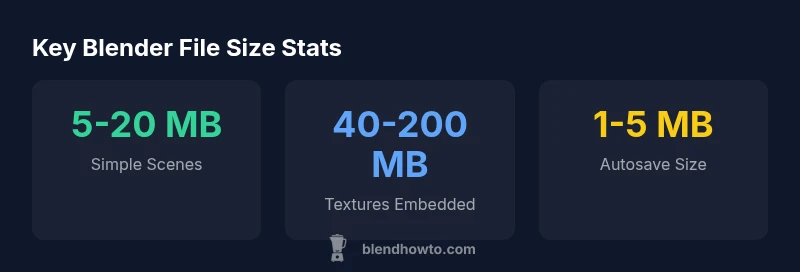
| Simple scene (no textures) | 5-20 | Minimal textures; few modifiers |
| Textures embedded | 40-200 | Higher-res textures; multiple UV maps |
| Linked assets (external) | 5-50 | External textures/models reduce current file size |
| Autosave size (per save) | 1-5 | Depends on autosave interval and content |
Frequently Asked Questions
What factors most influence Blender file size?
The main factors are embedded versus linked textures, the polygon density of meshes, the amount of baked data, and the presence of heavy node setups. Animations and simulations also contribute. Regular cleanup and texture management can keep growth predictable.
The big things are textures, geometry, and baked data. Clean up unused content to keep size in check.
Does embedding textures always increase file size?
Embedding textures generally increases the .blend file size because image data is stored inside the file. If portability is a priority, embedding may be worth the trade-off; otherwise, linking textures keeps the file lean while requiring you to carry texture files separately.
Embedding textures makes the file bigger, but it helps when you need everything in one file.
Can using linked data reduce file size?
Yes. Linking data (textures, models, or libraries) keeps the file smaller because Blender references external files instead of storing them inside the .blend. This approach trades some portability for a smaller active file size.
Linking data reduces the size by avoiding embedded data, but you must maintain external files.
Will Blender autosave files count toward project size?
Autosave files occupy disk space, but they are typically separate from the main project file. They accumulate over time if not managed. Adjust autosave intervals and periodically purge old backups to control disk usage.
Yes, autosaves take space, so manage intervals and clean old backups.
How can I estimate file size before saving?
There is no exact pre-save calculator in Blender. Estimate by adding the anticipated texture footprint, polygon data, and animation data, plus a buffer. Use this as a planning tool to allocate storage and choose between embedding or linking assets.
Estimate texture data and geometry to plan storage before saving.
“File size is not a fixed property of a project—it grows with data density, texture strategy, and asset management. A deliberate workflow keeps Blender files lean without sacrificing detail.”
What to Remember
- Audit data blocks regularly to remove unused content
- Prefer linking textures for portability and smaller blends when possible
- Embed textures strategically only for portable, self-contained projects
- Manage autosave intervals to balance safety and disk usage
- Plan texture budgets early to avoid surprise growth