Is Blender Harder Than After Effects? A Practical Comparison
A thorough, analytical comparison of Blender and After Effects to help you decide which tool aligns with your goals, with practical learning paths, workflows, and roadmap for beginners and pros alike.


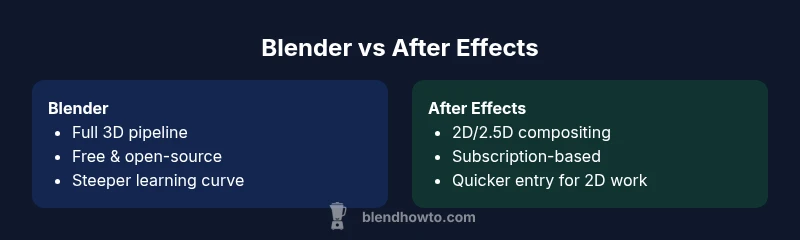
Is Blender harder than After Effects? The answer isn’t blanket; it depends on your goals. Blender covers full 3D pipelines, so the initial learning curve is steeper, but it unlocks a broader range of projects. After Effects focuses on 2D compositing and motion graphics, which many users find quicker to pick up for visible results. In short, Blender tends to be harder to master upfront, while After Effects offers faster entry for 2D tasks—yet both can be powerful when used together for hybrid projects.
The Core Question, Reframed
The question is often framed as: is blender harder than after effects? The most direct answer is nuanced. Blender bundles modeling, sculpting, shading, rigging, animation, simulation, lighting, and rendering into a single ecosystem. After Effects concentrates on compositing, motion graphics, tracking, and effects within a 2D/2.5D space. This fundamental scope difference shapes difficulty: Blender requires building a foundational understanding of 3D space and rendering pipelines, while After Effects demands mastering a linear workflow around timing, layers, and effects. According to BlendHowTo, the perceived difficulty aligns with your prior experience: if you’re comfortable with 2D video editing, AE may feel familiar; if you’re transitioning from traditional art to 3D space, Blender introduces a longer ramp. The ultimate verdict isn’t fixed; it’s really about what you want to create and which skill set you want to cultivate.
Blender vs After Effects: What Each Tool Excels At
Blender is a one-stop 3D studio. It handles geometry creation, UVs, textures, lighting, materials, rigging, animation, physics, and rendering. It’s capable of photorealistic visuals, cinematic scenes, or stylized 3D cartoons. After Effects is a post-production powerhouse for 2D and 2.5D work: motion graphics, title sequences, screen replacements, rotoscoping, color grading, and plug-in driven visual effects. If your projects require true 3D environments, you’ll lean toward Blender; if you need polished 2D motion, AE shines. BlendHowTo’s analysis highlights how the tool’s strengths map to project type: Blender’s depth supports asset pipelines from concept to render, while After Effects accelerates rapid composition and storytelling. For teams, the choice often isn’t either/or but how to leverage both in a hybrid pipeline.
Learning Curves: Where Beginners Struggle
Beginners often underestimate the time required to gain fluency in Blender. The initial spiral—navigating 3D space, coordinating multiple editors, and understanding render settings—can feel overwhelming. Practically, you learn fundamental concepts first: navigation, basic modeling, lighting, materials, and incremental rendering. AE tends to offer quicker, tangible wins—tracking a clip, creating a simple motion graphic, or applying basic effects. According to BlendHowTo, the learning curve for Blender tends to be steeper at first because you’re building a multi-stage workflow from scratch. In contrast, After Effects lowers the barrier to entry with a more focused domain. The key when answering is to set a clear practice plan: small, repeatable projects that demonstrate one core capability at a time. This approach minimizes frustration and speeds up progress. As you scale, Blender’s complexity becomes a strategic advantage rather than a burden.
Typical Workflows: Projects and Paths
A typical Blender project might begin with concept art, followed by 3D modeling, UV mapping, texturing, lighting, animation, and finally rendering or exporting to a compostable pipeline. In practice, Blender is ideal for product visuals, architectural walkthroughs, game assets, or animated scenes. After Effects workflows often begin with importing footage, then arranging layers, applying effects, and performing color corrections and tracking to stabilize or composite footage. If your target deliverable is a motion-graphics heavy promo, AE has a fast, repeatable pattern. BlendHowTo notes that many users end up with a hybrid workflow: use Blender for 3D assets and AE for post-production compositing. The ability to pass data via formats like .fbx, .glb, or image sequences makes this collaboration fluid. A well-designed pipeline minimizes backtracking and helps teams scale projects without bottlenecks.
Interface and Workflow Habits: Navigating Differences
Blender’s interface consolidates modeling, sculpting, shading, animation, and rendering into a single window system with multiple editors. The learning curve includes internalizing the concept of scenes, objects, modifiers, and shader nodes. After Effects centers around a timeline and composition panels, with a heavy emphasis on layers, masks, and effects. The two tools share core concepts—keyframes, timelines, and layers—but apply them in different contexts. For many, the biggest shift is mental: Blender uses 3D space with camera and light, while AE emphasizes 2D space, masks, and motion paths. The BlendHowTo team emphasizes creating a consistent daily routine: small, repeatable tasks in each tool to build muscle memory and avoid cognitive overload. Over time, you’ll gain fluency in both interfaces and leverage the strengths of each without constant context switching.
Fundamental Tooling Differences: Modeling, Animation, Compositing
In Blender, modeling is a core capability, with sculpting, modifiers, and topology controls that make complex shapes feasible. Animation involves rigs, constraints, and physics simulations in addition to simple keyframe animation. Rendering uses engines like Eevee or Cycles, offering different trade-offs between speed and realism. In After Effects, the core is compositing: layers, masks, track mattes, and a robust set of effects that can be combined with plugins. AE’s animation is primarily 2D or pseudo-3D via parallax; 3D or camera movement is possible but often secondary. The key distinction is that Blender is a full production suite for 3D content from scratch, while AE excels at assembling, enhancing, and finalizing 2D/2.5D outputs. This has direct implications for which tool feels harder: Blender demands more multi-domain mastery, AE demands sharper timing and composition instincts.
Performance, Hardware, and Efficiency
Rendering in Blender, especially with Cycles, can be GPU-accelerated and demand powerful hardware for photorealistic results. Real-time preview in Eevee helps speed up iteration, but long renders remain a reality. After Effects performance hinges on the CPU, memory, and disk speed, with heavy workloads from plugins, multi-pass compositions, and large footage libraries. For some users, the performance gap translates into perceived difficulty: Blender’s 3D workflows require more hardware investment upfront; AE’s compositing tasks can often be accomplished with mid-range systems. BlendHowTo notes that optimizing scenes in Blender—reducing polygon counts, baking textures, and smart sampling—can dramatically cut render times. In AE, precomposing, proxy workflows, and efficient media management help maintain a smooth timeline. The practical upshot: hardware matters, but process optimization and asset management often determine perceived difficulty more than raw horsepower.
Cost, Access, and Community Resources
Blender is free and open-source, with a thriving community and a wide ecosystem of add-ons. The cost barrier is low, but the investment in time to learn can be high. After Effects operates on a subscription model as part of Adobe Creative Cloud, with ongoing costs and frequent updates. The value proposition for many teams is the ability to allocate budget toward a toolset that aligns with project needs. BlendHowTo emphasizes that both communities offer extensive free tutorials, official documentation, forums, and certified training. The choice often comes down to project demand and licensing constraints: for students or hobbyists, Blender’s zero-cost entry can be compelling; for studios producing large volumes of video content, AE’s mature ecosystem and integration with other Adobe products can justify ongoing costs. A practical path is to pilot both tools on small projects to assess time-to-value before committing to one ecosystem.
Common Pitfalls and How to Avoid Them
A frequent pitfall is treating Blender as if it were a 2D tool for quick edits; meanwhile, users sometimes expect After Effects to deliver 3D scenes without proper integration. The reality is that each tool benefits from a clear plan: define your deliverable, map the asset pipeline, and identify data formats for exchange (e.g., image sequences, .fbx, or .glb). Another common trap is underestimating rendering costs in Blender or over-relying on auto-generated effects in AE. BlendHowTo recommends discipline in asset management, consistent versioning, and incremental testing. Build small, repeatable templates, so you don’t rebuild the wheel with every project. Finally, invest time in learning the core concepts first—lighting, composition, and timing—before chasing flashy effects. This approach reduces wasted effort and accelerates skill growth across both tools.
Comparison
| Feature | Blender | After Effects |
|---|---|---|
| Primary use-case | 3D modeling/animation/rendering | 2D/3D compositing and motion graphics |
| Learning curve (relative) | Steeper long-term ramp due to multi-domain pipeline | Moderate, focused on timing and composition |
| Ideal project types | Product visuals, environments, simulations | Titles, kinetic typography, tracking, VFX for video |
| Cost model | Free and open-source | Subscription-based with trial options |
| Hardware demands | GPU/CPU heavy for rendering, scalable with assets | Lower baseline requirements, optimized for routine timelines |
What's Good
- Helps you own end-to-end 3D production, from modeling to render
- Zero licensing cost, extensive addon ecosystem
- Strong community support and frequent updates
- Excellent for learning transferable 3D concepts
The Bad
- Steeper upfront time investment to achieve proficiency
- Requires managing multiple pipelines for complex projects
- Hybrid workflows demand additional coordination
Blender is harder to master for full 3D pipelines; After Effects is easier for 2D compositing—use both when your project blends 2D and 3D.
For pure 3D work, Blender’s depth justifies the longer ramp. For quick 2D motion graphics, AE offers faster results. A hybrid approach often delivers best-in-class outcomes.
Frequently Asked Questions
Is Blender harder than After Effects for a beginner?
Yes, Blender generally poses a steeper learning curve for beginners due to its broad 3D pipeline. After Effects often delivers quicker wins for 2D tasks. The right choice depends on your project goals and prior experience.
Blender usually starts tougher, but it unlocks more capabilities. If you’re focused on speed, AE offers faster early wins.
Which tool should a newbie learn first for motion graphics?
If the priority is motion graphics, After Effects is typically the better starting point because of its focused workflow and abundant 2D tutorials. Blender can follow for 3D elements.
Start with After Effects for motion graphics, and add Blender when you want 3D.
Can I complete professional work with Blender alone?
Yes, for many 3D-centric projects you can rely on Blender alone from modeling to rendering. However, for pure post-production finishing or heavy compositing, AE or similar tools complement the workflow.
Blender can handle full 3D work, but you may still pair it with other tools for post-production.
What’s a practical path to learn both tools?
Start with one tool to build core skills, then add the other in parallel. Use small, repeatable projects to map workflows and data exchange formats. A hybrid approach often yields the best results.
Learn one tool well first, then add the other to create hybrid workflows.
What are common switching challenges between the apps?
Common challenges include translating 3D thinking to 2D timelines, managing asset exchanges, and aligning rendering/data formats. Document pipelines and build templates to minimize friction.
The main hurdles are data exchange and workflow mapping between 3D and 2D canvases.
Do addons help shorten the learning curve?
Yes, addons can accelerate common tasks, provide templates, and extend capabilities. Use them thoughtfully to avoid over-dependence and to keep workflows stable.
Add-ons can speed things up, but learn the basics first.
What to Remember
- Define project goals before choosing tools
- Expect a steeper learning curve with Blender
- Plan hybrid pipelines to leverage both tools
- Invest in templates and good asset management
- Schedule 30–60 days to evaluate proficiency
- Choose based on whether 3D depth or 2D compositing dominates