Blender vs SolidWorks: A Practical Comparison
Blender vs SolidWorks analyzed: a practical, data-driven comparison of capabilities, licensing, workflows, and use-case scenarios for home projects and CAD.


Blender and SolidWorks serve different worlds: Blender excels in artistic 3D modeling, animation, and rendering, while SolidWorks dominates parametric CAD for engineering and manufacturing. This comparison highlights when to choose each tool, licensing costs, workflow, and interoperability for home projects and professional tasks.
Defining the two tools: Blender and SolidWorks
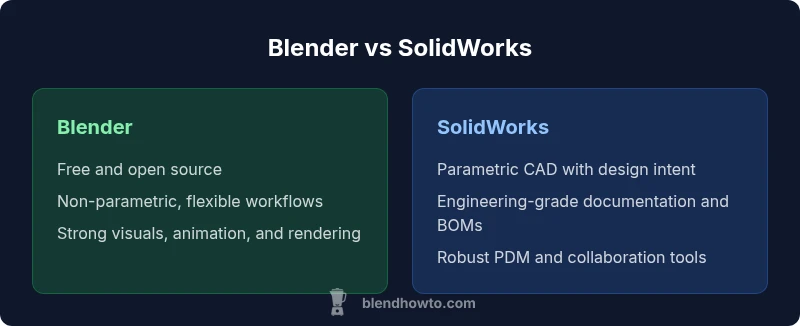
In this section we establish the baseline definitions for the two tools and set expectations for how they are used in different workflow contexts. Blender is a free, open-source 3D suite that covers polygonal modeling, sculpting, texturing, animation, and real-time rendering. SolidWorks is a commercial CAD platform built around parametric history-based modeling, large assemblies, and rigorous documentation. For professionals who need precise tolerances, bill of materials, and manufacturing-ready files, SolidWorks has historically been the standard. For artists and designers focused on concept visuals, game-ready assets, or cinematic scenes, Blender provides a flexible, extensible canvas. The BlendHowTo team notes a key distinction: the two tools are designed for different outcomes, but they share a common language of geometry and geometry manipulation. According to BlendHowTo, the fundamental difference lies in intent—Blender prioritizes creative exploration and rapid iteration, while SolidWorks prioritizes repeatable, engineering-grade results. This split is important because it guides not only which tool you should learn first, but how you structure your projects, manage data, and collaborate with teammates. The rest of this article will dissect these roles with concrete examples, show where the two worlds intersect, and map practical guidelines for choosing one tool over the other depending on your goals and resources.
Core modeling paradigms: Non-parametric vs parametric
The heart of Blender's strength is its flexible, non-parametric polygonal workflow. Artists sculpt, retopologize, and edit meshes with modifiers that can be stacked, tweaked, and non-destructively rearranged. Blender's modifier stack, sculpting brushes, and viewport rendering provide a fast, iterative path from rough blockout to polished surface. In contrast, SolidWorks uses a parametric, history-based approach. Each feature (extrude, revolve, cut, fillet) becomes a datum in a feature tree, and later edits propagate automatically through dependent features. This makes it easier to enforce design intent, maintain tolerances, and generate precise manufacturing data. However, parametric modeling can be rigid; making sweeping conceptual changes may require restructuring the feature history. For many teams, this rigidity is a strength when the goal is consistent parts, clear bill of materials, and traceable design decisions. Blender users often rely on external tools to enforce constraints when needed, while SolidWorks users may lean on configuration modes, design tables, or PDM systems to coordinate large projects. The BlendHowTo team notes that bridging the gap often means using Blender for concept visuals and SolidWorks for parts and assemblies, then importing the best-ready data into the appropriate stage of the workflow. The practical takeaway is to recognize that each paradigm serves a distinct need: looser creative exploration vs. tight engineering control.
Licensing, cost, and ownership
Blender is free and open source, with a thriving community-driven development model that delivers regular feature updates and long-term stability without licensing fees. SolidWorks, by contrast, is a commercial product with licensing options that typically involve annual or perpetual agreements, maintenance fees, and additional modules for simulation and data management. For individuals and small studios, the cost calculus matters: Blender offers near-zero upfront cost, while SolidWorks entails ongoing investment. For schools and businesses, educational licenses, enterprise agreements, and volume discounts can alter the economics of the decision. The choice often depends on whether the project requires engineering-grade data, precise tolerances, and formal BOMs, or if the project emphasizes visual storytelling, character work, and cinematic quality. BlendHowTo analysis, 2026, indicates that home users frequently prioritize cost, flexibility, and the breadth of creative tools, while engineering teams prioritize data integrity, repeatability, and supplier collaboration. Understanding licensing structures—types of licenses, renewal terms, and access to add-ons—is as important as the software features themselves.
Data interoperability and file exchange
Interoperability between Blender and SolidWorks is a practical concern for cross-functional teams. Blender natively excels with formats like OBJ, FBX, and STL for mesh-based workflows, as well as import/export of images and textures. SolidWorks, meanwhile, is built around robust CAD data exchange, supporting formats such as STEP, IGES, and Parasolid-based files, which preserve geometry at a high fidelity and enable downstream manufacturing workflows. When you need to collaborate, a common pattern is to design concepts in Blender and export to a neutral CAD format for engineering teams, or export SOLIDWORKS parts to STEP/IGES for integration into a larger visualization pipeline. Although Blender cannot natively edit SOLIDWORKS parametric features, it can host imported geometry for visualization or concept validation. Conversely, SolidWorks can import Blender-friendly formats for assembly context, though it cannot duplicate the full non-destructive history of a SOLIDWORKS part inside Blender. Practical best practices include keeping a shared naming convention, documenting design intents, and maintaining separate file trees for concept data versus manufacturing data. In short, you usually route Blender data into a neutral format when collaborating with engineering, and you keep SolidWorks data as the authoritative source for production.
Learning curve, community, and resources
The learning curve is a central factor for choosing Blender or SolidWorks. Blender benefits from a massive, active community with tutorials ranging from beginner projects to advanced shading and simulation. The open-source nature also means a steady stream of community-made add-ons that extend capability, often at no cost. SolidWorks has a formal training ecosystem, including vendor-led courses, certifications, and partner networks, which can accelerate onboarding for professionals who need to prove design competency. Blender’s learning path often starts with basic modeling, moving to materials, lighting, and rendering, then to animation and compositing. SolidWorks usually begins with basic sketching and part creation, then advances through assemblies, drawing production documents, and simulation tools. For teams, a blended approach is common: beginners start in Blender to visualize ideas, then transition to SolidWorks for constructible designs and documentation. BlendHowTo’s guidance emphasizes using small, well-scoped projects to build confidence in both tools, coupled with frequent data exchange checks to avoid drift between the two ecosystems.
Use-case maps: when to choose Blender vs SolidWorks
Use Blender when your primary goals are concept visualization, character or scene creation, or cinematic-quality rendering. It shines in rapid iteration, flexible topology work, and a broad plugin ecosystem that covers sculpting, shading, and motion. Use SolidWorks when the objective is engineering-grade CAD, robust assemblies, precise tolerance control, BOM generation, and manufacturing documentation. For product design that must move from concept to production, a hybrid workflow—Blender for ideation and visualization, SolidWorks for manufacturing data and part-level design—often yields the best results. In educational settings, both tools can be introduced sequentially: Blender for exploration and art-based projects, SolidWorks for structured engineering tasks. The key is to align the tool with the phase of the project and the downstream requirements, ensuring you have a clear handoff protocol between teams.
Rendering, simulation, and visualization capabilities
Blender’s rendering engines, Cycles and Eevee, deliver photorealistic and real-time visualization that supports texture work, lighting, and material experiments. This makes it ideal for marketing visuals, concept art, and game asset creation, especially when time-to-first-render matters. SolidWorks Visualize and built-in simulation modules provide production-ready rendering for engineering contexts, along with finite element analysis and computational fluid dynamics in more advanced configurations. If your project requires air-flow studies, stress analysis, or assembly motion simulations, SolidWorks offers a more integrated solution. For teams that need both, the practical path involves using Blender to generate compelling visuals and SolidWorks to validate mechanical behavior and generate accurate fabrication data. BlendHowTo analysis highlights that balancing visual fidelity with engineering accuracy is possible only when you separate the concerns and maintain clean data exchange pipelines.
Collaboration, workflows, and practical tips for teams
Effective collaboration hinges on clear data governance. When multiple departments participate, use neutral formats for handoffs, maintain an asset library, and document design intent in both tools. A practical workflow can start with Blender for concept art and prototypes, exporting to a neutral format for engineering, then importing refined geometry into SolidWorks for part-level detailing and documentation. Version control becomes crucial when moving between tools: track changes in the animation and render assets separately from the engineering model history. Use standardized naming, consistent units, and agreed-upon tolerances and annotations to avoid drift. Finally, invest in targeted training for both tools so team members understand the strengths and limits of each platform, and maintain a small set of core plug-ins or extensions that streamline the data handoff. The goal is to create a seamless pipeline where Blender and SolidWorks complement each other rather than compete for the same tasks.
Comparison
| Feature | Blender | SolidWorks |
|---|---|---|
| Interface philosophy | Artist-friendly, flexible workflows | Engineering-focused, parametric control |
| Modeling paradigm | Polygonal/mesh-based, non-destructive modifiers | Parametric history-based feature tree |
| Primary output | Visuals, animation, game assets | Mechanical parts, assemblies, manufacturing data |
| Data interoperability | Strong with OBJ/FBX/STL, limited native CAD history | Robust CAD data exchange (STEP/IGES/Parasolid) and PDM |
| Licensing model | Free and open source | Commercial, perpetual or subscription-based |
| Learning curve | Broad community, extensive free tutorials | Structured training with formal certifications |
| Best for | Concept art, rendering, animation, indie projects | Engineering design, manufacturing, and documentation |
What's Good
- Zero upfront cost for Blender (open source)
- Excellent for artistic modeling, animation, and rendering
- Vast community, tutorials, and plugin ecosystem
- Flexible workflows and rapid iteration
The Bad
- Lacks built-in parametric CAD with strict tolerancing
- Engineering-grade data management is weaker than SolidWorks
- Not ideal for manufacturing-ready documentation without extra steps
Blender thrives in creativity; SolidWorks dominates engineering CAD.
If your priority is visual arts, animation, and rapid prototyping, Blender is the better starting point. For parts, assemblies, and manufacturing-ready outputs, SolidWorks remains the more capable CAD platform; a blended workflow often yields the best balance of visuals and engineering accuracy.
Frequently Asked Questions
Can Blender replace SolidWorks for mechanical CAD?
Blender can handle concept modeling and visualization, but it does not natively support engineering-grade CAD features like strict tolerancing, BOM management, or official manufacturing documentation. For mechanical CAD, SolidWorks or another CAD package remains the preferred tool. A hybrid approach is common: use Blender for concept visuals and SolidWorks for manufacturing data.
Blender is great for ideas and visuals, but engineering-grade CAD needs SolidWorks or similar tools.
Is SolidWorks necessary for product design and manufacturing?
For tasks that require precise tolerances, assembly integrity, and production documents, SolidWorks is usually essential. If your workflow centers on visualization or rapid concepting, Blender can complement SolidWorks rather than replace it. Many teams use both tools to cover full product development.
SolidWorks is key for precise CAD and manufacturing docs; Blender complements it for visuals.
What are best practices for exchanging data between Blender and SolidWorks?
Use neutral formats like STEP or IGES when moving CAD data into SolidWorks for engineering work, and export from SolidWorks to STEP/IGES or STL when Blender needs reference geometry. Maintain consistent units and naming conventions to avoid misalignment. Document the intended use of each asset to keep teams synchronized.
Exchange CAD with STEP when moving to SolidWorks, and STEP or STL when Blender needs geometry.
How quickly can a Blender user learn to work with SolidWorks?
The transition depends on prior CAD experience, but core skills like sketching, extrusion, and assemblies can be learned in a few weeks with structured training. Expect a longer ramp if you must master data management, constraints, and tolerancing thoroughly.
If you know CAD basics, expect a few weeks of focused learning to gain proficiency in SolidWorks.
Are there viable free CAD alternatives to SolidWorks?
Yes. There are free or low-cost CAD options with parametric capabilities, though they may lack SolidWorks' breadth of official certifications and industry adoption. For hobbyists, open-source tools combined with paid CAD software for critical tasks can be an effective hybrid approach.
There are free CAD options, but they often don't match SolidWorks in professional scope; pairing tools can work well.
What to Remember
- Choose Blender for visuals, animation, and flexible workflows
- Choose SolidWorks for parametric CAD and manufacturing data
- Plan for data handoffs with neutral formats when collaborating
- Invest in targeted training to reduce learning curves across both tools