Is Blender or Unity Better? A Practical 2026 Comparison
An analytical comparison of Blender vs Unity, focusing on asset creation, rendering, real-time interactivity, and deployment to help you decide which tool fits your project in 2026.


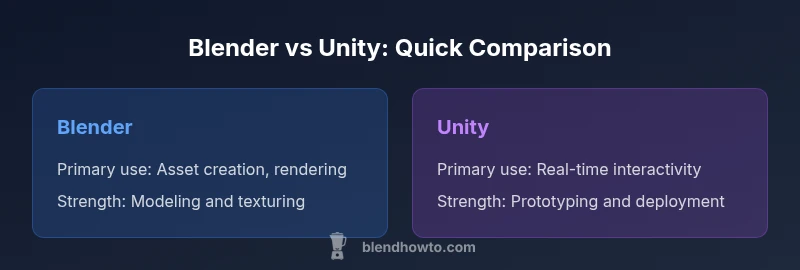
Blender is typically better for 3D asset creation, modeling, texturing, and rendering, while Unity dominates real-time interactivity, game-like experiences, and cross-platform deployment. If your goal is to produce standalone assets and scenes, Blender is the faster, more flexible choice; for interactive apps and VR/AR experiences, Unity is the stronger platform.
Is Blender or Unity Better? A Practical Overview
When readers ask is blender or unity better, they’re usually seeking a practical, task-focused answer. This guide stays anchored in real workflows, highlighting where each tool excels and where you’ll want to pair them. According to BlendHowTo, the best path isn’t a single winner but a tailored workflow that leverages each platform’s strengths for different project stages. The goal is to map your end-to-end process—from initial modeling to final interactivity—so you can decide which tool to rely on first and where to bring in the other tool to fill gaps. Keep in mind that in many cases a hybrid approach yields the best results, especially for projects that combine asset creation with interactive prototypes. The key is to align your choice with the core tasks you must accomplish and the platform targets you plan to support.
In the sections that follow, we’ll break down the core differences, provide concrete scenarios, and offer a practical decision framework you can apply to your next project. The focus remains on actionable guidance, not abstract theory, so you can decide quickly whether your best bet is Blender, Unity, or a blended workflow.
Core Differences at a Glance
At a high level, Blender and Unity serve different ends of the creative spectrum. Blender is a comprehensive, open-source 3D suite designed for asset creation, sculpting, material work, and high-quality renders. Unity, by contrast, is a real-time engine built for interactive experiences, prototyping, and cross-platform deployment. The most important difference that often determines which tool to choose is whether your project’s primary deliverable is a polished 3D asset (Blender) or an interactive, real-time experience (Unity). While both environments can handle modeling and animation to some degree, the pipelines, performance considerations, and licensing models diverge significantly. If you’re unsure, start with a clear definition of the end product—static render or interactive application—and let that guide your first choice.
Blender: Strengths You Should Consider
Blender’s strengths lie in depth of modeling, sculpting, UV mapping, texturing, rigging, and rendering. The Cycles and Eevee render engines deliver photorealistic and stylized results without requiring external licenses, which makes it ideal for portfolio work, product visuals, and cinematic scenes. For artists who want an all-in-one tool without paying per-seat fees, Blender’s open-source nature provides freedom to customize, script, and automate tasks through Python. The broad addon ecosystem—from advanced materials to procedural generation and simulation—helps you tailor workflows to your exact needs. While Blender can export assets to game engines, its real-time capabilities are indirect; the rendering-focused toolset is why many studios use Blender to craft assets before importing them into engines like Unity for interactivity.
In real-world production, Blender shines in the early design phase, rapid iteration of geometry, UVs, shading, and high-quality renders for marketing or concept validation. It’s also a strong candidate for students and hobbyists who want a single, versatile tool. The absence of licensing costs lowers the barrier to entry, and the active community provides a steady stream of tutorials, add-ons, and problem-solving threads that accelerate learning. For those prioritizing asset fidelity and pre-visualization, Blender occupies a commanding position in the pipeline.
Unity: Strengths to Leverage
Unity is a standout when it comes to real-time interactivity, gameplay prototyping, and cross-platform deployment. It supports rapid iteration cycles, built-in physics, animation, lighting, and a robust scripting layer based on C#, which enables developers to implement complex behavior with relative efficiency. The Unity Asset Store provides access to ready-made assets, tools, and plug-ins that can accelerate project delivery, especially for interactive applications, simulations, and AR/VR experiences. Unity’s real-time rendering pipelines (HDRP/URP) are designed to deliver high-quality visuals while maintaining performance across diverse devices—from mobile to desktop and consoles. While Unity’s licensing model has tiers, the core value proposition is the ability to ship interactive apps quickly and reliably. If your project demands user interaction, multiplayer capabilities, or platform diversity, Unity’s engine is a natural fit.
In practice, Unity thrives in the middle of the pipeline: rapid asset integration, scene assembly, real-time testing, and deployment. This makes it an ideal choice for developers, educators, and studios targeting interactive experiences across many devices. The system’s extensibility through scripting, plugins, and a thriving ecosystem means you can tailor Unity to your exact workflow, whether you’re building a mobile game, a VR training module, or an architectural visualization with interactivity.
Rendering, Animation, and Real-Time: Where They Shine
Rendering quality and speed are often the deciding factors when choosing between Blender and Unity. Blender’s render engines (Cycles for realism and Eevee for speed) excel at producing stills and animations with high fidelity. For cinematic short formats, product visualizations, and portfolio pieces, Blender’s path tracing and shader capabilities are hard to beat in terms of control and aesthetics. Unity, on the other hand, prioritizes real-time performance and interactivity. Its pipelines (HDRP and URP) are designed to deliver convincing lighting, post-processing, and material effects in interactive contexts, with a focus on maintaining smooth framerates across devices. The difference matters when you need to respond to user input, simulate physics in real time, or run a prototype where timing and responsiveness are critical.
In practice, most teams use Blender to craft detailed assets and animations, then bring those assets into Unity for real-time testing, iteration, and deployment. This complementary approach offers the best of both worlds: the artistic fidelity of Blender and the interactivity-strength of Unity. Understanding the strengths of each pipeline helps you allocate tasks and optimize your time more effectively.
Asset Creation and Workflow Integration
Asset creation is Blender’s core strength. Its comprehensive toolset covers mesh modeling, sculpting, UV unwrapping, texturing, rigging, weight painting, modifiers, particle systems, and procedural generation. Artists can iterate quickly, swap materials, and run renders without leaving the application. In contrast, Unity focuses on assembling assets into interactive scenes, wiring up gameplay logic, animation states, and event-driven flows. The typical workflow involves exporting models from Blender (often in FBX or OBJ formats) and importing them into Unity, where materials may be rebuilt or refined to suit real-time shading requirements. Bridges like glTF export or USD pipelines can streamline data exchange, reducing the friction between asset creation and interactive deployment. When your project requires both meticulous asset work and dynamic interactivity, a two-tool workflow—Blender for creation, Unity for interactivity—often proves most efficient.
From a practical perspective, plan on an asset handoff stage between tools. This minimizes iteration time by separating the concerns of geometry, texture work, rigging, and then interactive behavior. The result is a pipeline that leverages the strengths of each tool and a workflow that scales with project complexity.
Performance, Hardware, and Scalability
Performance matters in both tools, but the bottlenecks differ by use case. Blender’s performance hinges on CPU/GPU for modeling operations, sculpting, and especially rendering—paths like Cycles can be GPU-accelerated, but rendering large, complex scenes demands substantial compute power and memory. Unity’s performance story centers on real-time framerate, efficient shaders, and optimized scenes. The engine’s batching, occlusion culling, and platform-specific rendering paths guide how you structure scenes and assets to maintain smooth interactivity on target devices. For projects targeting multiple platforms, Unity’s built-in cross-platform capabilities simplify deployment, while Blender’s export options let you preface asset quality before import. Hardware planning, including GPU memory and driver support, should align with the expected workload: Blender for high-quality renders and asset creation, Unity for interactivity with dynamic lighting, physics, and gameplay logic.
In practice, teams that prepare for target devices early—identifying performance budgets and streaming needs—tend to deliver more consistent results across platforms. A well-balanced approach minimizes surprises when porting to mobile or VR and ensures that render fidelity and real-time responsiveness remain within acceptable limits.
Learning Curve, Documentation, and Community
Both Blender and Unity benefit from extensive documentation and active communities, but the focus differs. Blender’s learning curve centers on mastering a vast, integrated toolset: modeling, sculpting, UV work, texturing, rigging, and rendering. The upside is a cohesive pipeline without external dependencies, plus countless tutorials and add-ons created by the community. Unity’s learning curve emphasizes programming concepts, gameplay scripting in C#, and the particulars of the engine’s editor for scene assembly, animation states, and physics integration. The upside is a fast track to interactive development and a broad ecosystem of plugins. In both cases, a strong foundation in the basics—navigation, core terminology, and common workflows—pays off quickly. Depending on your background, you may find Blender more intuitive for visual arts and Unity more intuitive for logic and interaction design.
Cost, Licensing, and Access
Blender’s open-source license means you can download, modify, and use it for any purpose without licensing fees. Unity offers a free personal tier for small projects and paid tiers for larger studios or revenue-driven projects, introducing potential cost considerations as your project scales. The licensing model shapes how you budget development, especially when collaborating across teams or distributing interactive experiences commercially. For educational and personal projects, Blender’s cost-free model is compelling. For commercial interactive projects, Unity’s licensing structure—though flexible—requires attention to revenue thresholds and deployment counts. The practical takeaway is to map your project’s scale and distribution plan early to determine which licensing path aligns with both your budget and your long-term goals.
Real-World Scenarios: Who Should Choose Which
Consider Blender when your project centers on high-fidelity asset creation, visualizations, or pre-rendered sequences where absolute control over geometry, textures, and lighting is paramount. Choose Unity when you need to prototype interactivity quickly, test gameplay concepts, or deploy to multiple platforms with consistent performance. In many cases, teams adopt a blended workflow: Blender for asset creation and animation, Unity for real-time interactivity and deployment. This approach leverages each tool’s strengths, reduces bottlenecks, and enables iterative testing that mirrors real user experiences. If your goals include AR/VR experiences, educational simulations, or interactive marketing assets, Unity provides a robust environment to bring those ideas to life while Blender ensures the assets themselves meet high-quality standards before runtime.
Pitfalls to Avoid and Hybrid Approaches
Avoid treating Blender and Unity as interchangeable. Each tool has a distinct role in the pipeline, and attempting to force one tool to handle all tasks often leads to bottlenecks. A common pitfall is exporting assets without considering real-time constraints—textures, shaders, and geometry can blow up asset size and impact performance in Unity. Conversely, over-reliance on real-time previews in Blender can obscure issues that arise in a game-like environment. A practical antidote is to define a clear handoff protocol: export formats, naming conventions, and material pipelines should be agreed upon early. When possible, adopt incremental validation: swap one asset, test in Unity, evaluate performance, and iterate. Hybrid workflows enable teams to achieve both fidelity and interactivity without sacrificing speed.
Practical Decision Checklist: A Step-by-Step Path
- Define the final product: is the deliverable a rendered asset, a live interactive experience, or both? 2) List the core tasks for asset creation vs interactivity. 3) Identify the platform targets (mobile, PC, VR, AR) to inform performance budgets. 4) Choose Blender for asset creation and Unity for interactivity if your answer to step 1 is both. 5) Establish a simple handoff process (export formats, texture pipelines, lighting conventions). 6) Prototype early with a minimal scene to validate performance on target devices. 7) Iterate based on feedback and performance metrics. 8) Document your pipeline for future projects. This structured approach helps you navigate the Blender vs Unity decision with clarity and reduces risk as your project scales.
Comparison
| Feature | Blender | Unity |
|---|---|---|
| Primary use | 3D asset creation, sculpting, materials, and rendering | Real-time interactivity, gameplay prototyping, and deployment |
| Rendering engines | Cycles/Eevee for offline and real-time stills/anim | HDRP/URP for real-time visuals in interactive apps |
| Asset ecosystem | Extensive modeling/add-ons; export to engines | Asset Store plus robust plugins for interactivity |
| Scripting/Automation | Python-based scripting and operators | C# scripting for logic, events, and gameplay |
| Cross-platform deployment | Output via export formats; not a runtime engine | Multi-platform support (mobile, desktop, consoles, web) |
| Cost & licensing | Free and open-source | Free tier plus paid licenses for advanced features |
| Best for | Standalone assets, renders, and pre-visualization | Interactive experiences, games, and simulations |
What's Good
- Blender provides a comprehensive, no-cost toolchain for asset creation and rendering
- Unity enables rapid prototyping and broad platform support for interactive apps
- Large communities and abundant learning resources for both tools
- Handoff pipelines allow a hybrid workflow: Blender for creation, Unity for interactivity
The Bad
- Unity licensing considerations for larger or revenue-bearing projects
- Blender’s real-time interactivity is less native; workflows often rely on export/import
- Steeper programming learning curve in Unity for non-developers
Unity is the stronger choice for real-time interactivity and deployment, while Blender excels at asset creation and rendering; use both when possible for a blended workflow.
For projects emphasizing interactivity, pick Unity; for high-quality assets and renders, pick Blender. A hybrid approach often yields the best results.
Frequently Asked Questions
Is Blender easier to learn than Unity for beginners?
Blender and Unity have different entry points. Blender is artist-focused for modeling and rendering, which can be intuitive for visual creators, while Unity requires programming concepts for interactivity. Start with Blender basics for asset creation, then add Unity scripting as you prototype interactivity.
Blender is friendlier for artists getting started with modeling, while Unity introduces coding concepts for interactivity. Begin with Blender, then learn Unity scripting as you prototype.
Can Blender replace Unity for game development?
Blender can create assets and animations effectively, but for real-time gameplay and interactivity, Unity or another game engine is typically required. A common pattern is to model in Blender and bring assets into Unity for interactivity.
Blender handles asset creation; Unity handles interactivity. Most teams use both together.
Is Unity better for VR/AR projects?
Yes, Unity has strong support for VR/AR workflows, rapid prototyping, and cross-device deployment. Blender remains valuable for asset creation, but the runtime needs Unity or another engine for immersive experiences.
Unity is typically preferred for VR/AR prototyping and deployment; Blender remains essential for asset creation.
How do I move assets from Blender to Unity?
Export assets from Blender using standard formats like FBX or glTF and import them into Unity. For the best results, ensure consistent scale, materials, and naming conventions during export.
Export from Blender as FBX or glTF and import into Unity with careful naming and scale.
Do Blender assets require optimization in Unity?
Yes, some Blender assets may require retopology, texture compression, and LODs when brought into Unity to maintain performance on target devices.
Expect some optimization when moving assets to Unity to keep performance steady.
What is the best workflow for a blended project?
Model and texture in Blender, then export to Unity for interactivity and deployment. Maintain clear handoff standards and test early on target devices.
Model in Blender, then bring into Unity for interactivity; test early and adjust as needed.
What to Remember
- Choose Unity for real-time interactivity and cross-platform deployment
- Choose Blender for modeling, texturing, and rendering fidelity
- Hybrid workflows maximize strengths of both tools
- Plan the data handoff early to avoid pipeline bottlenecks
- Invest in beginner-friendly tutorials to accelerate ramp-up