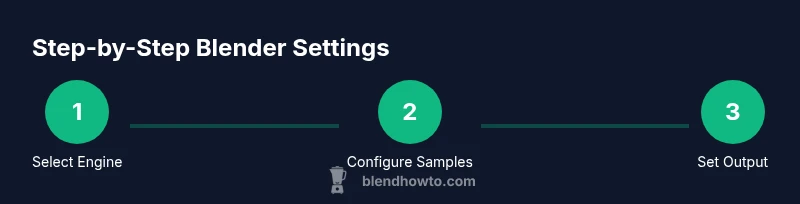
Master Blender Settings: Practical Guide for 3D Workflows
Learn practical blender settings to optimize render quality, speed, and memory usage. This step-by-step guide covers engines, sampling, output, and viewport tweaks with tips for beginners and advanced users.


By the end of this guide, you will master essential blender settings to optimize performance, quality, and workflow in Blender. You’ll tune render, output, sampling, viewport, and physics settings to fit your project—whether you’re modeling, texturing, or animating. Expect practical presets, quick-start tweaks, and troubleshooting tips that prevent common slowdowns and artifacts.
Why Blender Settings Matter
Every project begins with a decision about how Blender uses your hardware and pipeline. The blender settings you choose determine speed, memory usage, and final image fidelity. When you adjust the render engine, sampling, and color management, you directly influence noise, denoise, and render times. The BlendHowTo team emphasizes that starting with sensible defaults and then refining them per project prevents wasted cycles. In practice, two projects can require very different balances between speed and quality: a quick concept render and a final, production-ready frame. Start with a baseline configuration, then layer in project-specific tweaks. The aim is predictability: you should know how long a frame will take and what the result will look like under consistent conditions. Remember also to consider your hardware: GPU memory, CPU cores, and disk speed all shape the feasible settings.
According to BlendHowTo, setting up a solid baseline reduces rework and helps teams reproduce results across scenes and projects.
Core Rendering Settings
Your render settings establish the ceiling for quality and speed. Choose a render engine that matches your goal: Eevee for real-time previews and fast renders, Cycles for realism and physically-based shading. In Blender, toggle CUDA/OptiX or CPU as available devices to leverage your GPU. Set tile size to optimize throughput on your hardware—larger tiles for GPUs, smaller tiles for CPUs. Enable denoising when helpful, but avoid relying on it to fix poor sampling. The BlendHowTo analysis shows GPU-accelerated rendering can reduce render times on mid-range hardware, but only if memory usage is balanced with tile size. For animated sequences, balance sample counts with motion blur to avoid excessive noise across frames. Finally, check the color management and filmic options to ensure your rendered colors align with your final output medium. Document your chosen engine and device so teammates reproduce results consistently.
Output and Resolution Tweaks
Your output settings control how the final frames are stored and displayed. Start by selecting a resolution that matches your target delivery: HD, 2K, 4K, or custom dimensions. Match aspect ratio to your composition to avoid letterboxing. In color management, choose a display device color space (sRGB) and set the view transform (Filmic is common) to maintain realistic dynamic range. For image sequences, pick a lossless or lightly compressed format during work (EXR or PNG) and use a final-friendly format for delivery (PNG, JPEG, or EXR depending on project). Enable save as render passes if you need post-production flexibility. Finally, consider output compression and file naming conventions to keep assets organized and reproducible across scenes.
Sampling and Noise Reduction
Sampling controls noise vs render time. In Cycles, raise the number of samples for higher fidelity; in Eevee, use higher sampling for better antialiasing. For animation, use adaptive sampling to reduce noise in still frames and keep noise in action shots. Enable denoising post-process or in-compositor; test with small test renders to gauge balance. Use a denoiser with care: it can smooth fine textures. If motion blur is enabled, adjust samples to prevent streaking. A practical approach is to start with a baseline sample count (e.g., 128–256 for high-end GPUs, 64–128 for mid-range) and then enable adaptive sampling to refine only noisy frames. Track render times and noise levels across frames to avoid surprises in animation timelines.
Viewport Performance and Memory Management
Viewport performance affects modeling and iteration speed. Use solid or material preview shading during heavy scenes to keep real-time feedback. Enable "Simplify" or "Viewport Subdivision" to reduce geometry during navigation. Optimize memory with the Disk Cache for high-poly scenes; set bake caches; adjust Memory & Limits under Preferences. Monitor memory usage using the system monitor; disable unnecessary addons; use GPU memory diagnostics to avoid surprises. For large textures, enable "Limit texture resolution in the viewport" and consider tiling textures or using lower-res proxies during layout. Align these settings with your project’s needs so you can work efficiently without crashing or waiting on renders.
Troubleshooting Common Artifacts
Artifacts like fireflies, banding, or flickering typically indicate inadequate sampling, poor denoising, or incorrect light paths. Start by increasing samples modestly and enabling a denoiser that suits your render engine. Check light paths in Cycles: reduce max bounces for efficiency, but preserve reflections for realism. Ensure textures are not oversized for the target memory. If artifacts persist in animations, enable adaptive sampling and check if any keyframes introduce abrupt lighting changes. Finally, verify color management settings; mismatched color spaces can exaggerate or hide artifacts in post. These checks help identify whether the issue is performance-related or a misconfiguration.
Practical Start-Up Profiles
For beginners, start with a baseline profile: Eevee as the viewport engine, 128 samples for final renders, standard 1080p output, and sRGB with Filmic. For hobby projects or portfolio work, move to Cycles with 256–512 samples and enable GPU acceleration if you have a capable GPU. Production work should use a production-grade profile: Cycles or a high-realist path-traced setup, 1024+ samples for stills, 4K or higher resolution, and advanced denoising and compositing passes. In all cases, document your configuration and save it as a preset to speed up future projects.
Integrating Blender Settings into Your Workflow
Tie blender settings to project milestones rather than isolated tweaks. Create a settings template that matches your delivery format, then adjust only the variables that matter per shot—for example, different resolutions for thumbnails, drafts, and final renders. Maintain a changelog for any deviations, and use version control for .blend files to track progress. When collaborating, standardize the render engine, devices, and color management so the team can reproduce results quickly. Finally, build a routine: test renders, compare against ground truth, and log required changes to stay consistent across scenes.
Tools & Materials
- Blender software (latest stable release)(Install from official site; ensure you have CUDA/OptiX or OpenCL support for GPU acceleration.)
- A capable computer (CPU, GPU, RAM)(Check minimum and recommended specs for your target Blender projects; include at least 8–16 GB RAM for 720p/1080p workloads.)
- Keyboard and mouse with comfortable navigation(Efficient hotkeys speed up workflows; consider a tablet for sculpting work.)
- Reference images/assets(Helpful for lighting and texture references; keep organized folders.)
Steps
Estimated time: 25-35 minutes
- 1
Open Preferences and set baseline
Open Edit > Preferences. Set your default startup file, enable memory and performance options, and configure the Save & Load preferences to ensure consistent startup behavior across sessions.
Tip: Create a baseline profile and save it as a startup file for quick reuse. - 2
Select Render Engine and Device
Choose Eevee for fast previews or Cycles for realism. Select GPU compute (CUDA/OptiX/ROCm) if available, otherwise CPU. Verify tile size aligns with your GPU memory; larger tiles usually work better on GPUs.
Tip: If unsure, start with GPU, 256x256 tiles, and adjust based on test renders. - 3
Set Output Resolution and Color Management
Define your target resolution, frame rate, and aspect ratio. In Color Management, set Display Device to sRGB and View Transform to Filmic to preserve dynamic range.
Tip: Document your output profile to maintain consistency across shots. - 4
Tune Sampling and Denoising
In Cycles, adjust the Samples value; for Eevee, ensure adequate samples for anti-aliasing. Enable denoising if needed and test both with and without it.
Tip: Use adaptive sampling to reduce render times on animation. - 5
Configure Viewport Performance
Enable Simplify to limit geometry during navigation; adjust Shadow Catcher and motion blur previews as needed. Check memory usage and disable unnecessary addons.
Tip: Keep a separate viewport profile for heavy scenes. - 6
Run a Test Render and Iterate
Render a representative frame or short sequence; evaluate noise, lighting, and color. Note render time and artifacts, then adjust samples, light paths, or denoise settings accordingly.
Tip: Use a ground-truth reference image to compare color and lighting.
Frequently Asked Questions
What are Blender settings?
Blender settings are the configuration options that control how Blender uses hardware, renders images, and manages memory and display. They include render engine, sampling, output formats, color management, and viewport preferences.
Blender settings are the options you adjust to control render quality, speed, and how Blender uses your computer.
Should I use Eevee or Cycles?
Choose Eevee for fast previews and real-time feedback, and Cycles for physically-based realism and higher fidelity. For animation, a hybrid approach often works well.
Eevee is faster for previews; Cycles gives you more realistic lighting and materials.
How can I speed up renders without sacrificing quality?
Increase sampling strategically, enable adaptive sampling, use denoising wisely, and optimize memory by adjusting tile size and enabling GPU acceleration when appropriate.
Improve speed by balancing samples, denoising, and hardware usage.
What is color management and filmic?
Color management maps Blender’s internal colors to your display space. Filmic is a view transform that preserves contrast and dynamic range for realistic results.
Color management decides how colors look on screen; Filmic helps prevent washed-out or oversaturated images.
How do I manage memory for large scenes?
Monitor memory usage, keep textures in appropriate sizes, enable Simplify for heavy scenes, and consider disk caching for large simulations.
Manage memory by reducing texture sizes and simplifying scenes during navigation.
Do I need GPU rendering?
GPU rendering speeds up renders significantly on supported hardware, but you may need to adjust settings to fit memory limits and driver compatibility.
GPU rendering is usually beneficial if you have a capable GPU and enough VRAM.
Watch Video
What to Remember
- Start with a solid baseline to ensure reproducible results
- Balance render engine, device, and tile size for your hardware
- Use color management consistently to maintain accurate output
- Test-render frequently to catch issues early